> For the complete documentation index, see [llms.txt](https://docs.claret.app/llms.txt). Markdown versions of documentation pages are available by appending `.md` to page URLs; this page is available as [Markdown](https://docs.claret.app/pack/inventory-workbench-internal.md).
# Inventory Workbench - Internal
Plan optimal production runs by analyzing current inventory levels, sales forecasts, and days on hand targets using the Inventory Workbench.
Balancing production schedules with fluctuating demand is a constant challenge. Produce too much and you tie up capital in excess inventory; produce too little and you risk stockouts and missed sales. Claret's Inventory Workbench - Internal is designed to help you find that balance.
The Inventory Workbench - Internal module brings together, in one place, your:
* Current inventory levels at each location
* Sales forecasts and historical demand
* Days on Hand (DOH) targets and safety stock requirements
* Supply plan recommendations
This allows you to see your inventory position across all items at a location, identify where you need to produce more (or less), and generate supply plans that maintain your target inventory levels while meeting expected demand.
{% hint style="info" %}
For the Inventory Workbench - Internal module to work correctly, there will need to be some Master Data set up. For details please visit [Inventory Workbench - Internal Setup](/pack/inventory-workbench-internal/inventory-workbench-internal-setup.md)
{% endhint %}
## Navigating to the Inventory Workbench
To access the Inventory Workbench - Internal module, go to the Pack module and select 'Inventory Workbench - Internal'.
## Creating a View
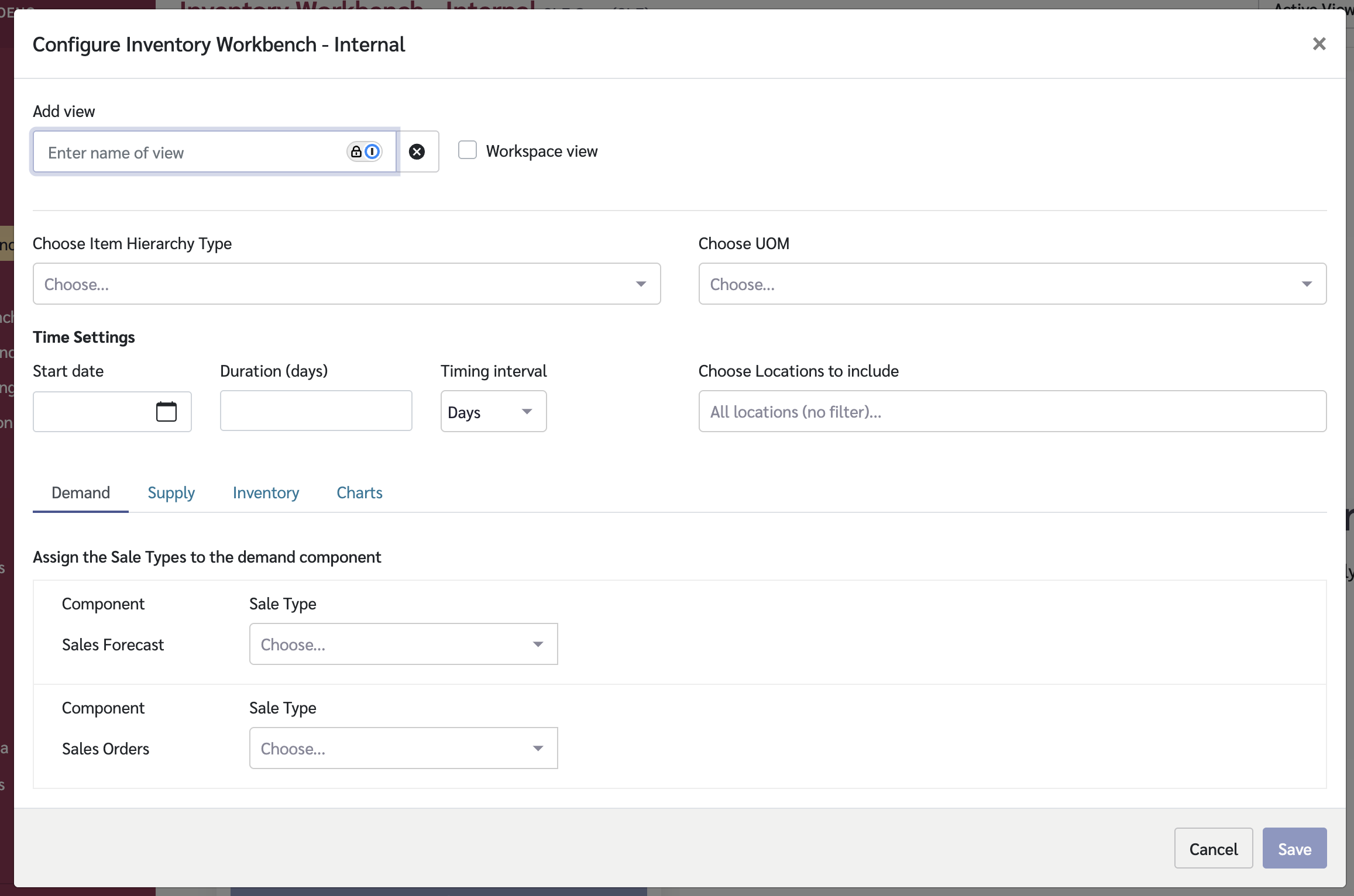
Before you can use the workbench, you must create a View that defines how data is displayed and calculated.
### Create a New View
1. Click on the View dropdown in the top-right corner of the page.
2. Click "Add View".
3. Enter a name for your View.
4. Configure the View settings (see below).
5. Click "Save".
The View configuration screen lets you set the data to use in the view.
Options are required for:
* **Item Hierarchy Type** - The item hierarchy you wish to work with
* **Unit of Measure** - The UOM for display and calculations
* **Time Settings** - Configure how time periods are displayed in the workbench:
* **Time Period Type**: Choose between calendar-based periods (aligned to your fiscal calendar) or continuous periods (a configurable number of periods from the start date)
* **Time Interval**: Select Days, Weeks, or Months to control the granularity of each column in the grid
* **Start Date**: Set when the planning period begins
* **Choose Locations to include** (optional) - Select one or more locations to restrict which locations appear in the sidebar. Leave empty to show all available locations.
There are then 4 tabs where you will need to select options to configure your View\.7
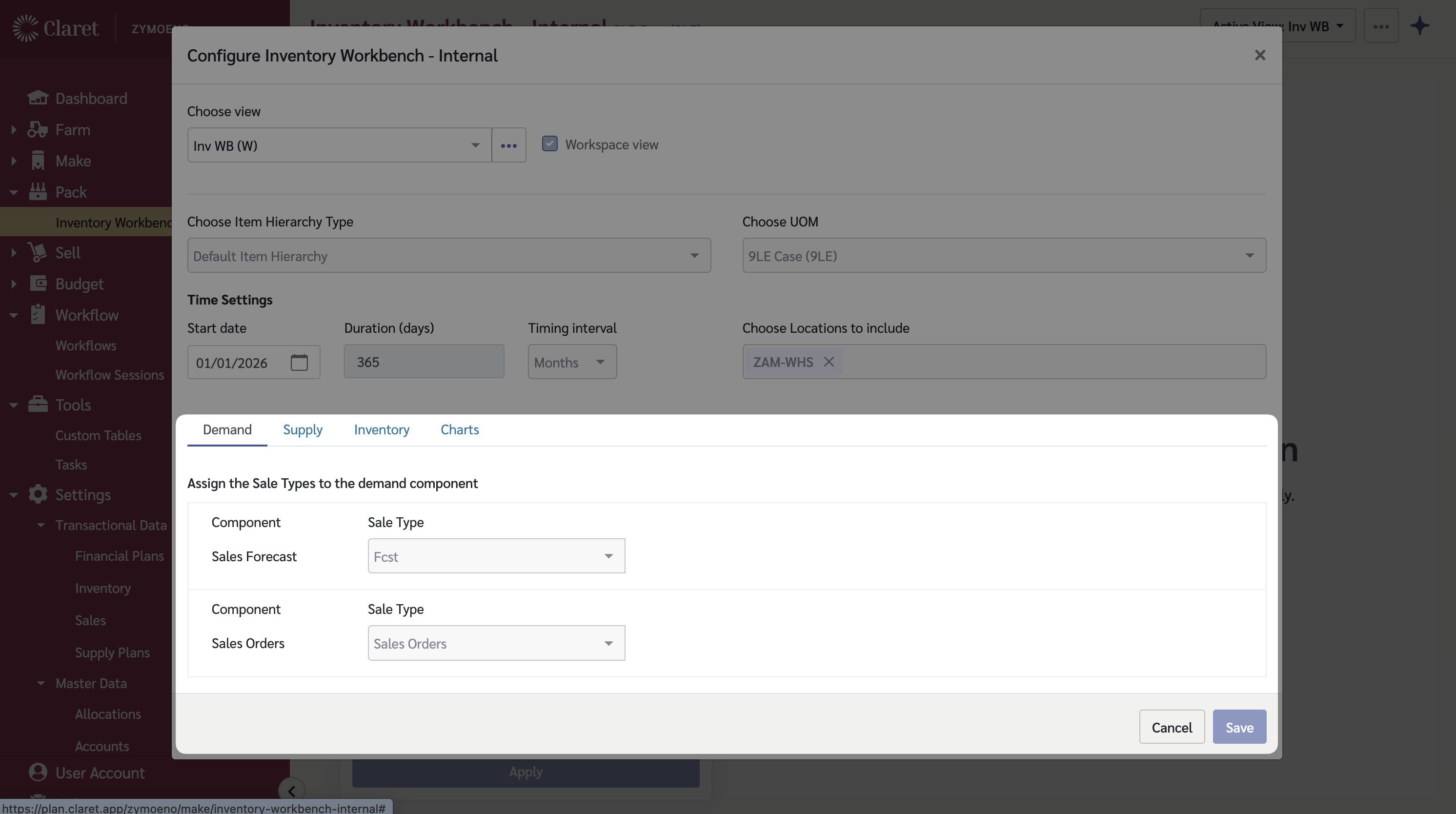
### Demand Tab
The Demand tab is where you configure which sale types represent customer demand for production planning.
| Field | Description |
| -------------- | ---------------------------------------------------------------------------------------------------------------------------------------------------------------- |
| Sales Forecast | Select the sale type that contains your sales forecast data. This is used to project future demand and calculate production requirements. |
| Sales Orders | Select the sale type that contains actual sales orders. This provides real order data that can be used alongside or instead of forecasts for near-term planning. |
The workbench uses this demand data to:
* Calculate how much inventory you need to meet expected sales
* Project when you will need to produce more
* Inform Days on Hand calculations
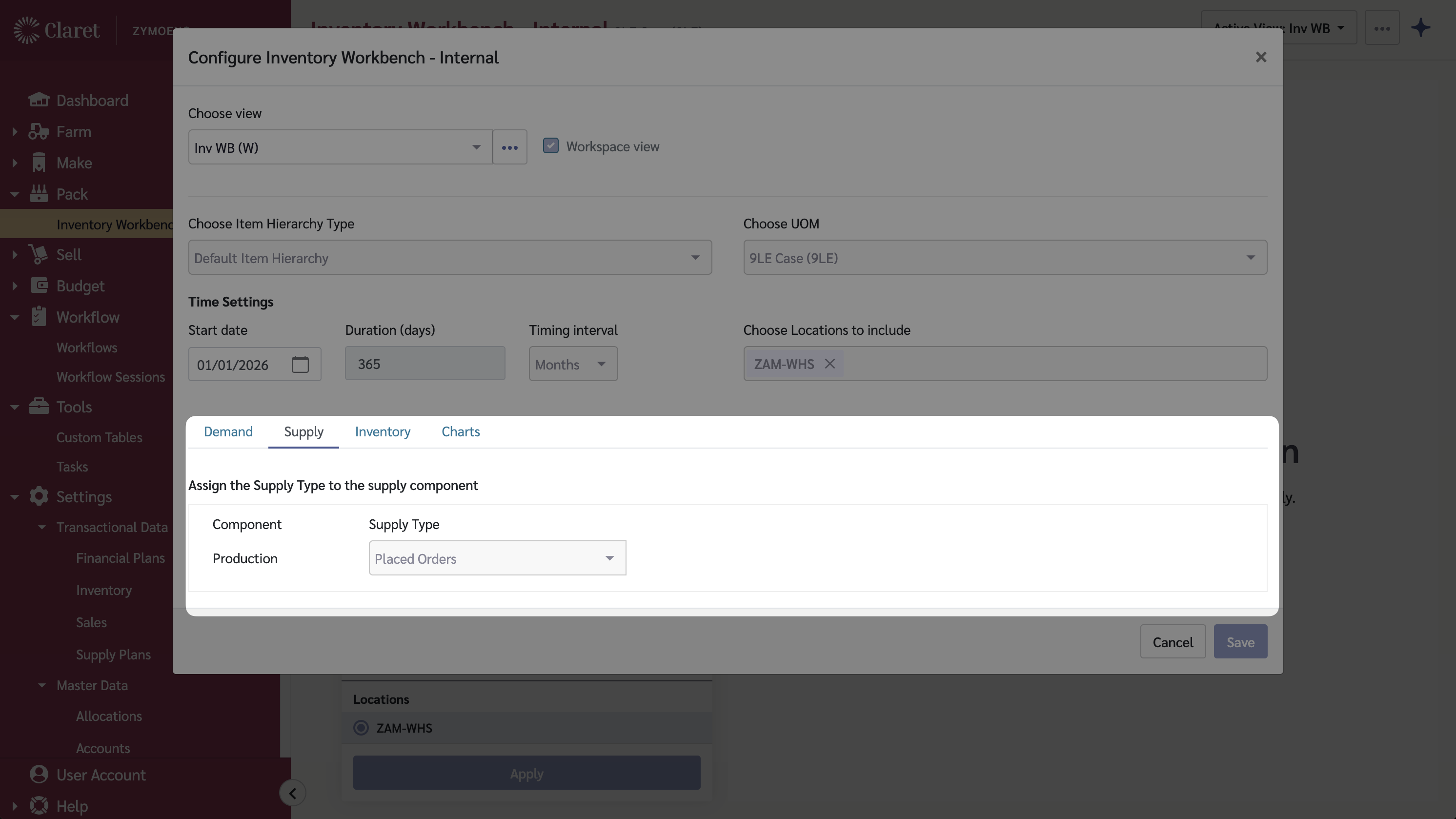
### Supply Tab
The Supply tab is where you configure the supply type used for production planning.
| Field | Description |
| ----------- | ------------------------------------------------------------------------------------ |
| Supply Type | Select the supply type used for supply plans (e.g., "Production", "Planned Supply"). |
The workbench uses this supply data to:
* Display existing supply plans in the detail grid
* Store generated supply plan recommendations
* Calculate the impact of planned production on inventory levels
### Inventory Tab
The Inventory tab is where you configure Days on Hand calculations and display settings.
| Field | Description |
| ------------------------ | ------------------------------------------------------------------------------------------------------- |
| Days on Hand Calculation | Choose whether to calculate DOH based on Beginning Inventory or Ending Inventory. |
| Conditional Formatting | Configure visual indicators (e.g., highlight cells where DOH is greater than or less than a threshold). |
These settings control:
* How Days on Hand values are calculated in the detail grid
* Visual formatting to highlight items that need attention
* Time period alignment for planning calculations
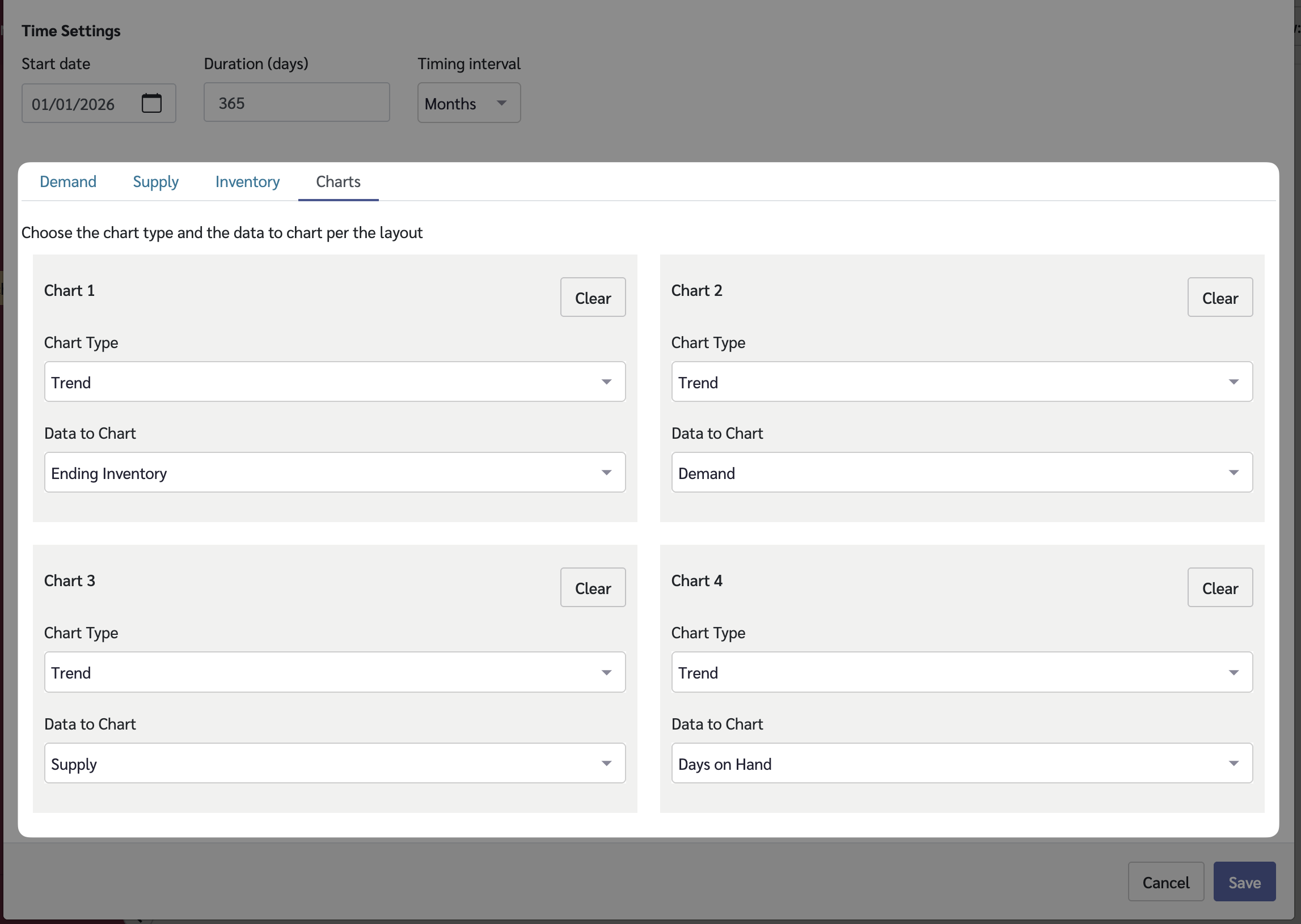
### Charts Tab
The Charts tab allows you to configure up to 4 visualizations that appear in the detail view when you select an item.
Available data options to chart include:
| Data to Chart | Description |
| ------------- | ----------------------------------------------------------------------------- |
| Days on Hand | Shows projected DOH over time based on current inventory and demand forecasts |
| Sales | Displays historical and forecasted sales trends |
| Inventory | Shows inventory level changes over time |
| Supply Plans | Displays planned production quantities |
Charts provide a visual representation of the data in the detail grid, making it easier to identify trends and plan production timing.
## Using the Sidebar Filter
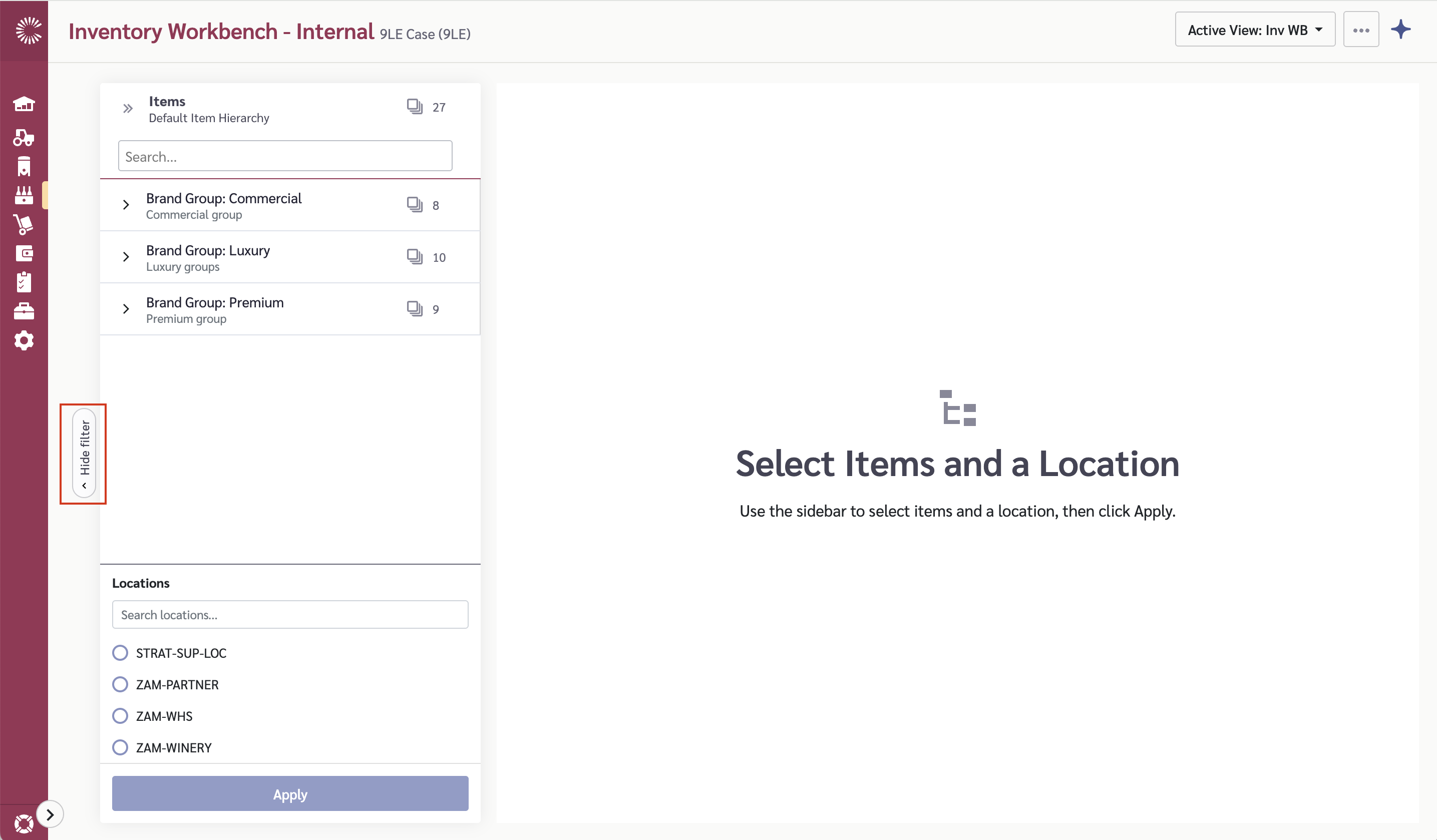
The sidebar filter is where you select which location and items to view in the workbench. Use the toggle button on the left edge of the screen to show or hide the sidebar filter.
### Sidebar Filter Toggle
A pill-shaped toggle button appears on the left edge of the workbench:
* When collapsed, it shows "Show filter"
* When expanded with selections made, it displays a summary (e.g., "5 items @ Main Warehouse")
* Click the toggle to expand or collapse the sidebar filter
* Your selections persist when you collapse and reopen the sidebar filter
### Selecting Items and Location
You must select both a location and items to view data in the workbench.
1. Open the sidebar filter using the toggle button.
2. In the Location section, search or browse for your location and click to select it. If your View is configured with a **Choose Locations to include** filter, only those locations will be listed.
3. In the Items section, browse or search the item hierarchy tree:
* Use checkboxes to select individual items
* Click the cards icon beside a hierarchy level to automatically select all items underneath
* The header shows how many items are selected (e.g., "Items (5 selected)")
4. Click "Apply" to confirm your selections and load the grid.
{% hint style="warning" %}
Only locations that have Item @ Location and Item @ Customer Group links (via the Supply and Demand Map) appear in the location list.
{% endhint %}
## The Inventory Workbench Grid
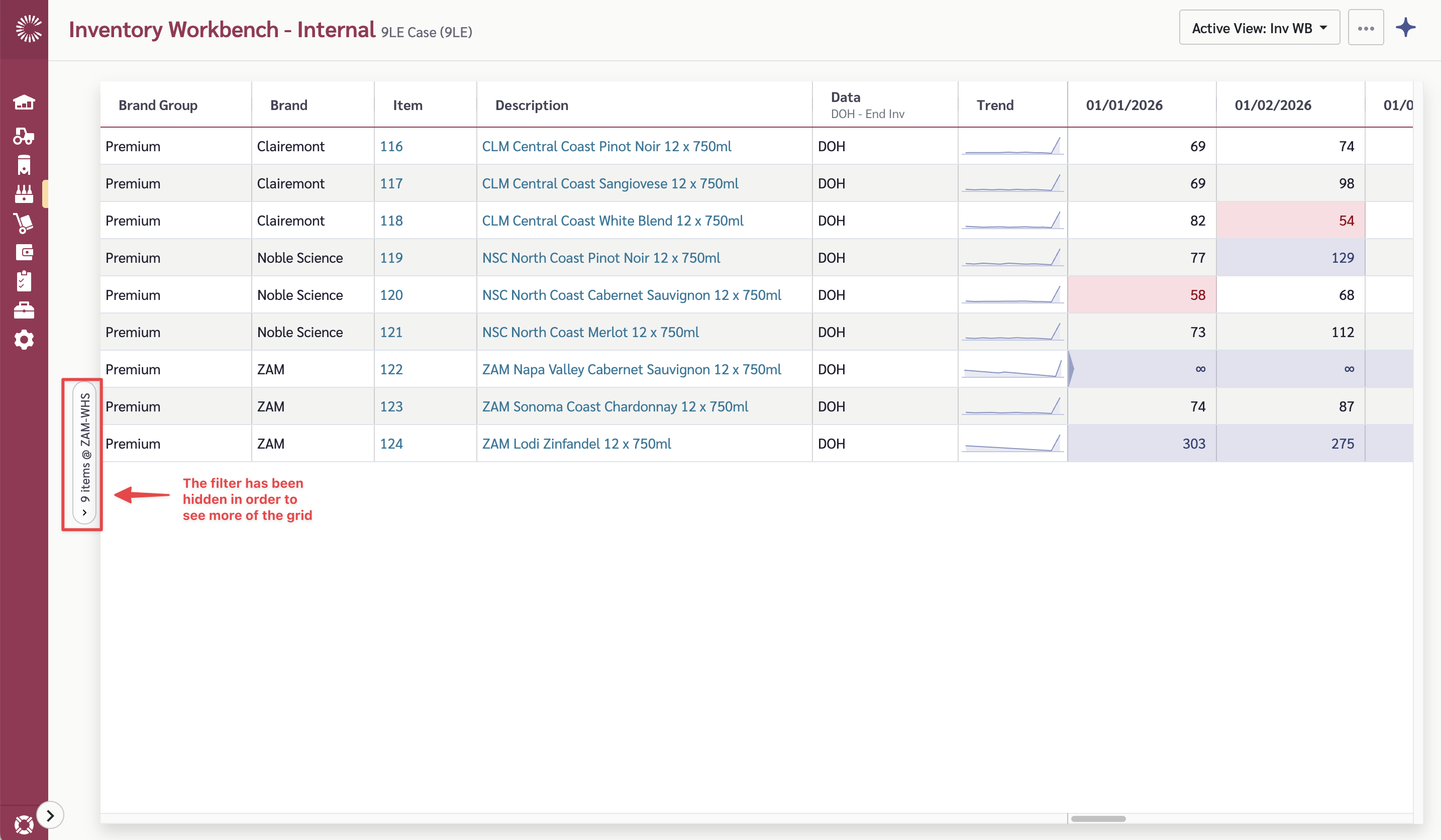
The main grid provides an at-a-glance view of Days on Hand across all items at the selected location. Each row represents an item, and the time period columns show DOH values calculated from the underlying demand forecasts, inventory levels, and supply plans.
{% hint style="warning" %}
Collapse the item and location filter for better viewing of the grid.
{% endhint %}
{% hint style="info" %}
The relationships between Items and Locations are set on the [Item @ Locations](/master-data/item-locations.md) page. A row will appear in the grid for every item that is linked to the selected location.
{% endhint %}
### Grid Columns
| Column | Description |
| ------------------- | ------------------------------------------------------------------------------------ |
| Item Hierarchy | Item parents, item name and description based on your selected hierarchy |
| Data | Indicates what data element is showing (generally DOH - Days on Hand) |
| Trend | Sparkline chart showing DOH trend over time |
| Time Period Columns | Days on Hand value for each period (month, week, or day based on your View settings) |
Days on Hand values are color-coded to highlight items needing attention:
* **Red** indicates DOH is below your configured threshold (potential stockout risk)
* **Indigo** indicates DOH is above your configured threshold (potential overstock)
* **∞** (infinity symbol) appears when DOH exceeds 365 days
{% hint style="info" %}
The main grid shows summarized DOH values. To see the underlying demand forecasts, inventory levels, and supply plan details, click on a row to open the detail view.
{% endhint %}
### Filtering the Grid
1. Hover over a column header to reveal the filter menu icon.
2. Click the menu icon to open the filter options for that column.
3. Enter filter criteria or select values to filter by.
4. The grid updates automatically to show only matching rows.
### Viewing Item Details
Click on any row in the grid to open the detail view showing comprehensive item information.
## Working with the Detail View
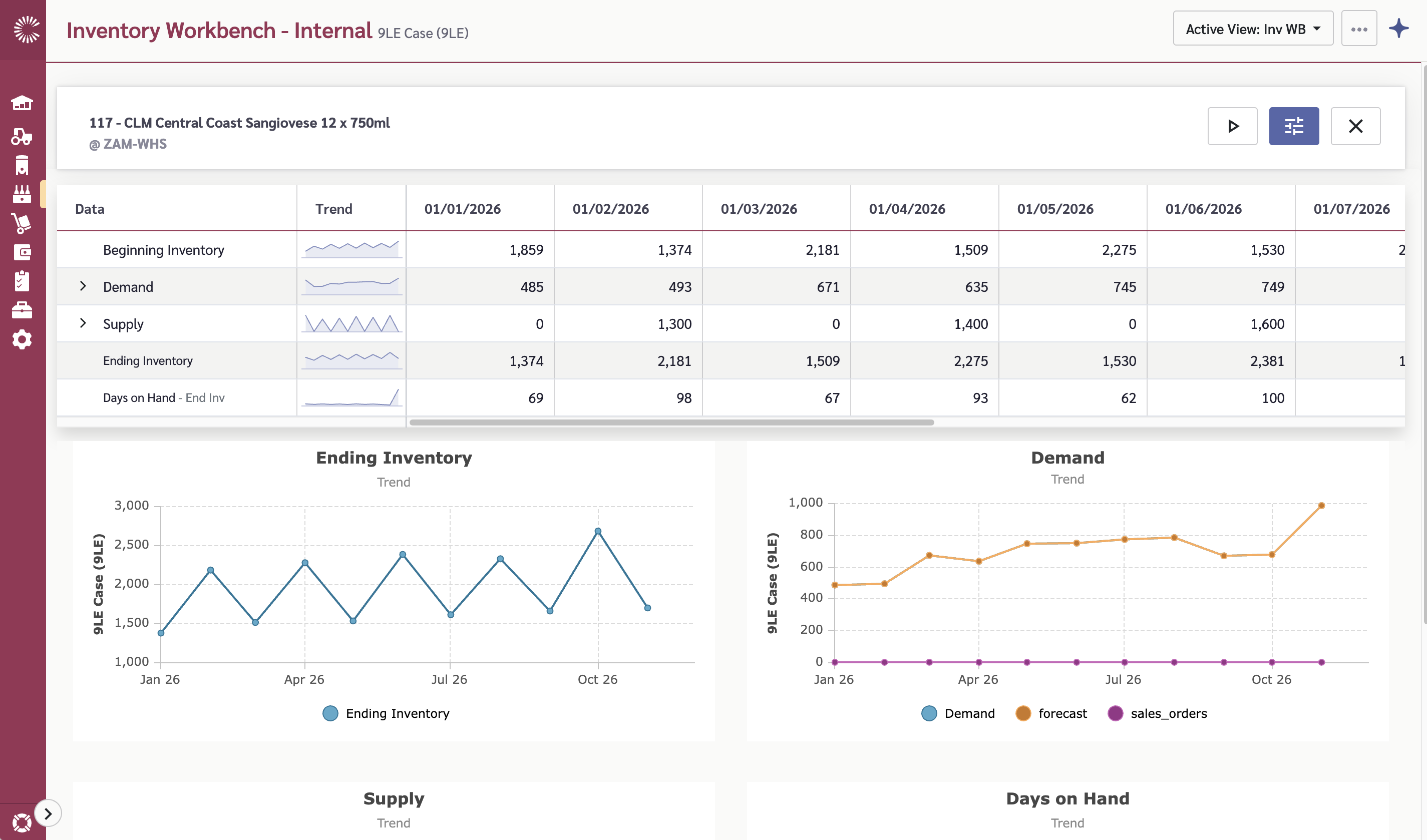
The detail view is where you analyze inventory and manage supply plans for a specific item at the location. Use it to:
* See how demand forecasts and supply plans affect inventory levels over time
* Identify when you need to produce more to avoid stockouts
* Edit supply plan quantities to adjust production schedules
* Run supply plan generation to get production recommendations
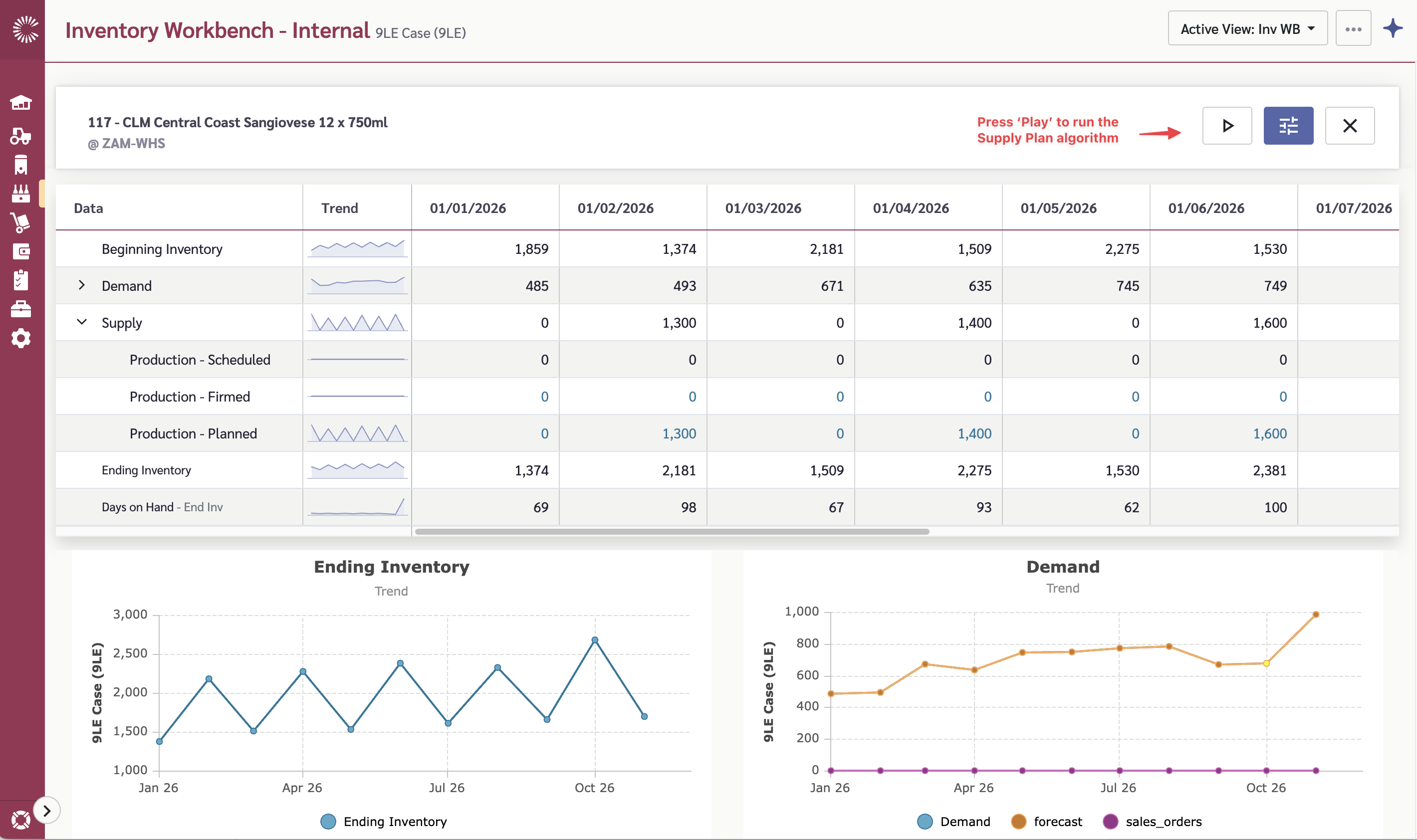
The detail view contains:
* **Header** - Shows item name, description, and location
* **Detail Grid** - Hierarchical tree view showing demand, supply, and DOH data by time period
* **Charts** - Up to 4 visualizations based on your View configuration
* **Action Buttons** - Run supply plan and configure planning parameters
### Detail Grid Structure
The detail grid displays data in a tree structure with the following rows:
| Row | Description |
| ------------------- | ------------------------------------------------------------------------------------------------------------------------------------------------------------------------- |
| Beginning Inventory | Starting inventory for each period. For the first period, this is the actual current inventory. For subsequent periods, it equals the previous period's ending inventory. |
| Demand | Parent row containing sales forecast data. Expand to see Forecast and History sub-rows. |
| Supply | Parent row containing supply plan data. Expand to see existing and planned production. |
| Ending Inventory | Closing inventory for each period. |
| Days on Hand | How many days the ending inventory will last based on forecasted demand. |
### How Calculations Work
**Ending Inventory** is calculated for each period as:
```
Ending Inventory = Beginning Inventory - Demand + Supply
```
**Days on Hand** looks forward from each period to determine how long the inventory will last:
1. Starting with the ending inventory for the period
2. Subtracting forecasted demand from each future period
3. Counting days until inventory runs out
4. If inventory covers all visible periods, DOH shows as **∞** (infinity)
{% hint style="info" %}
The DOH calculation uses forecasted demand to project how quickly you will sell through inventory. Higher DOH means more runway; lower DOH indicates production is needed soon.
{% endhint %}
### Editing Supply Plan Values
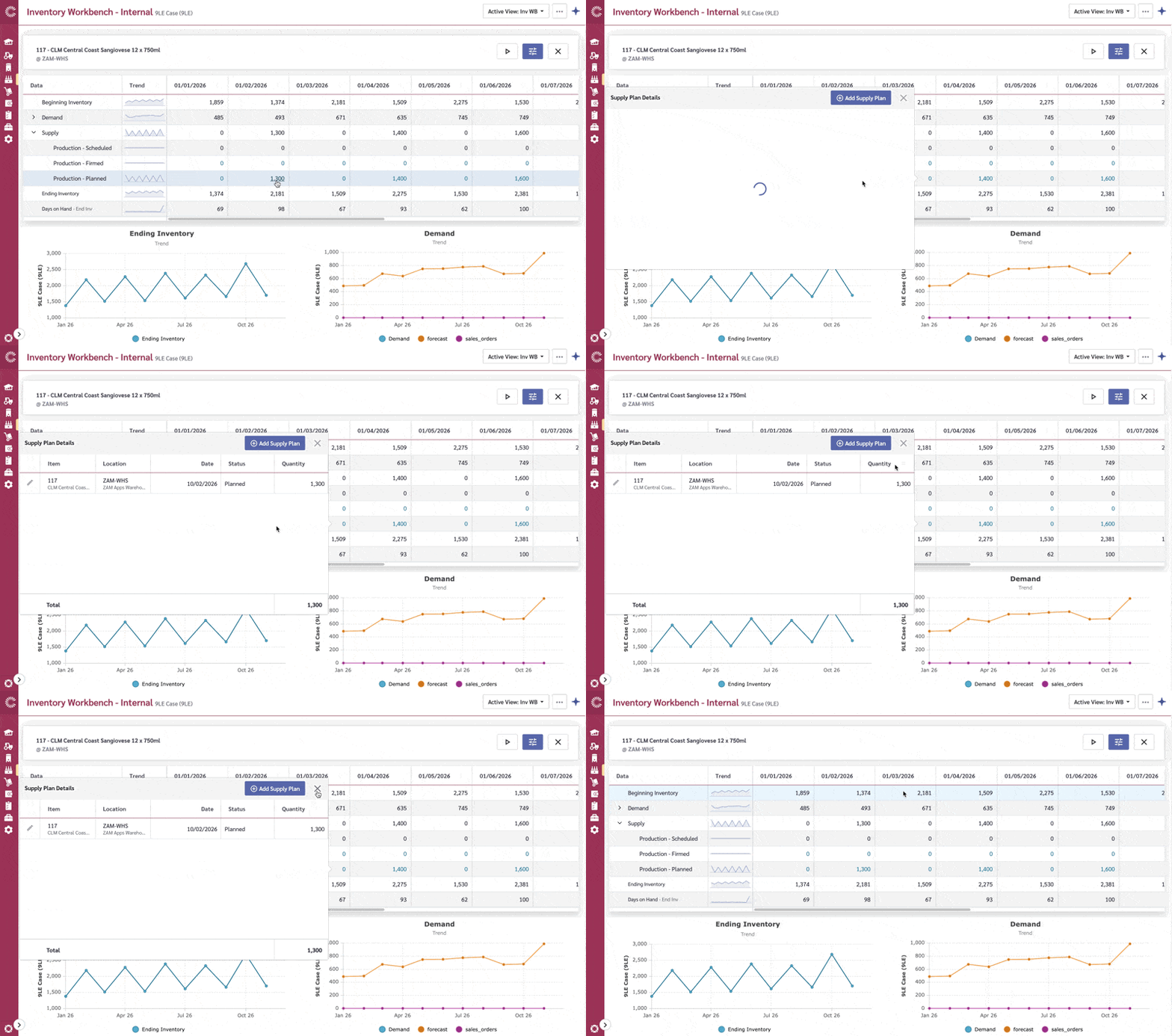
Supply plan values in the detail grid appear as clickable links. Clicking a supply value opens a popover where you can manage individual supply plan records.
1. Click on a supply plan value in the "Firmed" or "Planned" row (values at or after the plan start date).
2. A popover opens showing the individual supply plan records that make up the total.
3. In the popover, you can:
* Edit quantities for existing supply plans
* Change dates or status
* Add new supply plan records
* Delete existing records
{% hint style="warning" %}
Supply plans with dates earlier than the plan start date display a warning icon. These are considered "past due" and will be rolled into the plan start period for calculations.
{% endhint %}
When you edit supply values:
* Changes are saved immediately when you close the popover
* Ending inventory recalculates for that period and all future periods
* Days on Hand recalculates to reflect the updated inventory projection
{% hint style="info" %}
Only "Firmed" and "Planned" supply rows show as clickable links. "Scheduled" supply values are read-only. Supply plan editing is only available for periods at or after the plan start date.
{% endhint %}
## Configuring Planning Parameters
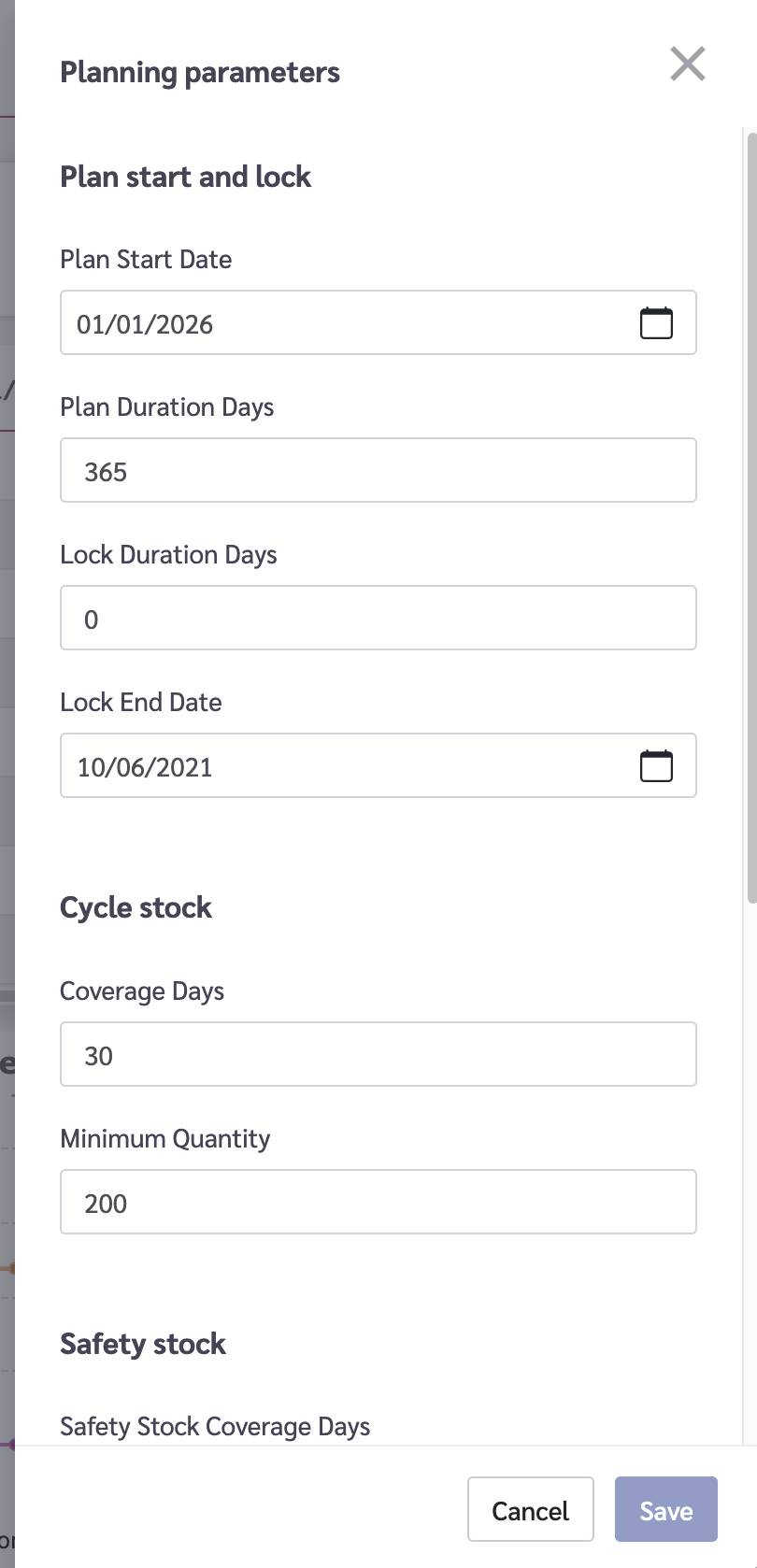
Planning parameters control how supply plans are generated for each item at a location. These can be configured at the item level to fine-tune supply plan recommendations.
### Open Planning Parameters
1. Open the detail view for an item.
2. Click the Settings (tune) button in the header.
3. A sidebar opens with planning parameter options.
### Planning Parameter Options
The planning parameters are organized into sections:
**Plan Start and Lock**
| Parameter | Description |
| ------------------ | ------------------------------------------------ |
| Plan Start Date | When to begin supply planning |
| Plan Duration Days | How far forward to plan |
| Lock Duration Days | Period during which quantities cannot be changed |
| Lock End Date | When the lock expires |
**Cycle Stock**
| Parameter | Description |
| ---------------- | ------------------------------------------- |
| Coverage Days | Target days of inventory to maintain |
| Minimum Quantity | Minimum production quantity per supply plan |
**Safety Stock**
| Parameter | Description |
| -------------------------- | ------------------------------------------------------- |
| Safety Stock Coverage Days | Additional days of inventory to hold as a safety buffer |
| Safety Stock Quantity | Fixed quantity to maintain as a safety buffer |
**Forecast Adjustment**
| Parameter | Description |
| -------------------------- | ----------------------------------- |
| Net Demand Option | Strategy for calculating net demand |
| Ignore Sales Forecast Days | Skip forecast data within N days |
**Other**
| Parameter | Description |
| ------------ | ----------------------------------------------------------- |
| Is Plannable | Unchecking will mean plans will not be created for the item |
## Running Supply Plans
This is where the planning happens. The Internal workbench can automatically generate supply plan recommendations based on your demand forecasts, current inventory, and planning parameters.
The supply plan algorithm:
* Looks at forecasted demand for each future period
* Considers current inventory levels
* Applies your planning parameters (coverage days, safety stock, etc.)
* Generates production quantities needed to maintain target Days on Hand
### Run Supply Plan for a Single Item
1. Open the detail view for the item.
2. Click the Play button in the header.
3. The supply plan is generated and displayed in the Supply row of the detail grid.
The generated supply plan values are saved immediately and can be further edited if needed.
### Run Supply Plan for All Items
To generate supply plans for all items at the selected location:
1. Click the "Run supply plan for all" button in the toolbar.
2. A confirmation modal appears showing the number of items to process.
3. Click "Confirm" to start the job.
4. The job runs in the background. Click the Job ID link to monitor progress.
{% hint style="info" %}
When the job completes, the grid updates automatically. Any items that were skipped (due to missing configuration) are listed in the warning message.
{% endhint %}
### How Supply Plans Are Generated
The supply plan generation uses your planning parameters to determine when and how much to produce:
1. **Plan Start Date** - Production recommendations start from this date
2. **Coverage Days** - Target days of inventory to maintain
3. **Safety Stock** - Minimum inventory buffer to keep on hand
4. **Demand Forecast** - Expected sales that need to be covered
The algorithm calculates the production needed in each period to maintain your target coverage while accounting for expected demand.
{% hint style="warning" %}
Supply plan generation requires planning parameters to be configured for each item. Items without planning parameters will be skipped during batch processing.
{% endhint %}
## Empty States
If you see an empty state message, follow these steps to resolve it:
| Message | Resolution |
| ---------------------- | --------------------------------------------------------------------------------- |
| No View configured | Create a View using the View dropdown |
| No Supply/Demand links | Configure links in [Supply and Demand Map](/master-data/supply-and-demand-map.md) |
| No Location selected | Select a location from the dropdown |
| Location has no links | Configure Item @ Location and Item @ Customer Group links for this location |