> For the complete documentation index, see [llms.txt](https://docs.claret.app/llms.txt). Markdown versions of documentation pages are available by appending `.md` to page URLs; this page is available as [Markdown](https://docs.claret.app/master-data/supply-and-demand-map.md).
# Supply and Demand Map
Connect your supply sources (Item-Locations) with customer demand (Item-Customer Groups) and control how supply is allocated across your customer base.
In Claret, supply is managed at the Item-Location level (where products are made or stored), while demand is managed at the Item-Customer Group level (who buys your products). The Supply and Demand Map bridges these two concepts, allowing you to define which locations supply which customer groups and how supply should be distributed.
This is particularly useful when you have multiple warehouses or production facilities serving different customer segments, or when you need to control how limited supply is allocated across your customer base.
{% hint style="info" %}
Before setting up the Supply and Demand Map, you should have your [Item @ Locations](/master-data/item-locations.md) and [Item @ Customer Groups](/master-data/item-customer-groups.md) configured.
{% endhint %}
## Setting up Supply and Demand Mappings
### Navigate to the Supply and Demand Map page
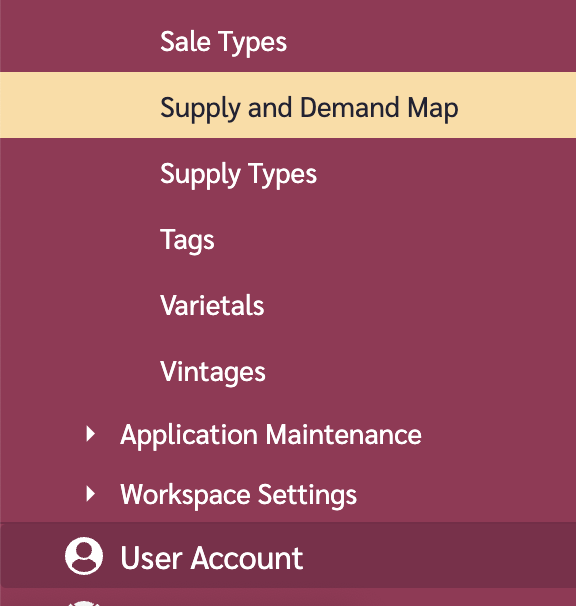
1. Go to the navigation sidebar.
2. Click on "Settings" menu item.
3. Click on "Master Data" menu item.
4. Click on "Supply and Demand Map".
### Add a Supply and Demand Mapping
1. Go to the options (ellipses) button in the top-right of the page and click on it.
2. Click on "Add".
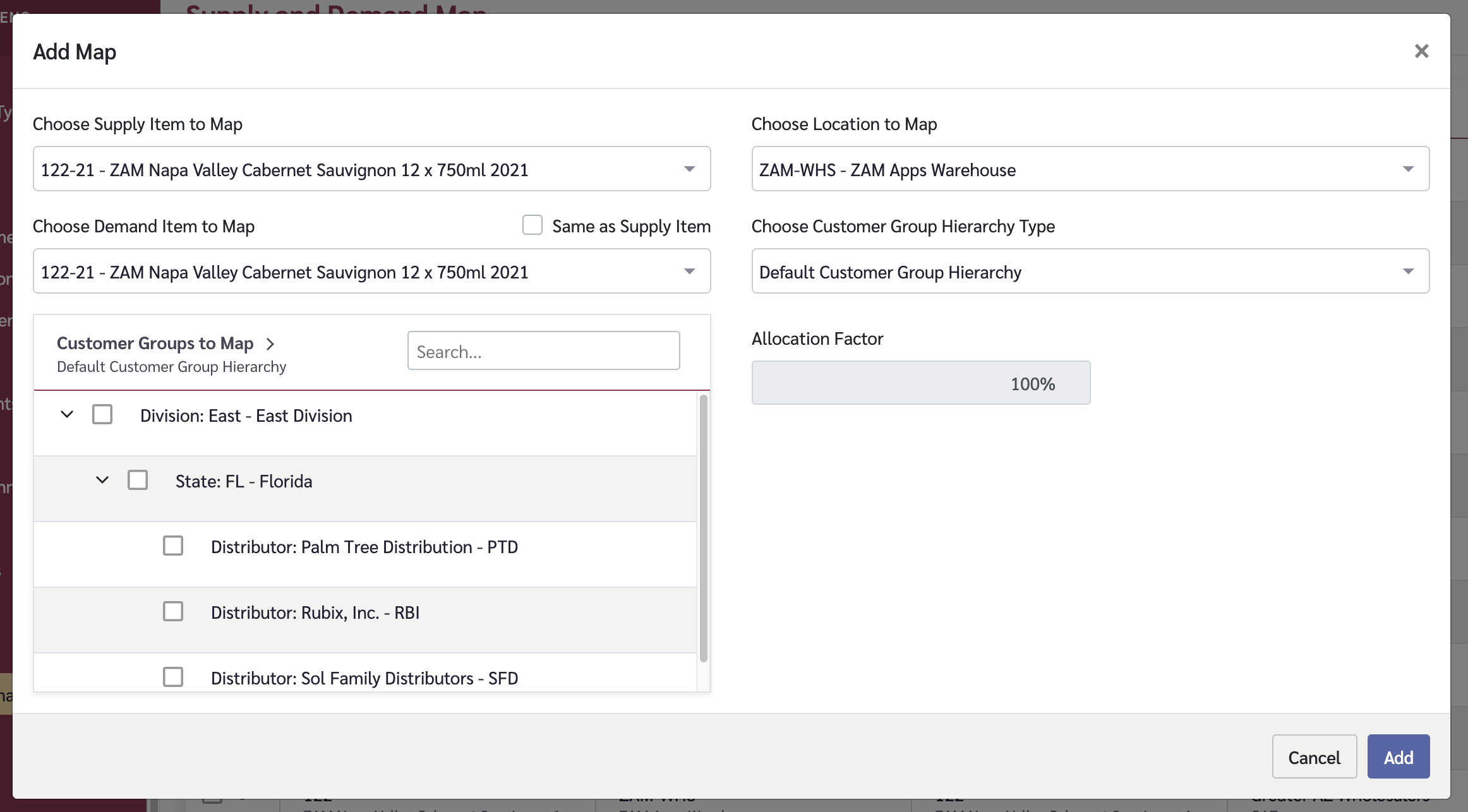
3. In the modal that appears, select the following:
* **Supply Item** - The item being supplied
* **Location** - Where the item is supplied from
* **Demand Item** - The item being demanded (often the same as the supply item)
* **Customer Groups** - One or more customer groups receiving this supply
4. Click on the "Save" button.
{% hint style="info" %}
You can select multiple customer groups at once when creating mappings. This will create separate mapping records for each customer group selected.
{% endhint %}
In the example above, supply of Item 122-21 stored at ZAM Apps Warehouse will be 100% allocated to demand for 122-21 at the selected Customer Groups.
### Edit an Allocation Factor
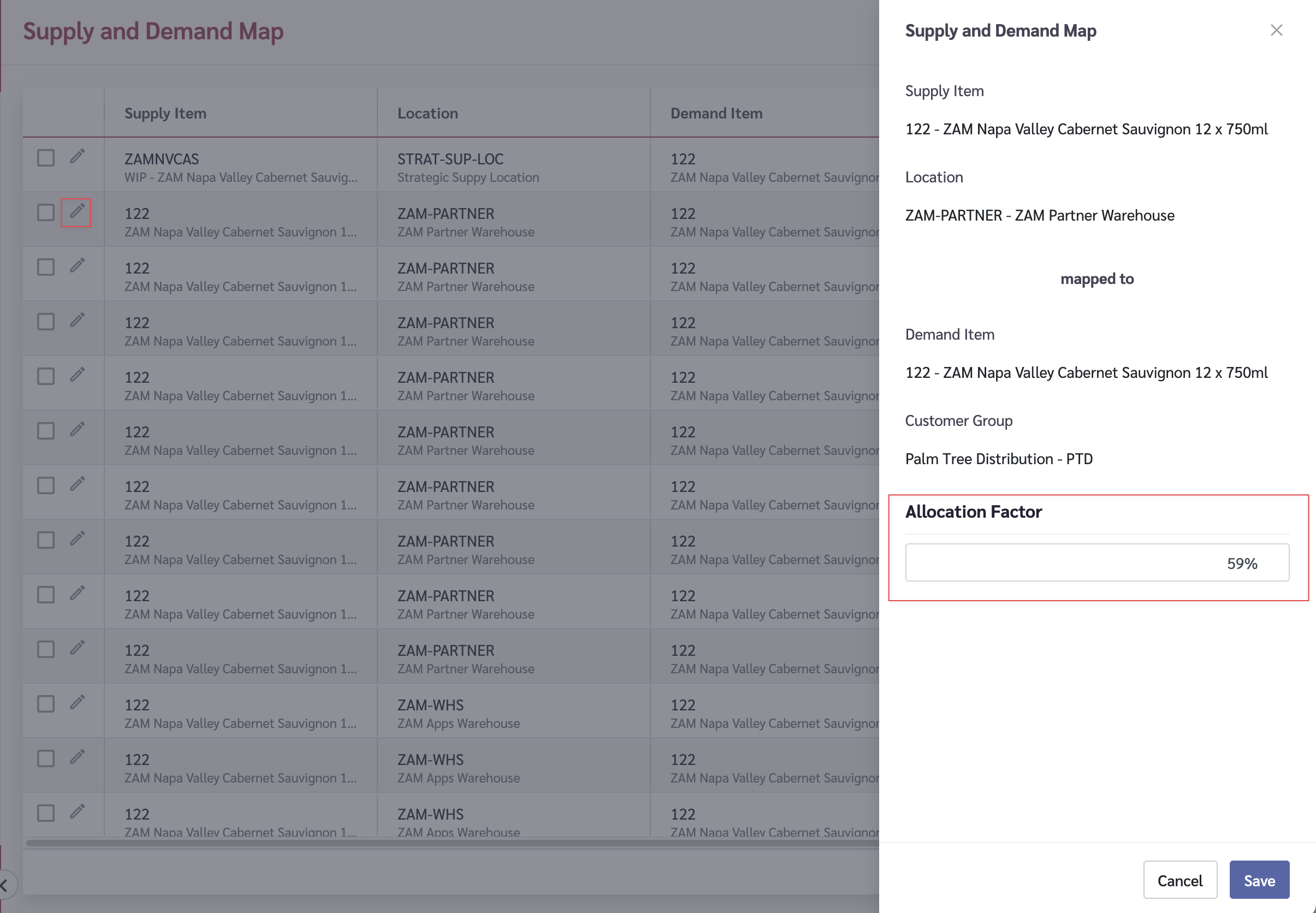
The allocation factor determines what percentage of supply from a location is allocated to a specific customer group. By default, new mappings have an allocation factor that can be adjusted as needed.
1. Click the Edit icon beside the mapping you wish to edit the allocation for.
2. A tray will slide in from the right.
3. Modify the "Allocation Factor" value (0-100%).
4. Click on the "Save" button.
{% hint style="info" %}
If you have multiple customer groups mapped to the same item-location, you may want their allocation factors to sum to 100% for accurate supply planning.
{% endhint %}
{% hint style="warning" %}
For existing mappings, the allocation is the only data that can be edited. If you wish to edit other details for a mapping, delete the existing mapping and create a new one.
{% endhint %}
### Delete a Mapping
1. Click the Edit icon beside the mapping you wish to delete.
2. A tray will slide in from the right.
3. Click on the "Delete" button.
4. You will be prompted to confirm the deletion.
5. To remove the mapping, type the word "DELETE" into the input box and click the "Delete" button.
### Export Mappings
You can export your Supply and Demand Map data to CSV by going to the options (ellipses) button in the top-right of the page and selecting "Export".
## Understanding the Grid
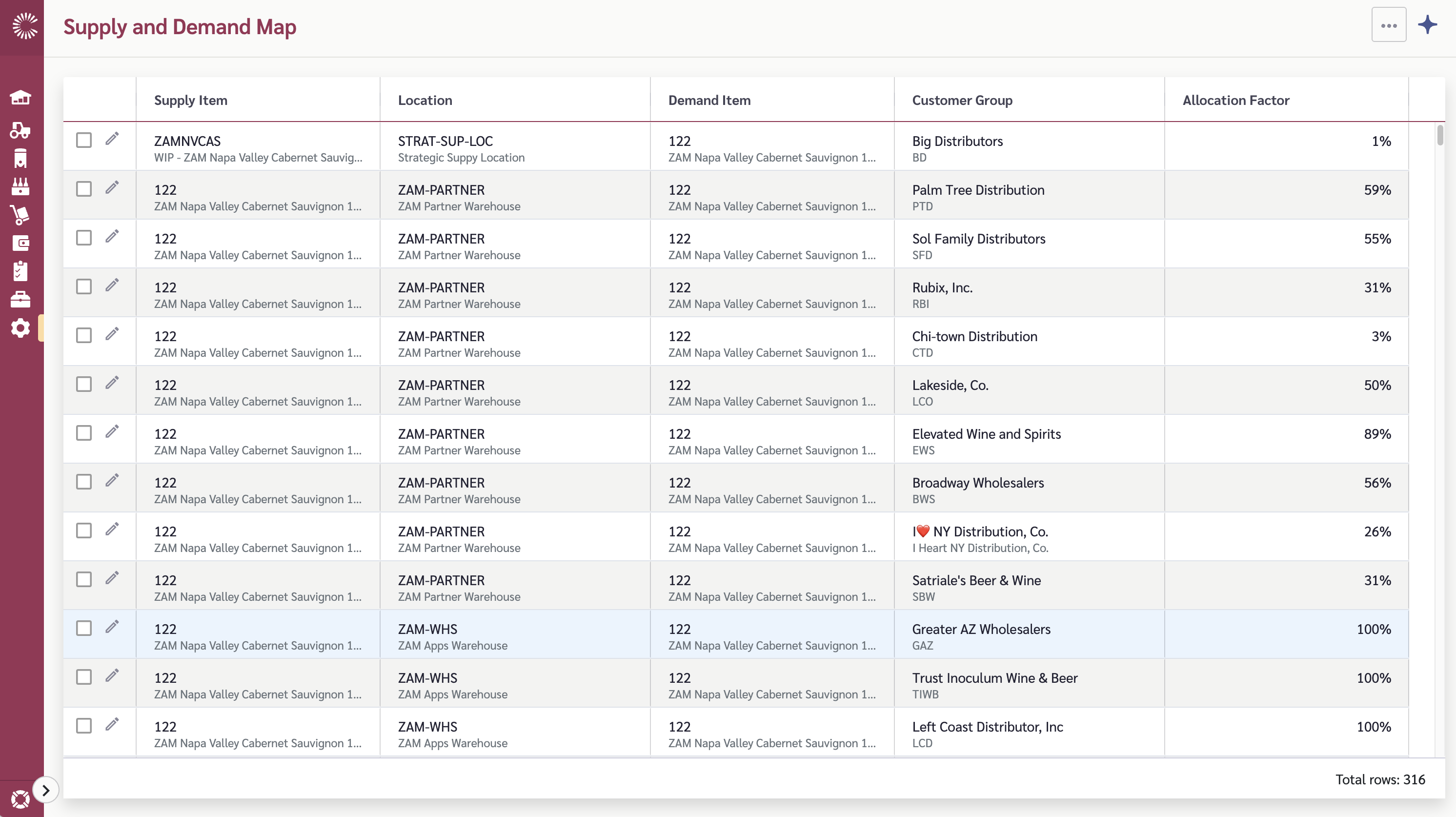
The Supply and Demand Map grid displays the following columns:
| Column | Description |
| ----------------- | ----------------------------------------------------- |
| Supply Item | The item being supplied |
| Location | The location supplying the item |
| Demand Item | The item being demanded |
| Customer Group | The customer group receiving supply |
| Allocation Factor | Percentage of supply allocated to this customer group |