> For the complete documentation index, see [llms.txt](https://docs.claret.app/llms.txt). Markdown versions of documentation pages are available by appending `.md` to page URLs; this page is available as [Markdown](https://docs.claret.app/farm/crop-supply-planning.md).
# Crop Supply Planning
See your crop position into the future and prepare for and manage surpluses and deficits in plenty of time.
Managing crop supply across multiple varietals and crop locations is complex. It's a challenge that requires careful coordination between crop demand for each vintage and available crop supply from various vineyard locations and suppliers. Claret has a dedicated module - 'Crop Supply Planning' - designed just for this.
The Crop Supply Planning module brings together, in one place, your
* Crop Demand (from Make Planning requirements, direct demand, and Sales)
* Crop Supply (from Supply Plans)
* Deficit/Surplus calculations by fiscal year
This then allows you to see the overall position - whether you have sufficient crop supply to meet demand, or if there is a deficit or surplus.
{% hint style="info" %}
For the Crop Supply Planning module to work correctly there will need to be some Master Data set up. For details please visit [Crop Supply Planning Setup](/farm/crop-supply-planning/crop-supply-planning-setup.md)
{% endhint %}
### **Viewing the Crop Supply Plan**
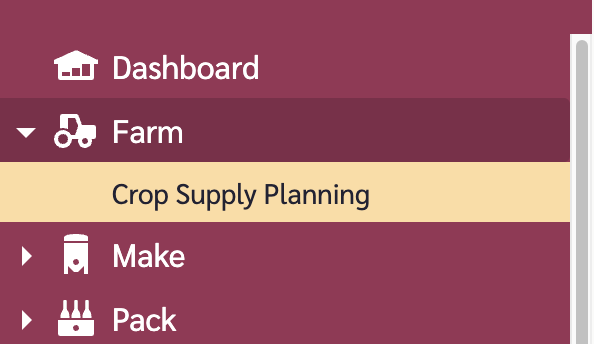
To access the Crop Supply Planning module, go to the Farm module and select 'Crop Supply Planning'
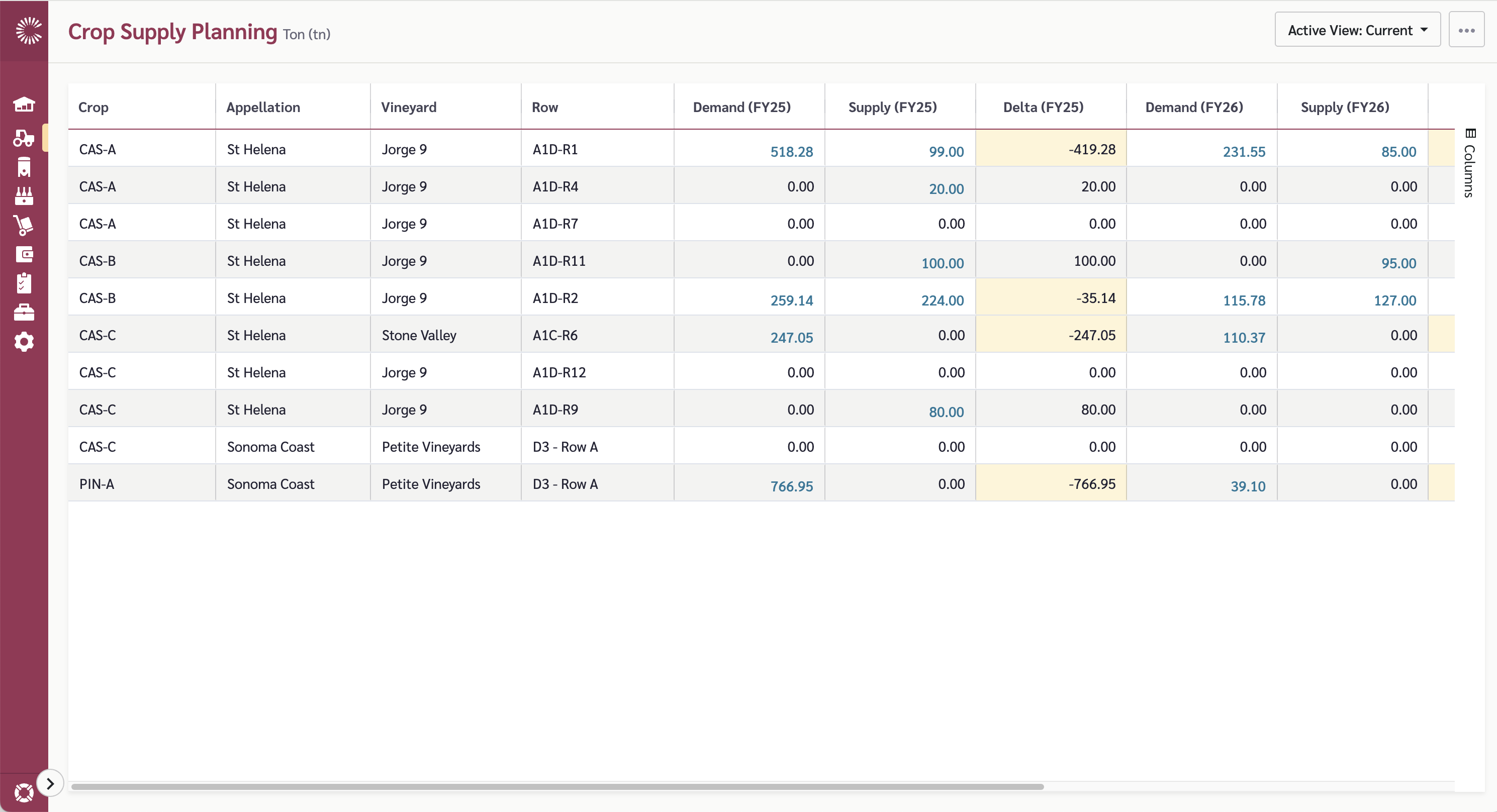
The main 'Crop Supply Planning' page is where the magic happens.
The Crop Supply Planning Grid will then display based on your view configuration.
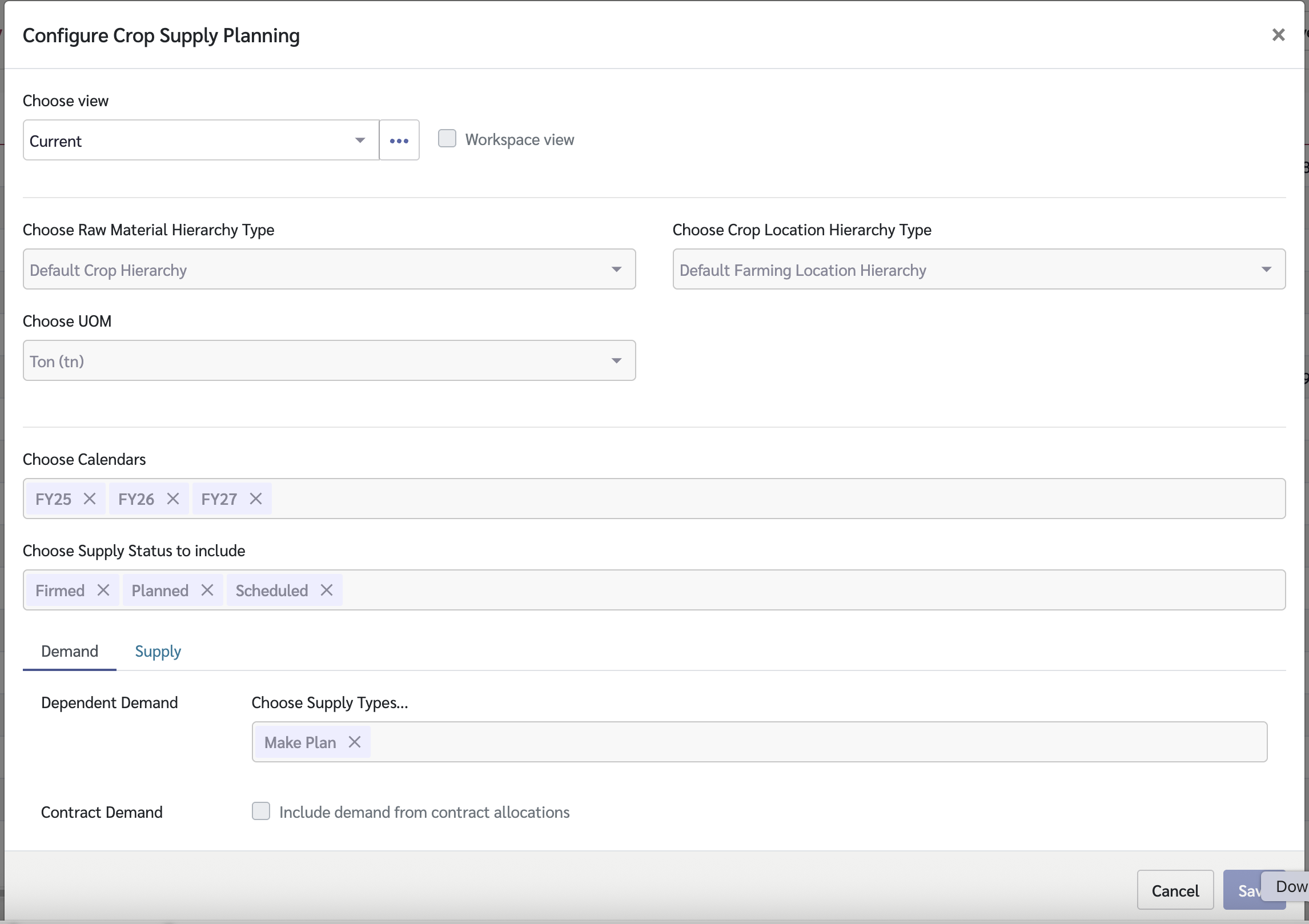
The data displayed in the grid will depend on your view configuration. To set this up, select the view menu in the top right of your screen
The view configuration screen then lets you set the data to use in the view.
Options are required for:
* Raw Material Hierarchy Type - The Crop item hierarchy you wish to work with
* Crop Location Hierarchy Type - The Crop Location hierarchy you wish to work with
* UOM - The Unit of Measure the data will be displayed in
* Calendars - The fiscal year calendars you wish to display data for (you can select multiple calendars to view data across multiple fiscal years)
* Supply Status - The supply plan statuses to include in the data
* Dependent Demand - The supply types from which crop demand will be calculated (typically this will be WIP supply plans). Crop demand is then calculated using recipes connecting the WIP items to your crop items. Note that these recipes must be at the
* Contract Demand - Whether to include demand from contract allocations
* Crop Supply - The supply types that contain crop supply data
### The Crop Supply Planning Grid
The Crop Supply Planning grid displays crop demand, crop supply, and the delta (deficit/surplus) for each crop item and location combination, broken down by fiscal year.
{% hint style="info" %}
The relationships between Crop Items and Crop Locations are set on the [Item @ Locations](/master-data/item-locations.md) page. A row will appear in the Crop Supply Planning grid for every combination of item and location that is set up on this page.
{% endhint %}
#### Hierarchy Columns
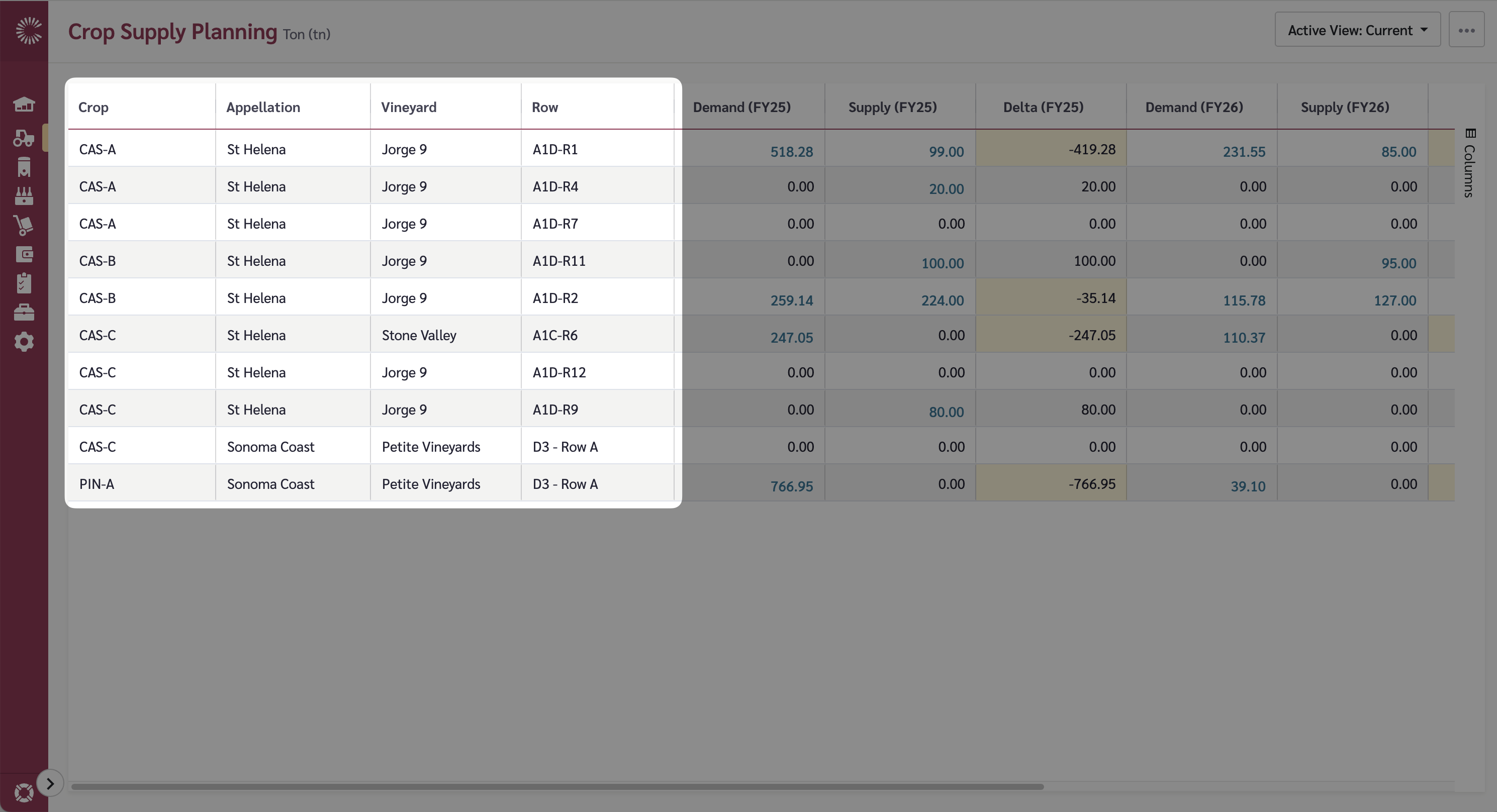
The first set of columns relate to the hierarchy levels for both Crop Items and Crop Locations.
These columns show the hierarchy structure for your crops and locations, allowing you to group and filter data by different hierarchy levels.
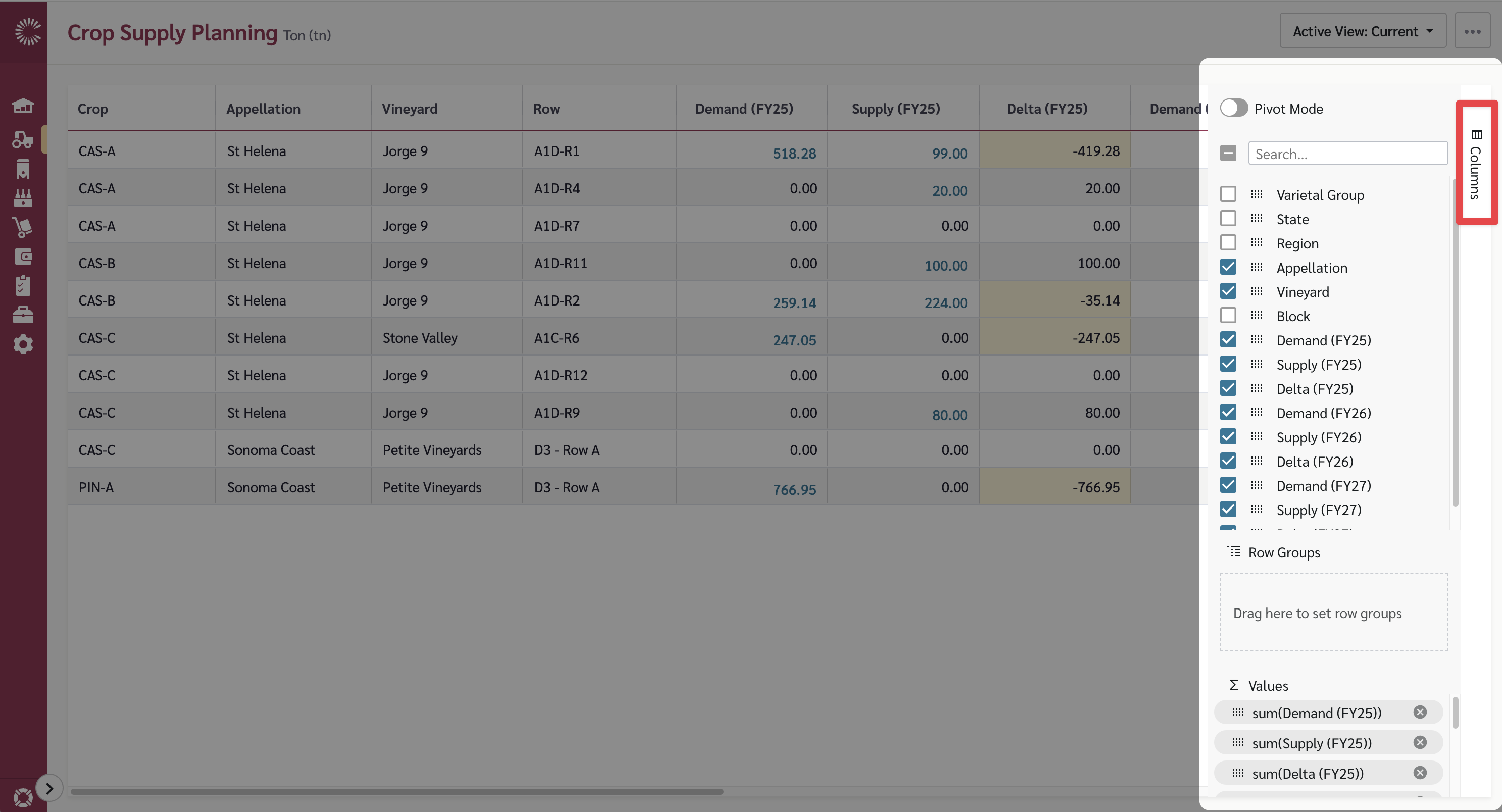
To add more of your hierarchy levels into the grid, select the 'Columns' section on the right of the grid. This will expand a column selector and you can select further columns to display.
{% hint style="info" %}
To update hierarchy details, go to the [Crop Locations](/master-data/crop-locations.md) and [Items](/master-data/items.md) pages.
{% endhint %}
#### Demand, Supply, and Delta by Fiscal Year
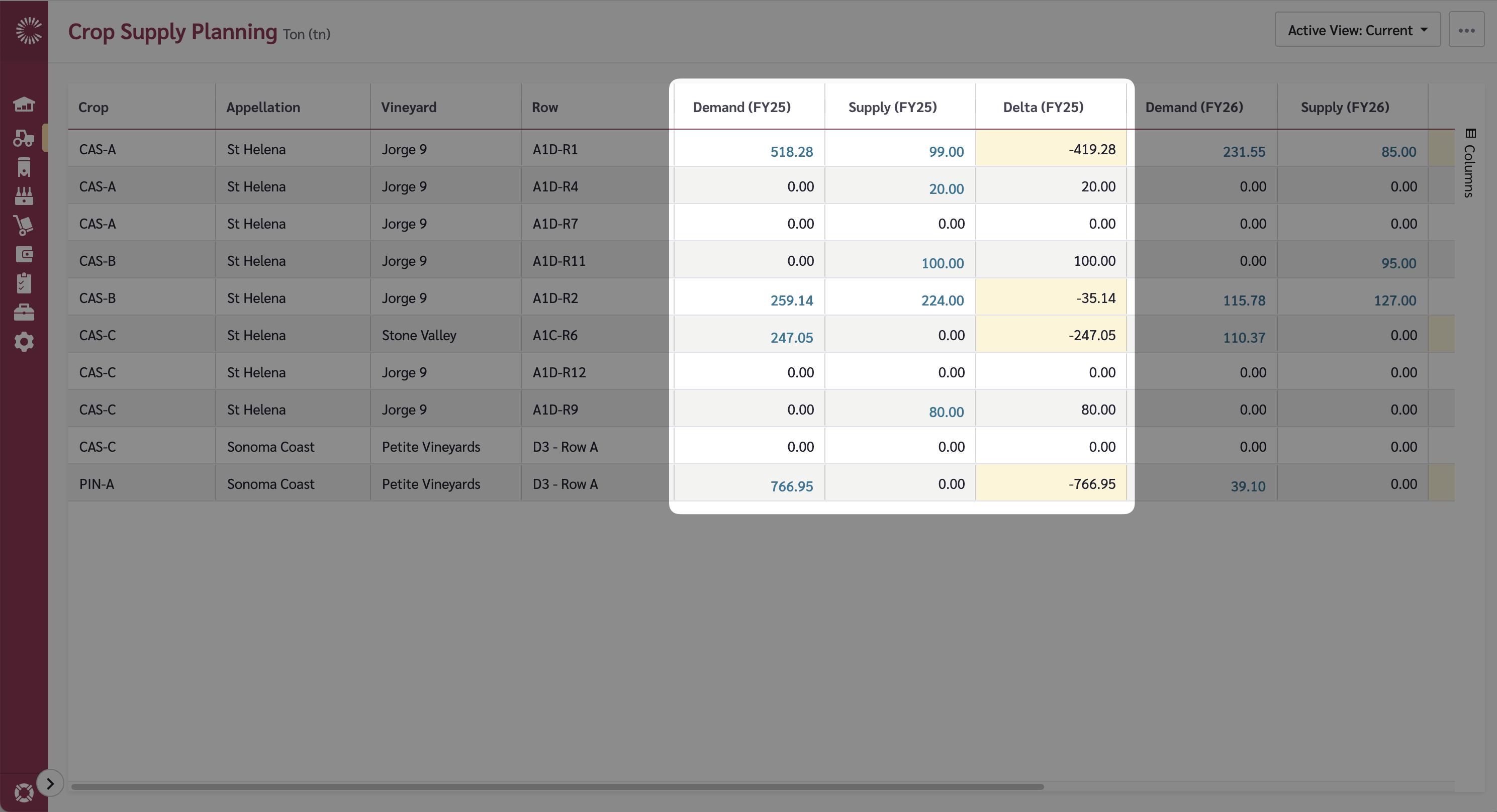
For each fiscal year (calendar) selected in your view configuration, the grid will display three columns:
1. **Demand** - The total crop demand for the fiscal year. This is calculated from:
* Dependent Demand - derived from Supply Plans (typically WIP make plans, which use recipes to determine how much crop is required)
* Contract Allocations - if you have selected to include contract demand in your configuration
* Independent Demand - derived from Sales data (if configured)
2. **Supply** - The total crop supply for the fiscal year from the Supply Plans configured in your view
3. **Delta** - The difference between Supply and Demand (calculated as Supply minus Demand)
* A positive number indicates you have more supply than demand (surplus)
* A negative number indicates you have less supply than demand (deficit), and will be highlighted in yellow
{% hint style="info" %}
You can select multiple calendars in the view configuration to compare demand, supply, and delta across multiple fiscal years side by side.
{% endhint %}
#### Grouping and Filtering Data
The grid allows you to group and filter data by different hierarchy levels, making it easy to see the overall position at different levels of detail.
{% hint style="info" %}
You can sort the grid by any of the visible columns, simply by clicking on the header name.
To filter any of the columns, click on the hamburger icon, and then select the filter option you require.
{% endhint %}
### Exporting Data
You can export the Crop Supply Planning data to CSV by clicking the Options menu and selecting Export.
### Charting Data
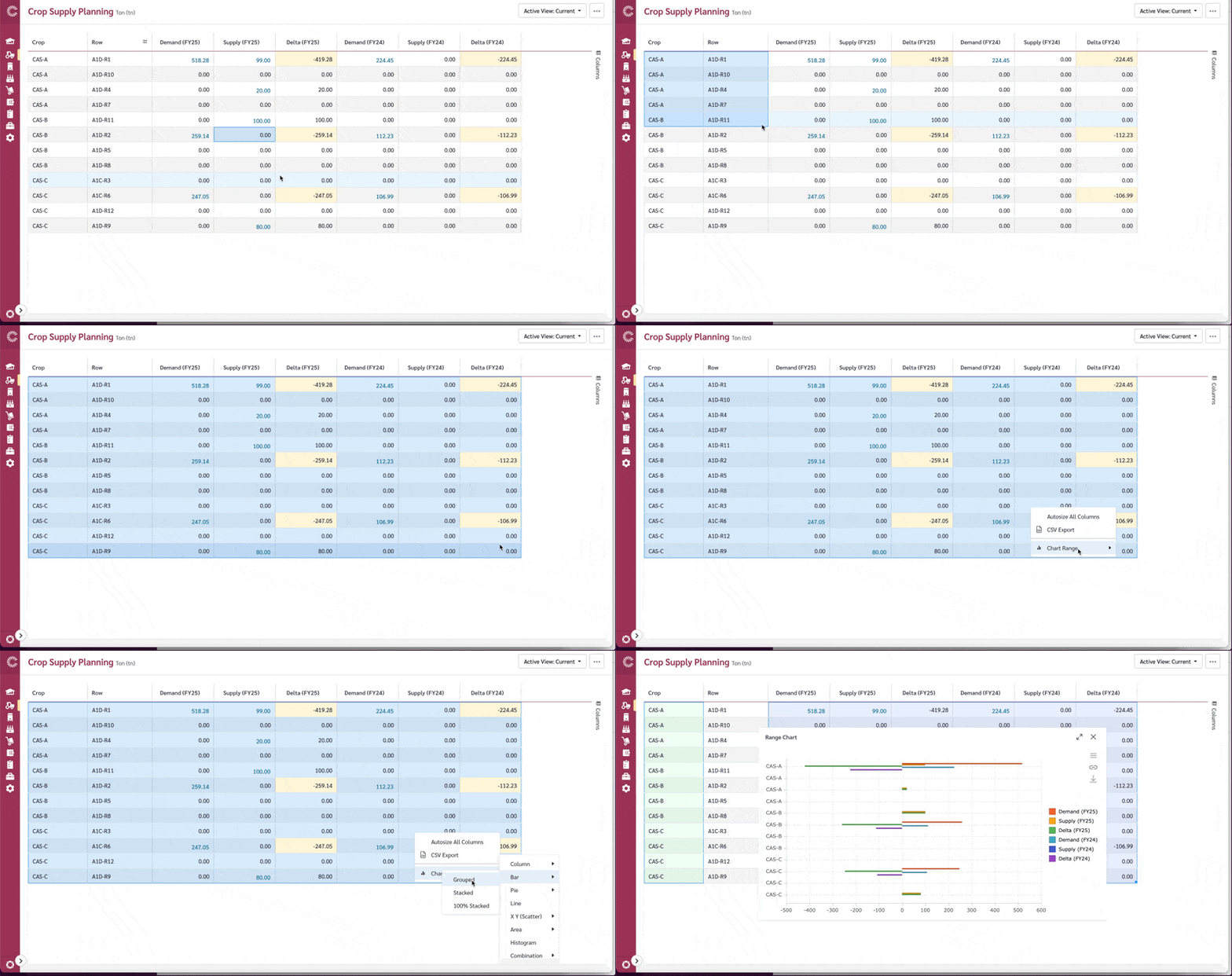
Another feature of Crop Supply Planning is the ability to chart the data displayed in the grid at any time.
To create a chart of your data, simply highlight the cells you would like to chart, and right click and select 'Chart Range'.
There are a number of Chart formats available and you can select the option that best fits your needs.
### Using Pivot Mode
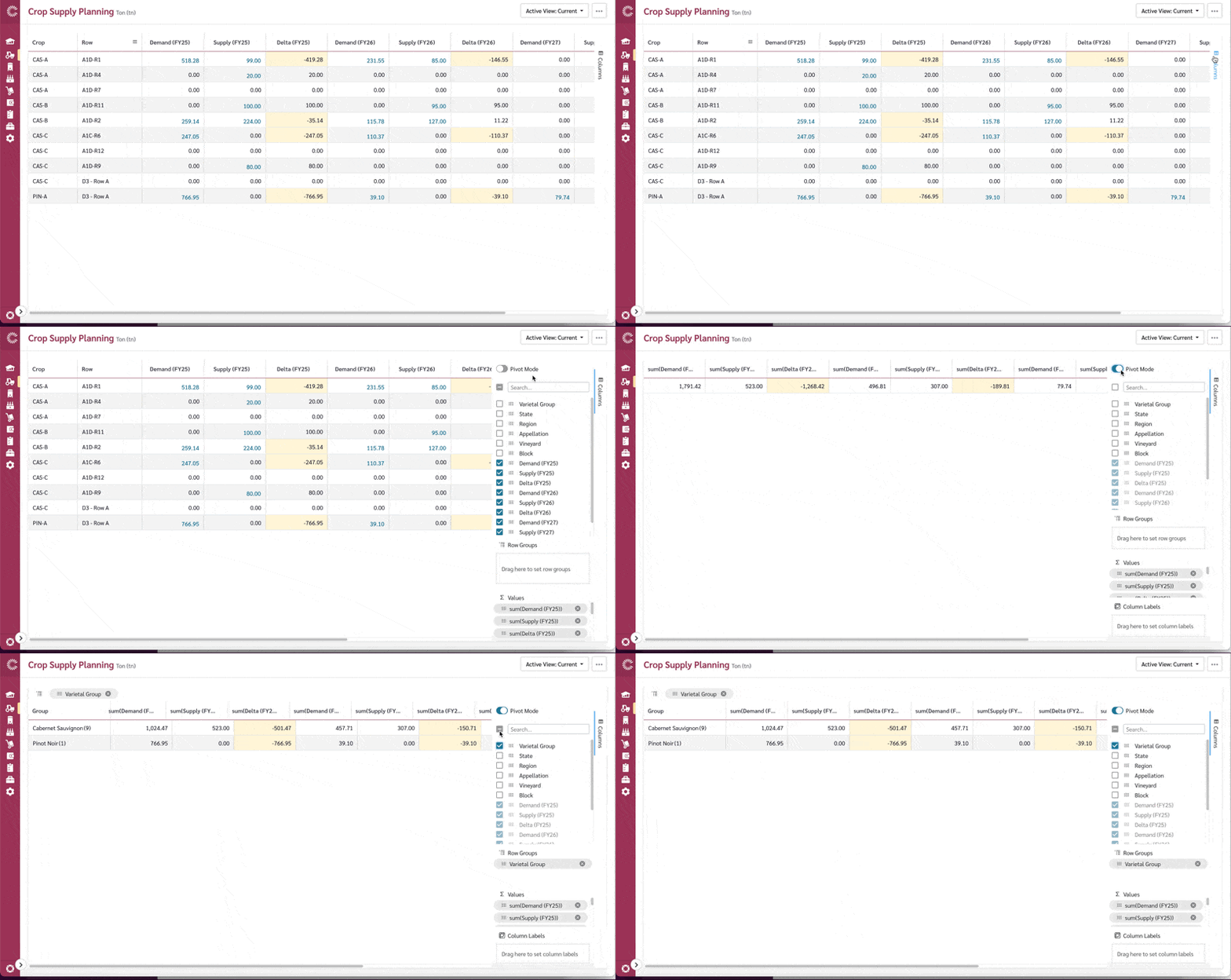
Pivot Mode is a powerful feature that allows you to reorganize and summarize your crop supply planning data by transforming columns into rows and vice versa. This is particularly useful when you want to analyze your data from different perspectives.
#### Enabling Pivot Mode
To enable Pivot Mode:
1. Open the Columns panel by clicking the 'Columns' button on the right side of the grid
2. At the top of the Columns panel, you'll see a 'Pivot Mode' toggle
3. Click the toggle to turn on Pivot Mode
{% hint style="info" %}
When you enable Pivot Mode, the grid will transform to show your data in a pivoted view. You can toggle it off at any time to return to the standard view.
{% endhint %}
#### How Pivot Mode Works
Once Pivot Mode is enabled, you can reorganize your data by:
**Row Groups** - Hierarchy columns can be dragged to the Row Groups area to group data by those dimensions. For example:
* Group by Crop Item hierarchy levels to see totals by variety or other crop classifications in your hierarchy
* Group by Crop Location hierarchy levels to see totals by region, vineyard, or other location classifications in your hierarchy
**Pivot Columns** - Hierarchy columns can be dragged to the Pivot area to transform those values into column headers. For example:
* Pivot by a crop location level to create separate columns for each location
* Pivot by a crop item level to create separate columns for each item classification
**Values** - The Demand, Supply, and Delta columns will automatically aggregate (sum) based on your row groups and pivot selections
#### Tips for Using Pivot Mode
* **Experiment with different combinations** - Try dragging different hierarchy levels to Row Groups vs Pivot areas to find the most useful view for your analysis
* **Clear and start over** - If you want to reset, simply drag items back out of the Row Groups and Pivot areas
* **Export pivoted data** - You can export your pivoted view to CSV to share or analyze further in Excel
* **Turn off when done** - Toggle Pivot Mode off to return to the standard flat view of all item-location combinations