> For the complete documentation index, see [llms.txt](https://docs.claret.app/llms.txt). Markdown versions of documentation pages are available by appending `.md` to page URLs; this page is available as [Markdown](https://docs.claret.app/application-maintenance/job-management.md).
# Job Management
Monitor and track background jobs, imports, and system operations in Claret using the Job Management page.
The Job Management area of Claret provides visibility into background jobs and batch operations executed within the app. This includes import operations, system tasks, and other asynchronous processes. You can track job status, view execution details, and download any associated files.
## Viewing Jobs
### Navigate to the Job Management page
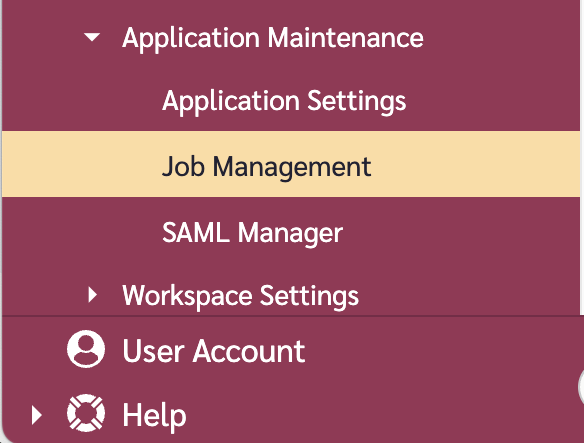
1. Go to the navigation sidebar.
2. Click on "Settings" menu item.
3. Click on "Application Maintenance" menu item.
4. Click on "Job Management".
### Understanding the Tabs
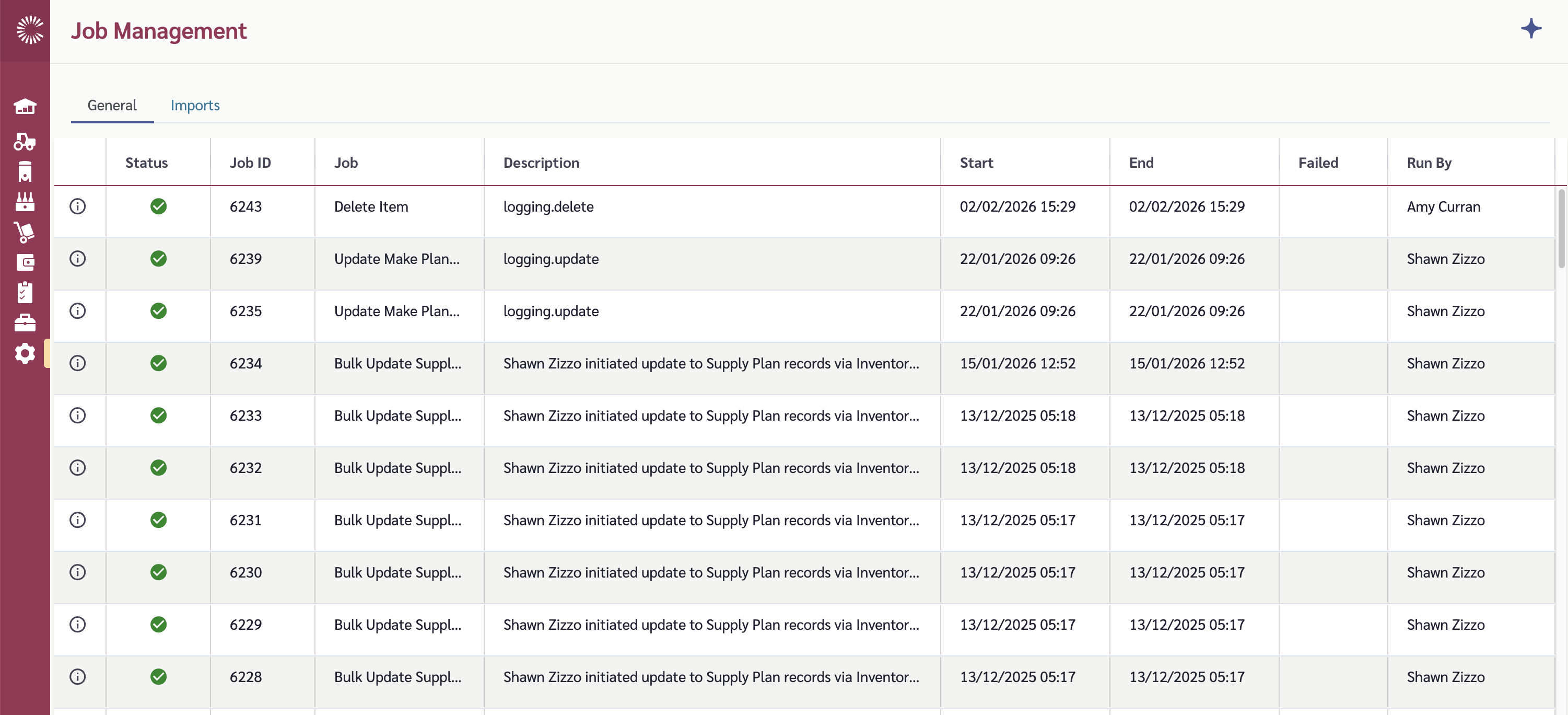
The Job Management page has two tabs:
| Tab | Description |
| ------- | ------------------------------------------------------------ |
| General | Shows system activity logs for various operations |
| Imports | Shows background job logs specifically for import operations |
### Job List Grid
The main grid, which appears in the same format on both tabs, displays all jobs with the following information:
| Column | Description |
| ----------- | ---------------------------------------------------------------------------------------------------- |
| Status | Visual indicator showing job progress (spinner for in-progress, checkmark for success, X for failed) |
| Job ID | Unique identifier for the job |
| Job | The type of action performed |
| Description | Human-readable description of the specific job |
| Start | Timestamp when the job started |
| End | Timestamp when the job completed (or "Still in progress") |
| Failed | If the job failed, timestamp when the failure occurred |
| Run By | Username of the person who initiated the job |
{% hint style="info" %}
Admin users can see all jobs in the system. Non-admin users only see jobs they have initiated.
{% endhint %}
## Viewing Job Details
To view detailed information about a specific job:
1. Click the Info icon (ℹ️) in the Actions column for the job you want to view.
2. A detail view will open showing comprehensive job information.
### Job Detail Information
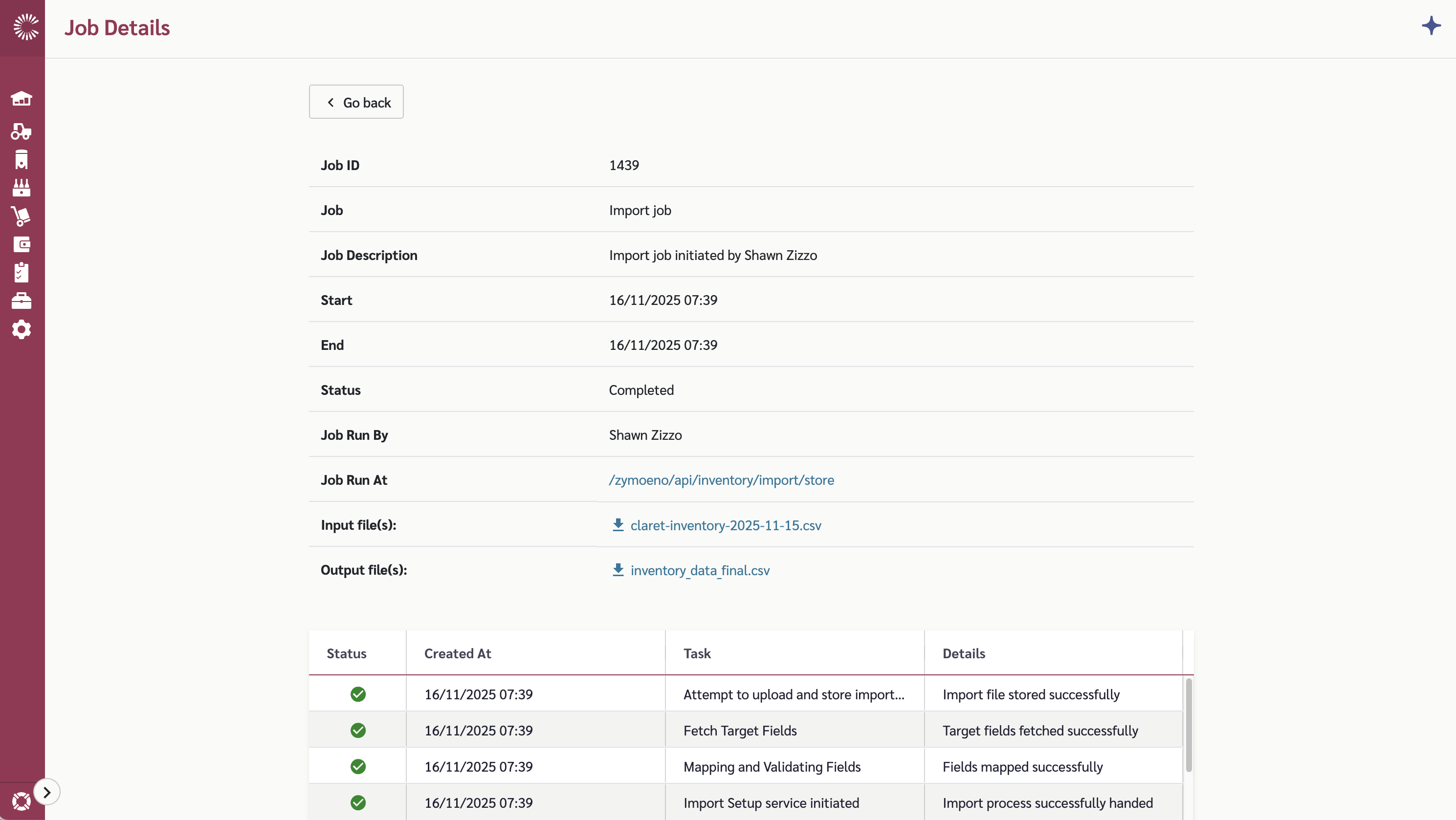
The detail view displays:
* **Job ID** - Unique identifier
* **Job** - Type of operation performed
* **Job Description** - What the job does
* **Start** - When the job began
* **End** - When the job completed
* **Status** - Current state (In Progress, Completed, or Failed)
* **Job Run By** - User who initiated the job
* **Job Run At** - Link to the page where the job was executed
### Downloading Job Files
For jobs that involve file processing (such as imports), you will see additional fields, where you can download associated files:
* **Input Files** - The original files that were uploaded
* **Output Files** - Processed or generated files
* **Error Reports** - For failed imports, CSV files detailing what went wrong
Click the download icon next to each file to save it to your computer.
### Subtask Details
For batch operations, a grid below the job details shows all subtasks that were executed as part of the job. This includes:
* Task name
* Individual task status
* Timestamp
* For failed jobs, this helps identify which specific subtask caused the failure
## Job Statuses
Jobs can have one of three statuses:
| Status | Description |
| ----------- | ------------------------------------------------- |
| In Progress | The job is currently running |
| Completed | The job finished successfully |
| Failed | The job encountered an error and did not complete |
{% hint style="warning" %}
Failed jobs may have partial results. Check the error reports and subtask details to understand what went wrong.
{% endhint %}