> For the complete documentation index, see [llms.txt](https://docs.claret.app/llms.txt). Markdown versions of documentation pages are available by appending `.md` to page URLs; this page is available as [Markdown](https://docs.claret.app/sell/inventory-workbench-partner.md).
# Inventory Workbench - Partner
Manage shipment forecasts to distributors by tracking distributor inventory levels, depletion forecasts, and days on hand targets.
Managing inventory across your distribution network is complex. You need visibility into what your partners have on hand, how quickly they're selling through, and when they'll need replenishment. Without this visibility, you risk either overshipping (tying up your partners' capital) or undershipping (leading to stockouts and lost sales).
Claret's Inventory Workbench - Partner is designed to solve this problem by bringing together, in one place, your:
* Partner inventory levels at each distributor location
* Depletion forecasts showing how quickly partners are selling through
* Days on Hand (DOH) targets for each partner
* Shipment recommendations to maintain target inventory levels
This allows you to see your partners' inventory position across all items, identify where shipments are needed, and plan replenishment to maintain optimal stock levels at each partner location.
{% hint style="info" %}
For the Inventory Workbench - Partner module to work correctly, there will need to be some Master Data set up. For details please visit [Inventory Workbench - Partner Setup](/sell/inventory-workbench-partner/inventory-workbench-partner-setup.md)
{% endhint %}
## Navigating to the Inventory Workbench
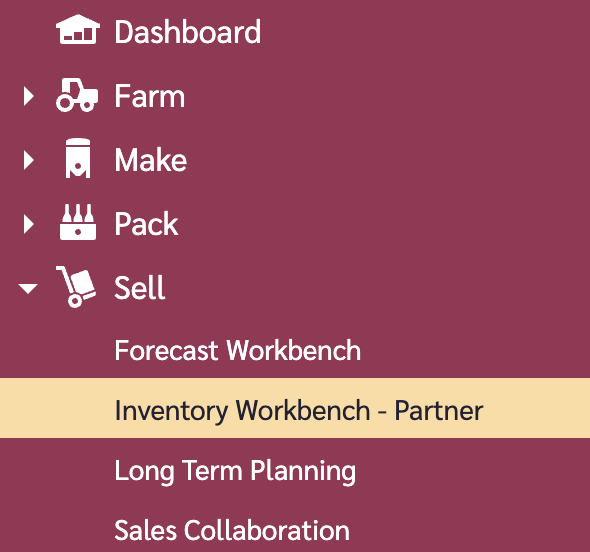
To access the Inventory Workbench - Partner module, go to the Sell module and select 'Inventory Workbench - Partner'.
## Creating a View
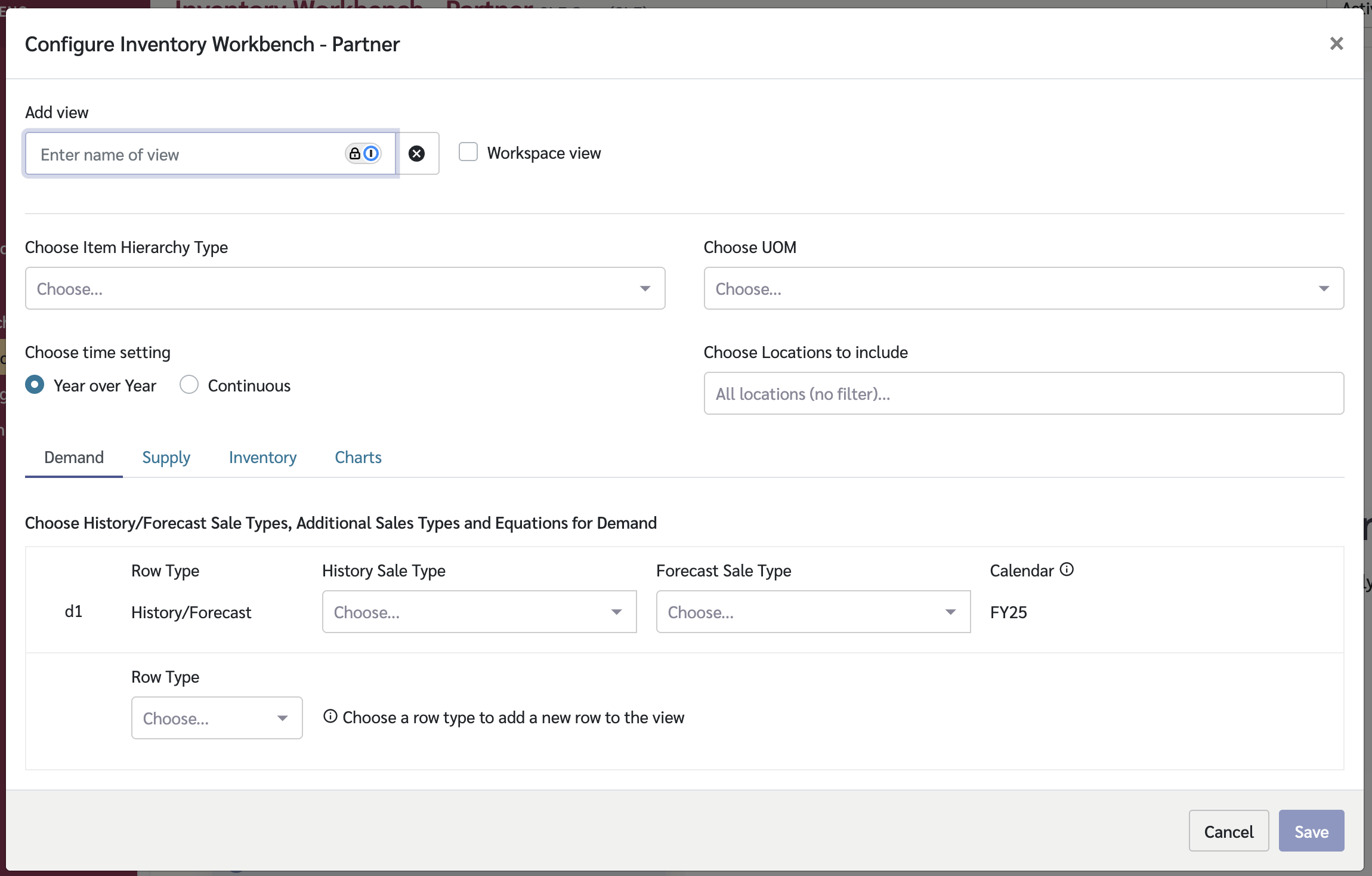
Before you can use the workbench, you must create a View that defines how data is displayed and calculated.
### Create a New View
1. Click on the View dropdown in the top-right corner of the page.
2. Click "Add View".
3. Enter a name for your View and select 'Workspace view' if you wish all users of the module to be able to use the view. (Note the default is for the view to be a personal view only)
4. Configure the View settings (see below).
5. Click "Save".
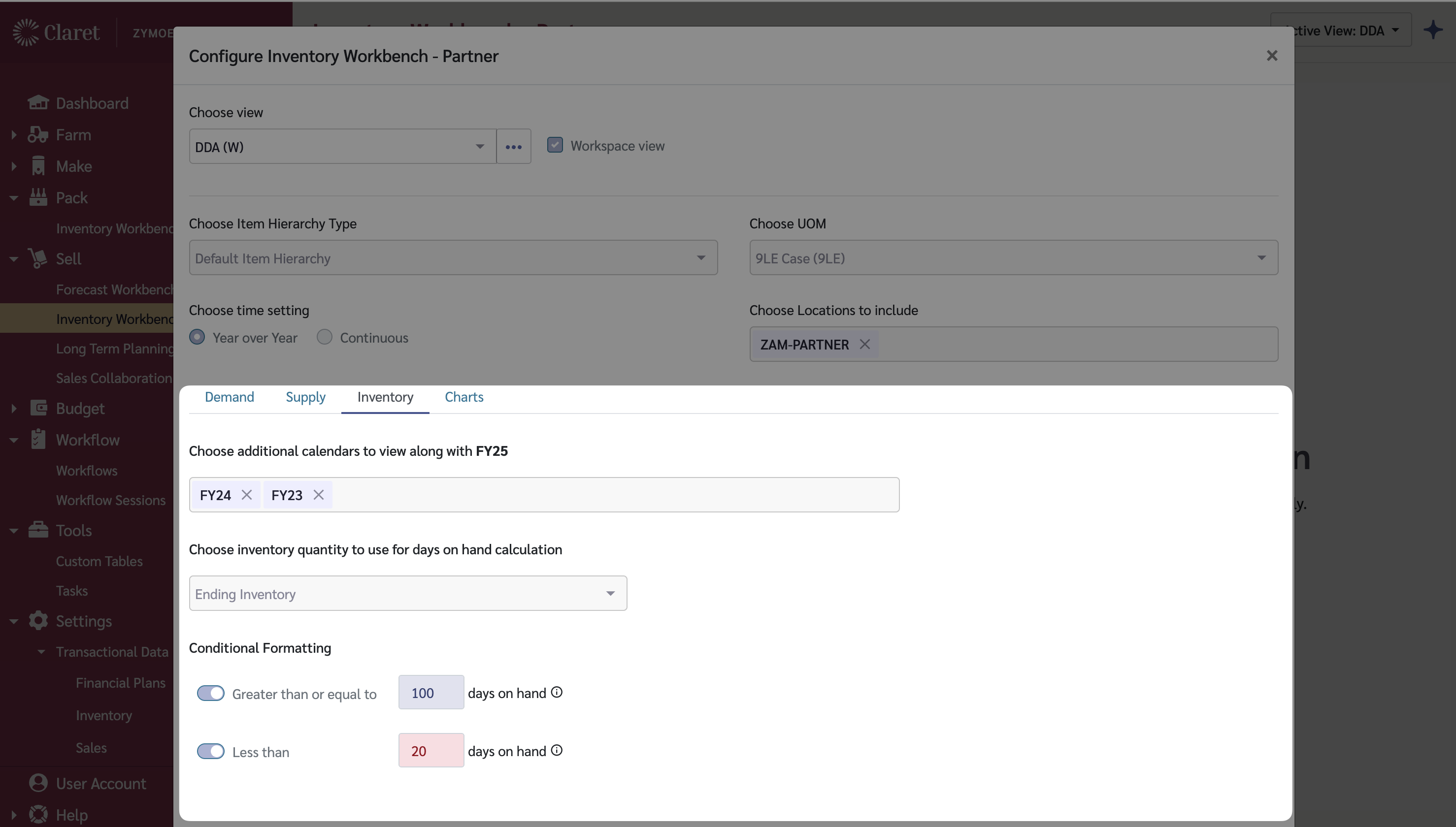
The View configuration screen lets you set the data to use in the view.
Options are required for:
* **Item Hierarchy Type** - The item hierarchy you wish to work with
* **Unit of Measure** - The UOM for display and calculations
* **Time Settings** - Configure planning periods (calendar-based or continuous days/weeks/months)
* **Choose Locations to include** (optional) - Select one or more locations to restrict which partner locations appear in the sidebar. Leave empty to show all available locations.
There are then 4 tabs where you will need to select options to configure your View.
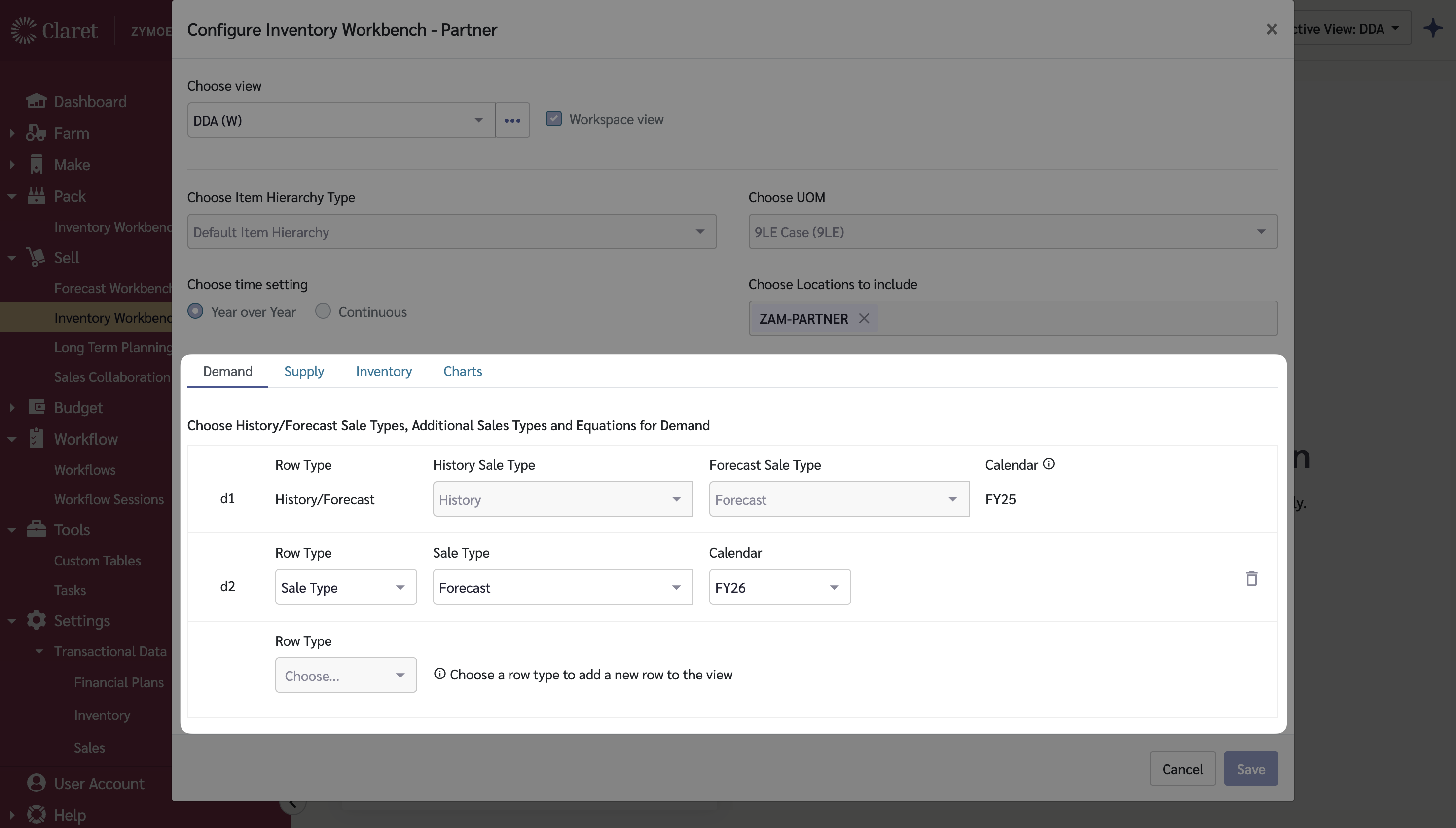
### Demand Tab
The Demand tab is where you configure which sale types represent partner depletion data. Depletion data shows how quickly your partners are selling through their inventory.
| Field | Description |
| -------- | ------------------------------------------------------------------------------------------------------------------------------------------------- |
| Forecast | Select the sale type that contains partner depletion forecasts. This is used to project future demand and calculate when replenishment is needed. |
| History | Select the sale type that contains historical partner depletion data. This provides actual sales-through data from your partners. |
The workbench uses this depletion data to:
* Calculate how quickly inventory is being consumed at each partner location
* Project when partners will run low on stock
* Inform Days on Hand calculations
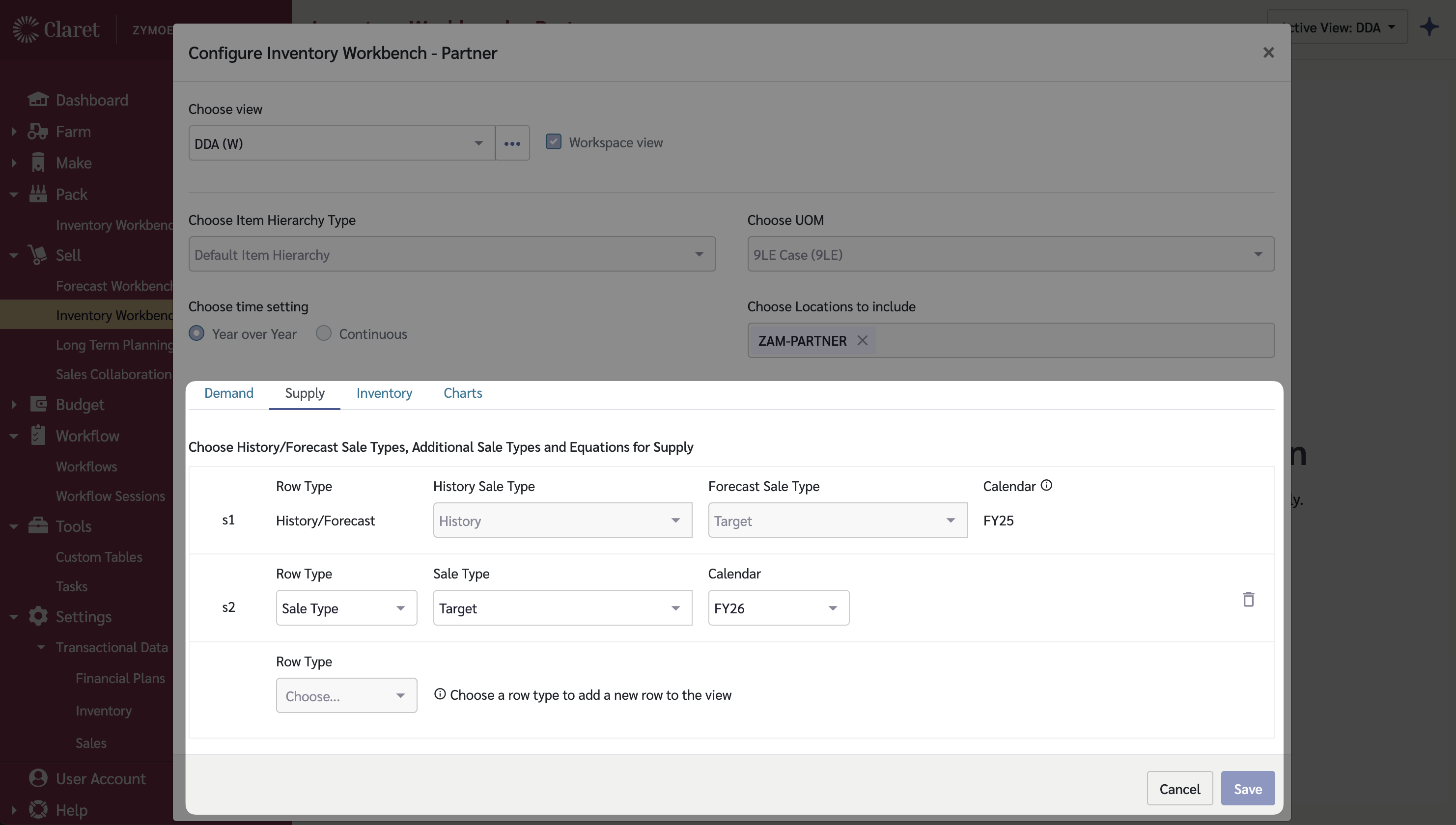
### Supply Tab
The Supply tab is where you configure which sale types represent shipments to your partners.
| Field | Description |
| -------- | ------------------------------------------------------------------------------- |
| Forecast | Select the sale type that contains planned or forecasted shipments to partners. |
| History | Select the sale type that contains historical shipment data to partners. |
The workbench uses this supply data to:
* Show planned shipments in the detail grid
* Track historical shipment patterns
* Calculate the impact of shipments on partner inventory levels
### Inventory Tab
The Inventory tab is where you configure Days on Hand calculations and display settings.
| Field | Description |
| ------------------------ | ------------------------------------------------------------------------------------------------------- |
| Additional Calendars | Select additional calendars to use for time-based calculations. |
| Days on Hand Calculation | Choose whether to calculate DOH based on Beginning Inventory or Ending Inventory. |
| Conditional Formatting | Configure visual indicators (e.g., highlight cells where DOH is greater than or less than a threshold). |
These settings control:
* How Days on Hand values are calculated in the detail grid
* Visual formatting to highlight items that need attention
* Time period alignment for planning calculations
### Charts Tab
The Charts tab allows you to configure up to 4 visualizations that appear in the detail view when you select an item.
Available chart types include:
| Chart Type | Description |
| ------------ | -------------------------------------------------------------------------------- |
| Days on Hand | Shows projected DOH over time based on current inventory and depletion forecasts |
| Depletion | Displays historical and forecasted depletion trends |
| Inventory | Shows inventory level changes over time |
| Shipments | Displays planned and historical shipments to the partner |
Charts provide a visual representation of the data in the detail grid, making it easier to identify trends and plan replenishment timing.
## Using the Sidebar Filter
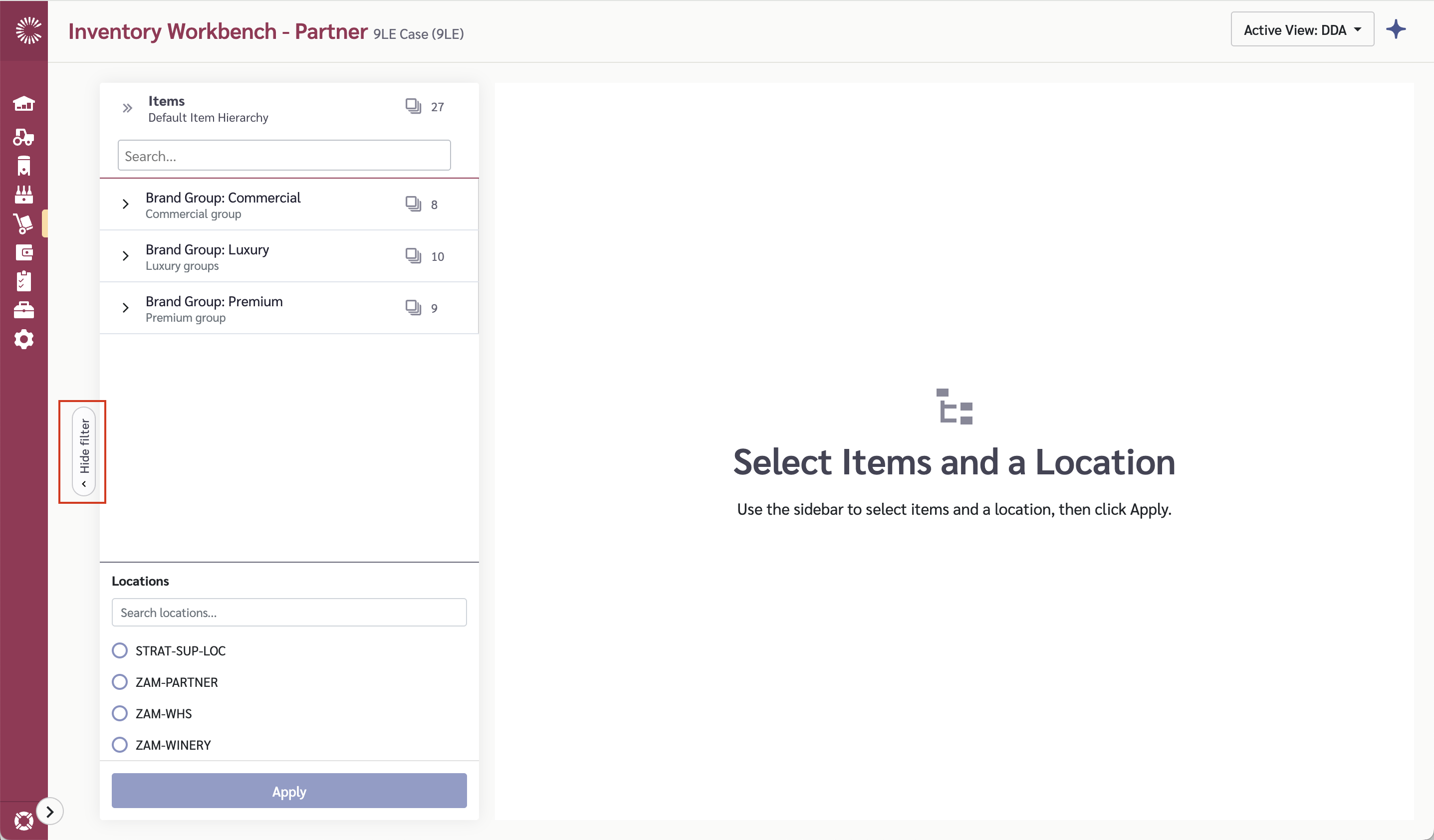
The sidebar filter is where you select which partner location and items to view in the workbench. Use the toggle button on the left edge of the screen to show or hide the sidebar filter.
### Sidebar Filter Toggle
A pill-shaped toggle button appears on the left edge of the workbench:
* When collapsed, it shows "Show filter"
* When expanded with selections made, it displays a summary (e.g., "5 items @ Partner A Warehouse")
* Click the toggle to expand or collapse the sidebar filter
* Your selections persist when you collapse and reopen the sidebar filter
### Selecting Items and Location
You must select both a partner location and items to view data in the workbench.
1. Open the sidebar filter using the toggle button.
2. In the Location section, search or browse for your partner location and click to select it. If your View is configured with a **Choose Locations to include** filter, only those locations will be listed.
3. In the Items section, browse or search the item hierarchy tree:
* Use checkboxes to select individual items
* Click the cards icon beside a hierarchy level to automatically select all items underneath
* The header shows how many items are selected (e.g., "Items (5 selected)")
4. Click "Apply" to confirm your selections and load the grid.
{% hint style="warning" %}
Only partner locations that have Item @ Location and Item @ Customer Group links (via the Supply and Demand Map) appear in the location list.
{% endhint %}
## The Inventory Workbench Grid
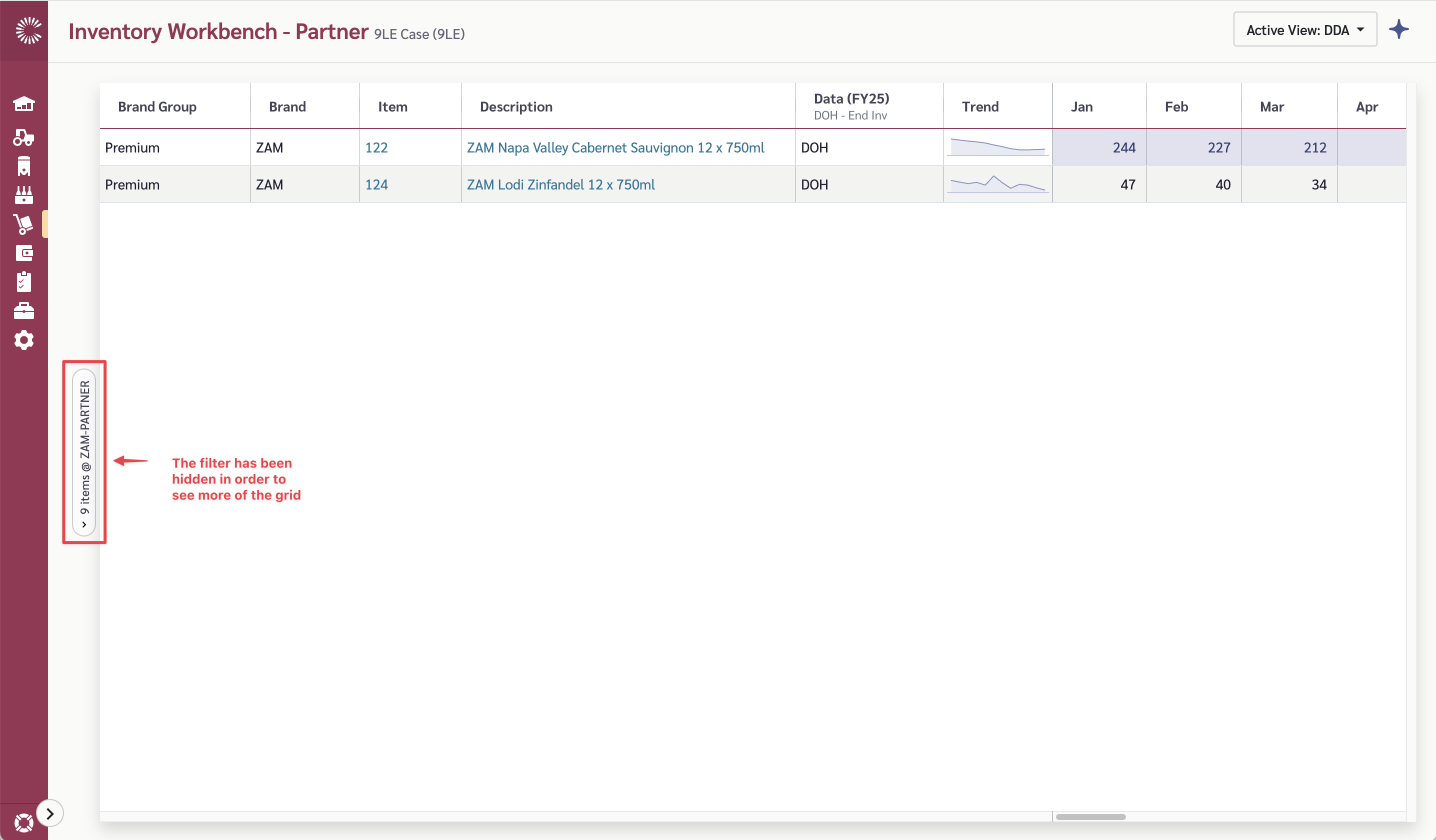
The main grid provides an at-a-glance view of Days on Hand across all items at the selected partner location. Each row represents an item, and the time period columns show DOH values calculated from the underlying depletion forecasts, inventory levels, and shipment data.
{% hint style="warning" %}
Collapse the item and location filter for better viewing of the grid.
{% endhint %}
### Grid Columns
| Column | Description |
| ------------------- | ------------------------------------------------------------------------------------ |
| Item Hierarchy | Item parents, Item name and description based on your selected hierarchy |
| DOH | Indicates data is showing Days on Hand |
| Trend | Sparkline chart showing DOH trend over time |
| Time Period Columns | Days on Hand value for each period (month, week, or day based on your View settings) |
Days on Hand values are color-coded to highlight items needing attention:
* **Red** indicates DOH is below your configured threshold (potential stockout risk)
* **Indigo** indicates DOH is above your configured threshold (potential overstock)
* **∞** (infinity symbol) appears when DOH exceeds 365 days
{% hint style="info" %}
The main grid shows summarized DOH values. To see the underlying depletion forecasts, inventory levels, and shipment details, click on a row to open the detail view.
{% endhint %}
### Filtering the Grid
1. Hover over a column header to reveal the filter menu icon.
2. Click the menu icon to open the filter options for that column.
3. Enter filter criteria or select values to filter by.
4. The grid updates automatically to show only matching rows.
### Viewing Item Details
Click on any row in the grid to open the detail view showing comprehensive item information for the partner.
## Working with the Detail View
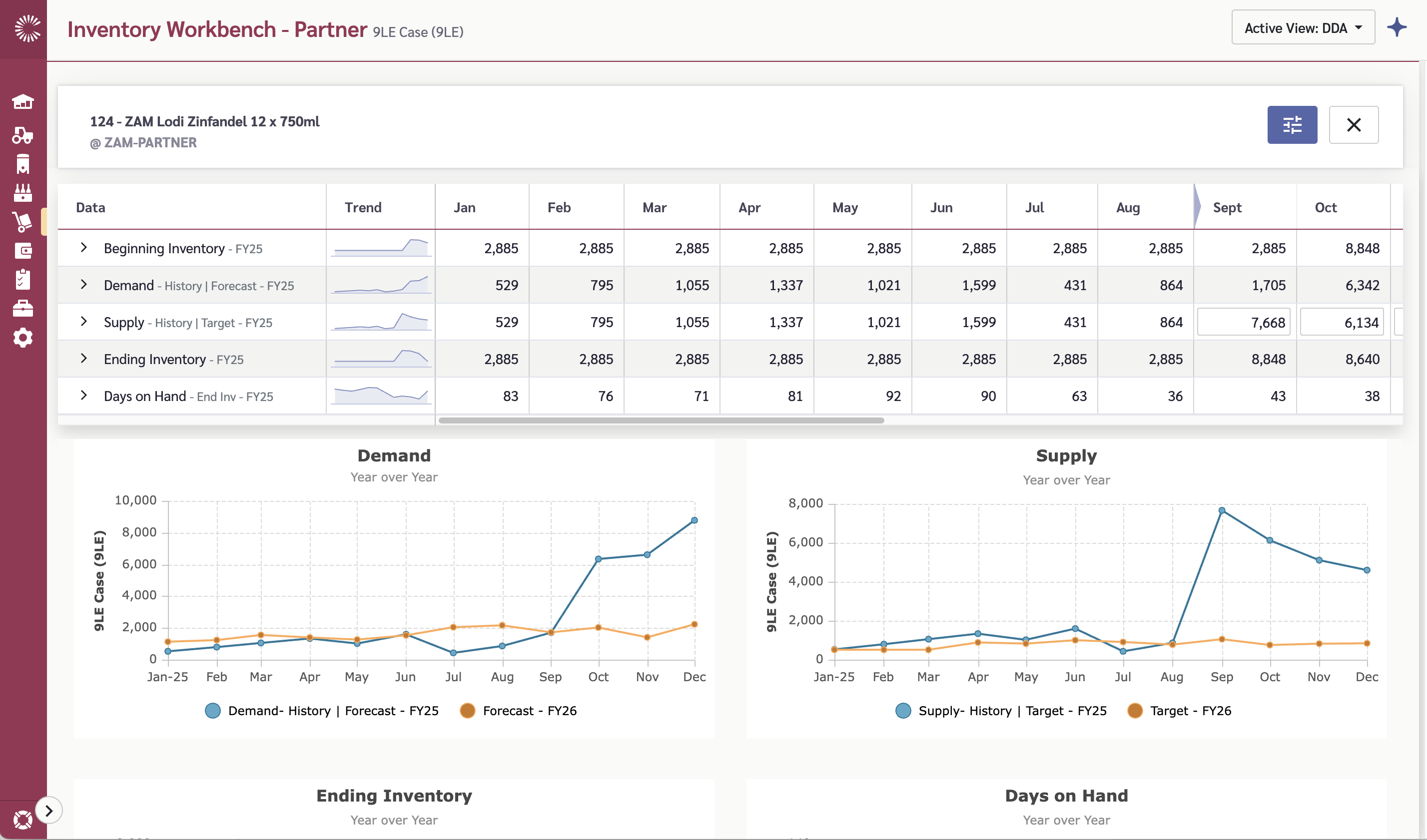
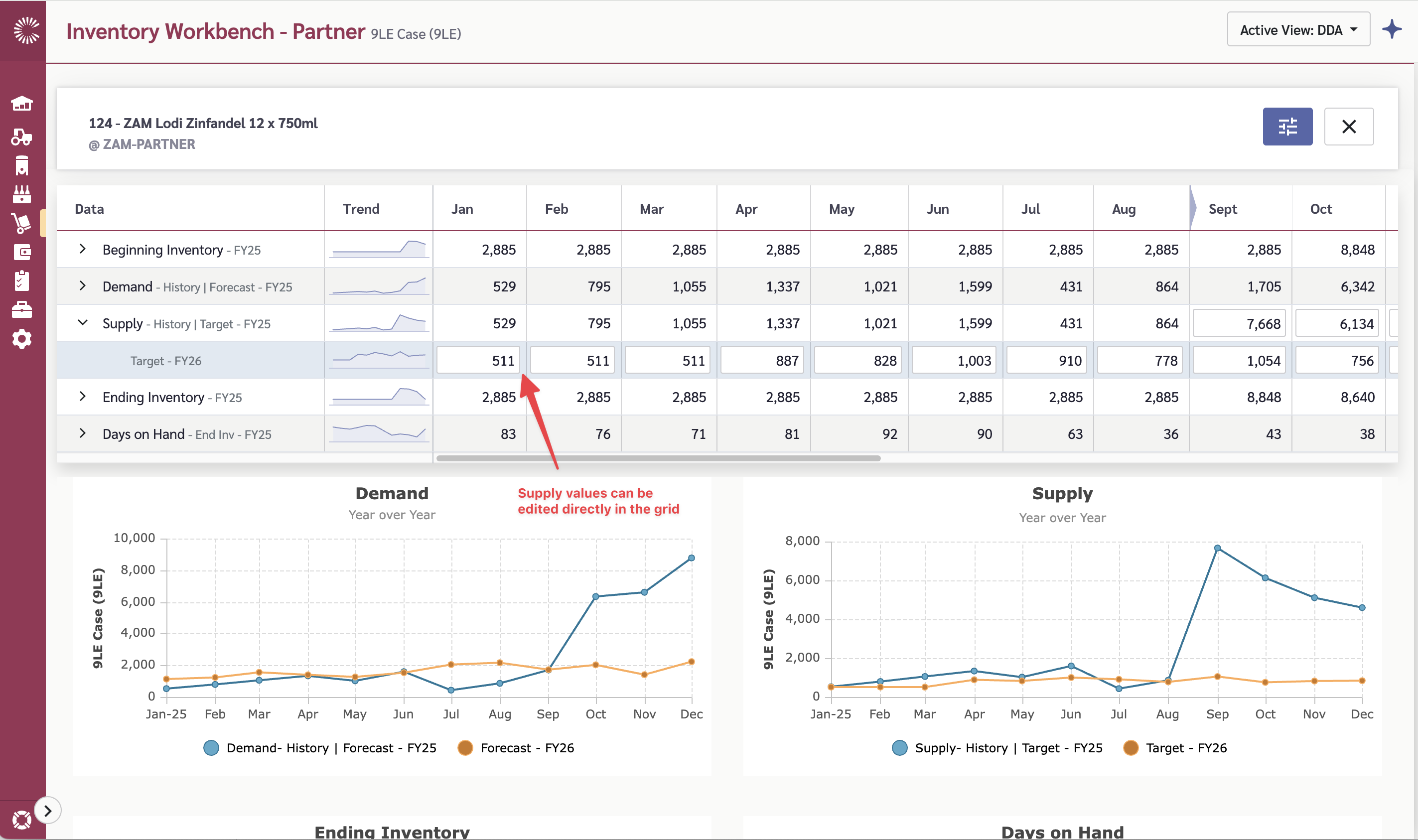
The detail view is where you analyze and manage inventory for a specific item at the partner location. Use it to:
* See how depletion forecasts and shipments affect inventory levels over time
* Identify when a partner will run low on stock
* Adjust planned shipments to maintain target Days on Hand
* Spread forecasts across time periods
The detail view contains:
* **Header** - Shows item name, description, and partner location
* **Detail Grid** - Hierarchical tree view showing depletion, inventory, and DOH data by time period
* **Charts** - Up to 4 visualizations based on your View configuration
### Detail Grid Structure
The detail grid displays data in a tree structure with the following rows:
| Row | Description |
| ------------------- | ------------------------------------------------------------------------------------------------------------------------------------------------------------------------- |
| Beginning Inventory | Starting inventory for each period. For the first period, this is the actual current inventory. For subsequent periods, it equals the previous period's ending inventory. |
| Demand | Parent row containing depletion data. Expand to see Forecast and History sub-rows. |
| Supply | Parent row containing shipment data. Expand to see planned and historical shipments. |
| Ending Inventory | Closing inventory for each period. |
| Days on Hand | How many days the ending inventory will last based on forecasted depletion. |
### How Calculations Work
**Ending Inventory** is calculated for each period as:
```
Ending Inventory = Beginning Inventory - Demand + Supply
```
**Days on Hand** looks forward from each period to determine how long the inventory will last:
1. Starting with the ending inventory for the period
2. Subtracting forecasted demand from each future period
3. Counting days until inventory runs out
4. If inventory covers all visible periods, DOH shows as **∞** (infinity)
{% hint style="info" %}
The DOH calculation uses forecasted depletion data to project how quickly the partner will sell through their inventory. Higher DOH means more runway; lower DOH indicates replenishment is needed soon.
{% endhint %}
### Editing Supply Values
You can edit planned shipment quantities directly in the detail grid:
1. Click on an editable cell in the Supply row (cells at or after the plan start date).
2. Enter a new quantity.
3. Press Enter or click outside the cell to save.
When you edit a supply value:
* The new shipment quantity is saved immediately
* Ending inventory recalculates for that period and all future periods
* Days on Hand recalculates to reflect the updated inventory projection
{% hint style="info" %}
Only Supply row cells can be edited, and only for periods at or after the plan start date. The plan start date is indicated by a marker on the column header.
{% endhint %}
## Configuring Planning Parameters
Planning parameters control how demand calculations are performed for each item at a partner location.
### Open Planning Parameters
1. Open the detail view for an item.
2. Click the Settings (tune) button in the header.
3. A sidebar opens with planning parameter options.
### Planning Parameter Options
| Parameter | Description |
| --------------- | ----------------------------------- |
| Plan Start Date | When to begin planning calculations |
## Reconciling Forecasts
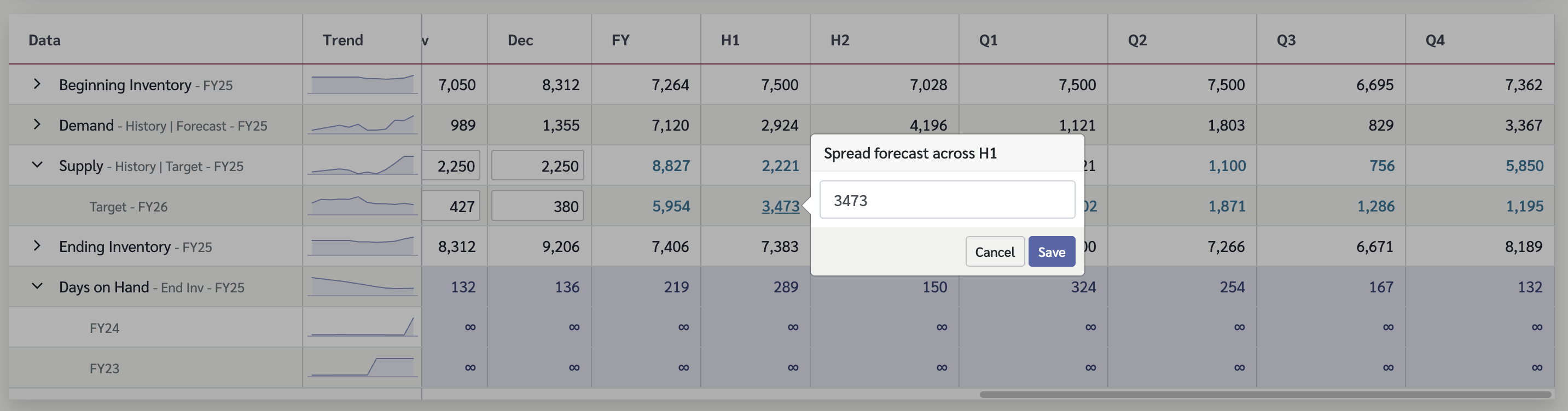
The Partner workbench supports reconciling period-level forecasts across multiple time periods. This is useful when you need to adjust how a total forecast is distributed across weeks or months.
### Spread Forecast
1. Open the detail view for an item.
2. Locate the forecast values in the detail grid.
3. Adjust period allocations as needed to reconcile the forecast. For example, click on the 'H1' total, and the option to spread a forecast will open.
4. Changes are saved automatically.
## Empty States
If you see an empty state message, follow these steps to resolve it:
| Message | Resolution |
| ---------------------- | --------------------------------------------------------------------------------- |
| No View configured | Create a View using the View dropdown |
| No Supply/Demand links | Configure links in [Supply and Demand Map](/master-data/supply-and-demand-map.md) |
| No Location selected | Select a partner location from the dropdown |
| Location has no links | Configure Supply and Demand Map links for this partner location |