> For the complete documentation index, see [llms.txt](https://docs.claret.app/llms.txt). Markdown versions of documentation pages are available by appending `.md` to page URLs; this page is available as [Markdown](https://docs.claret.app/workspace-settings/plans-and-billing.md).
# Plans and Billing
Manage your Claret subscription, adjust licensed seats per module, and view billing information.
The Plans and Billing page provides visibility and control over your Claret subscription. You can view your current plan, adjust the number of licensed seats for each module, see pricing, and manage your billing account.
{% hint style="info" %}
Only workspace administrators and billing users can access the Plans and Billing page.
{% endhint %}
## Viewing Your Subscription
### Navigate to the Plans and Billing page
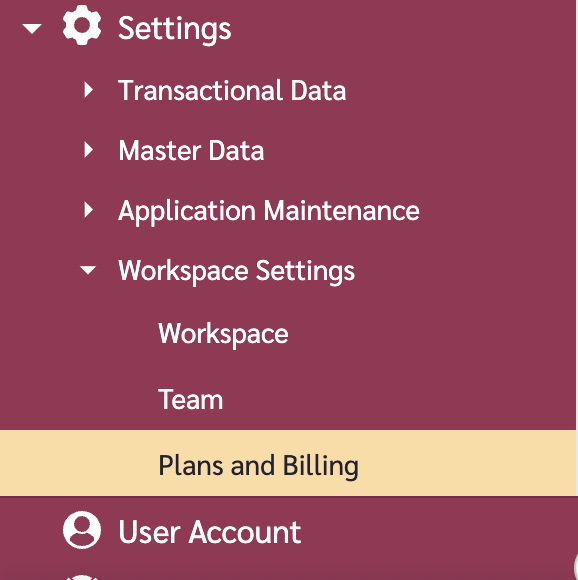
1. Go to the navigation sidebar.
2. Click on "Settings" menu item.
3. Click on "Workspace Settings" menu item.
4. Click on "Plans and Billing".
### Subscription Overview
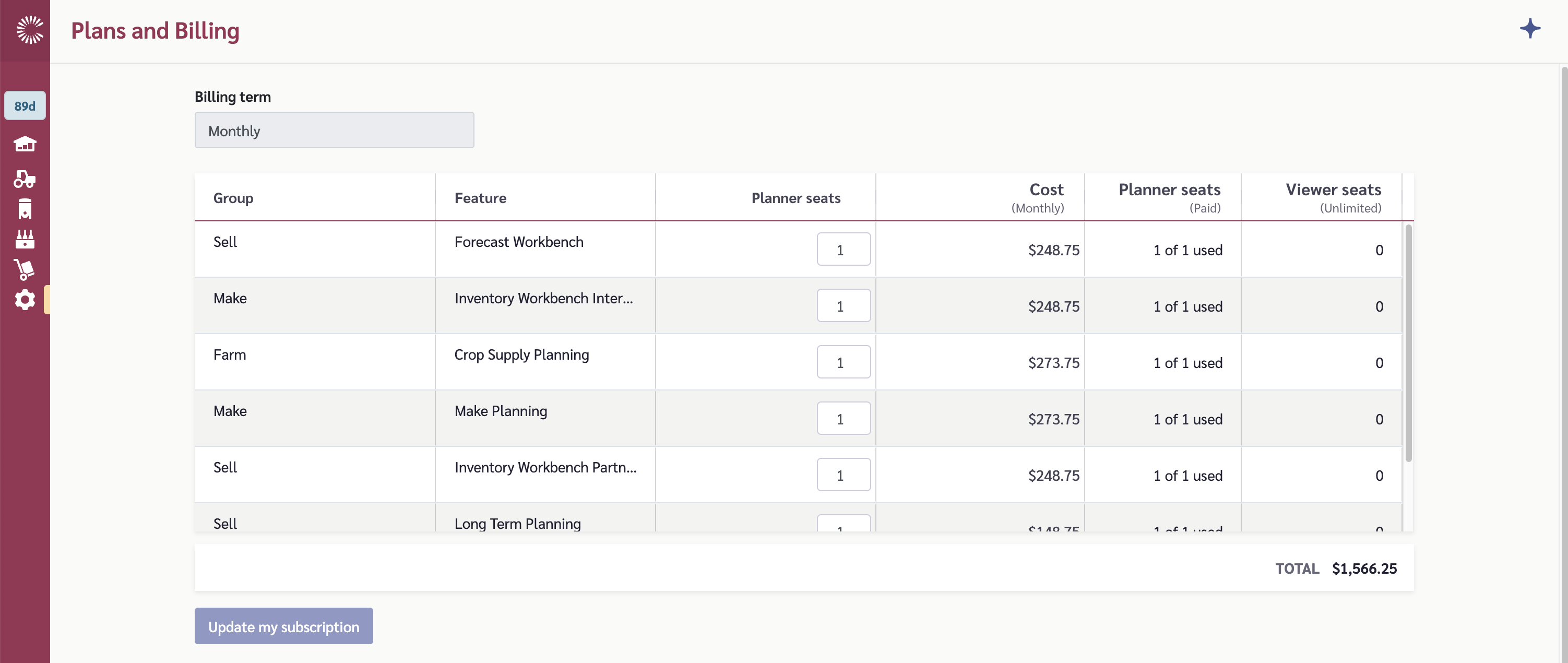
At the top of the page, you'll see your current billing term (e.g., Monthly or Annual).
The main grid displays your subscribed modules with the following information:
| Column | Description |
| -------------------- | ----------------------------------------------- |
| Group | The module category (e.g., Inventory, Sales) |
| Feature | The module name |
| Planner seats | The number of licensed planner seats (editable) |
| Cost | The calculated cost for this module |
| Planner seats (Paid) | Shows current usage (e.g., "5 of 10 used") |
| Viewer seats | Viewer access count |
## Managing Seats
### Adjusting Seat Count
To change the number of licensed seats for a module:
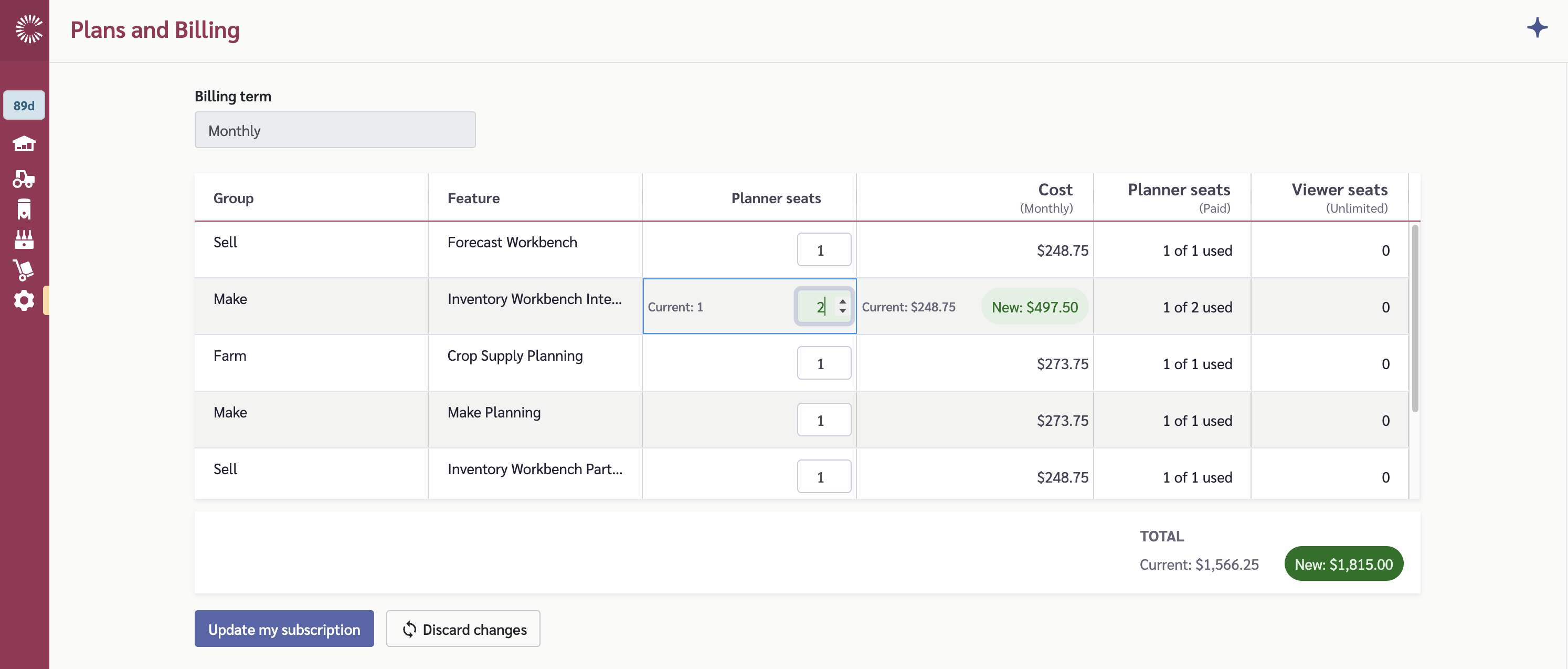
1. Click on the seat count in the "Planner seats" column for the module you want to adjust.
2. Use the increment (+) or decrement (-) buttons, or type a new number.
3. The cost will automatically recalculate.
4. Review your changes in the total section at the bottom.
5. Click "Update my subscription" to apply the changes.
{% hint style="warning" %}
You cannot reduce the seat count below the number of currently active users for a module. If you need to reduce seats, first remove users from the module.
{% endhint %}
### Reviewing Changes
When you make changes to your seat counts:
* The original cost is shown in gray text
* The new cost is shown in a green badge
* A "Discard changes" button appears to revert your modifications
* The "Update my subscription" button becomes active
### Confirming Changes
1. Click "Update my subscription" when you're ready to apply your changes.
2. A confirmation modal will appear showing a summary of your changes.
3. Review the changes carefully.
4. Click "Confirm" to apply the subscription update.
{% hint style="info" %}
Subscription changes are processed through Stripe. Your billing will be adjusted on your next billing cycle or prorated immediately, depending on your plan terms.
{% endhint %}
## Managing Your Account
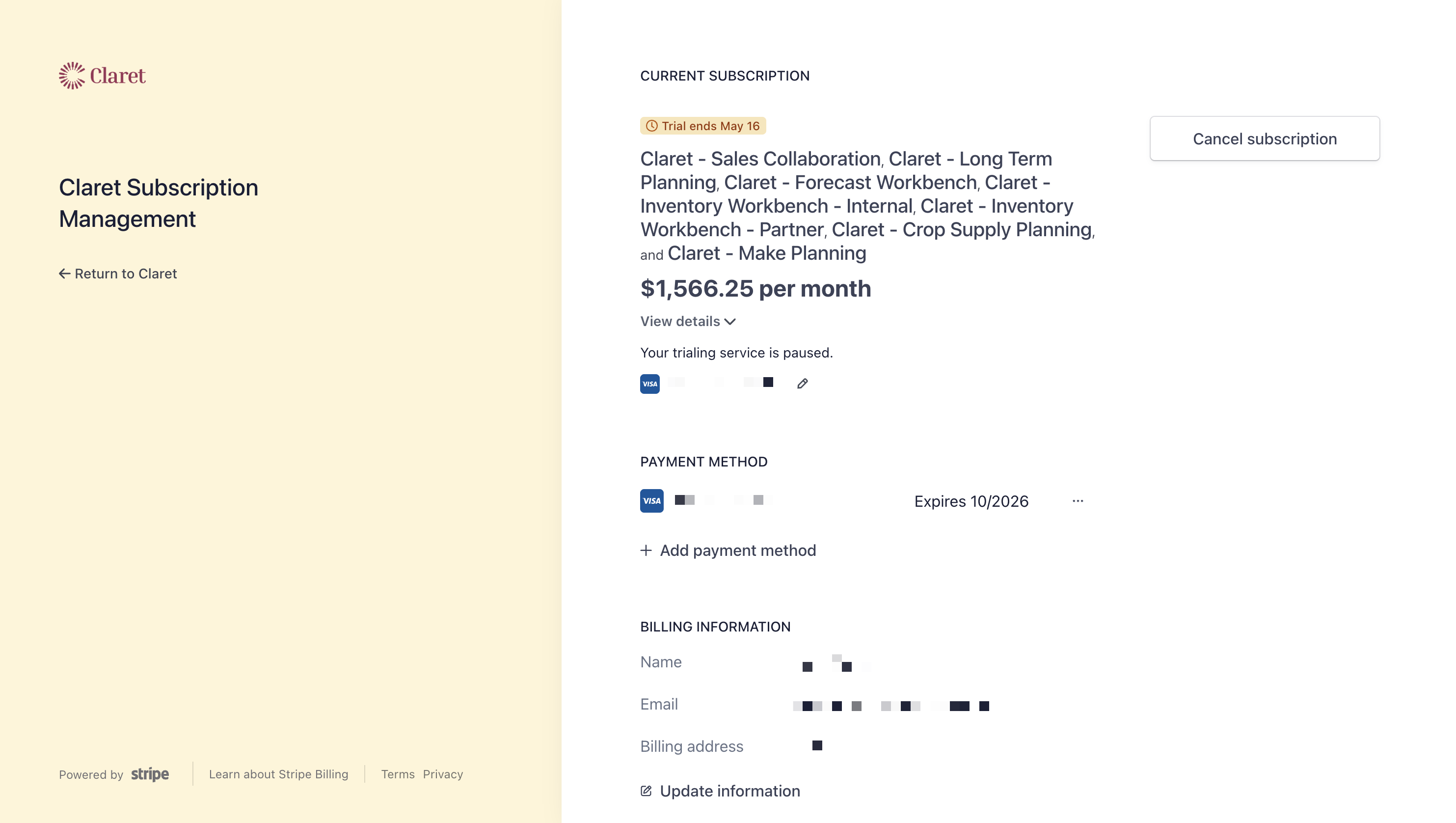
### Stripe Customer Portal
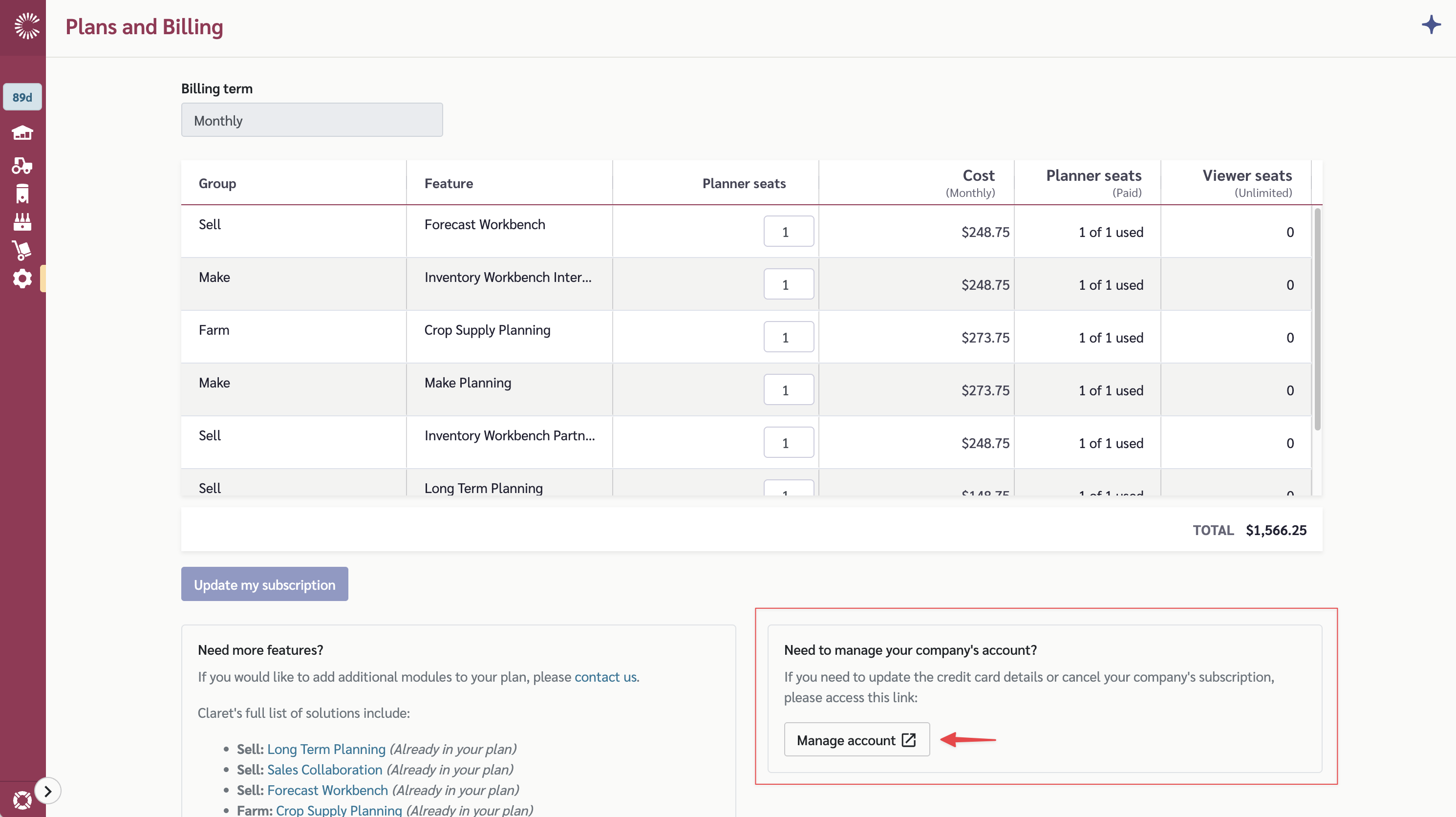
To manage your payment methods, view billing history, or make other account changes:
1. Click the "Manage account" button.
2. You'll be redirected to the Stripe customer portal.
3. From here you can:
* Update payment methods
* View billing history and invoices
* Update billing information
## Adding New Modules
If you need to add modules that aren't currently in your subscription, contact Claret support.
## Troubleshooting
### Error Loading Subscription
If you see an error message when loading subscription information:
1. Click the "Retry" button to attempt to reload.
2. If the problem persists, check your internet connection.
3. Contact support if the issue continues.
### Cannot Reduce Seats
If you receive an error when trying to reduce seats, it means you have more active users assigned to that module than the new seat count would allow. You'll need to:
1. Go to the Team settings page.
2. Remove users from the module or adjust their permissions.
3. Return to Plans and Billing to reduce the seat count.