> For the complete documentation index, see [llms.txt](https://docs.claret.app/llms.txt). Markdown versions of documentation pages are available by appending `.md` to page URLs; this page is available as [Markdown](https://docs.claret.app/using-claret/getting-started/your-first-day.md).

# Your First Day in Claret

Welcome to Claret! This page is designed for new users who have been given access to Claret by their organization's admin. Your admin has already set up the modules and data you'll be working with — this guide helps you find your way around and complete your first tasks.

## What to Expect When You Log In

When you first log in to Claret, you'll see:

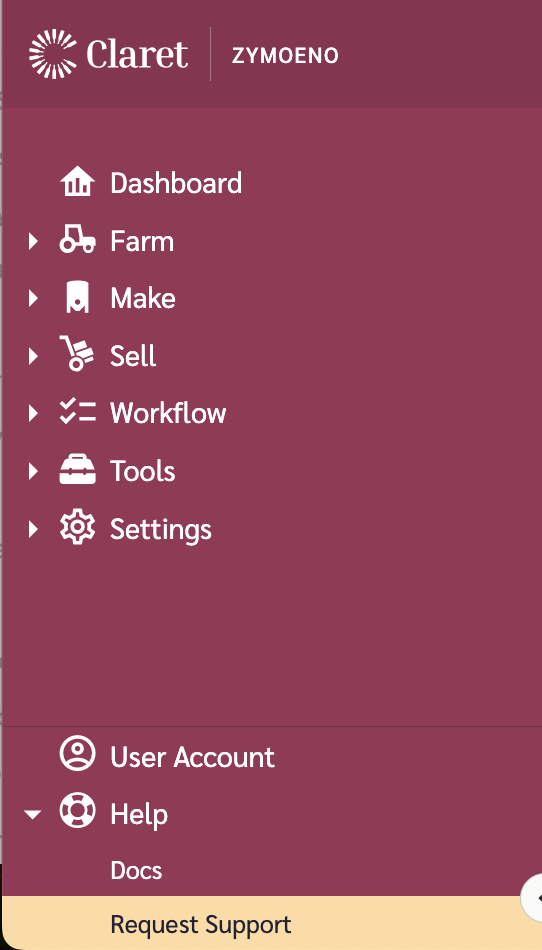
* **The navigation menu** on the left — this is how you move between different parts of the app. The sections you see depend on which modules your organization uses and what permissions you have.
* **The main content area** — where you'll view and work with your data.
* **The header bar** — shows the current view name and provides access to configuration options.

<figure><img src="/files/FsgejKsFECHV4o365kSw" alt="" width="261"><figcaption><p>The Claret navigation menu on the left of the app</p></figcaption></figure>

{% hint style="info" %}
The navigation menu in Claret mirrors the structure of these docs. If you're looking at Sales Collaboration in the app, you'll find matching documentation under Sell > Sales Collaboration in the docs menu.
{% endhint %}

## Understanding the Navigation Menu

The navigation menu is organized by module area:

| Menu Section    | What It Contains                                                                           |
| --------------- | ------------------------------------------------------------------------------------------ |
| **Sell**        | Sales Collaboration, Forecast Workbench, Long Term Planning, Inventory Workbench - Partner |
| **Make**        | Make Planning                                                                              |
| **Pack**        | Inventory Workbench - Internal                                                             |
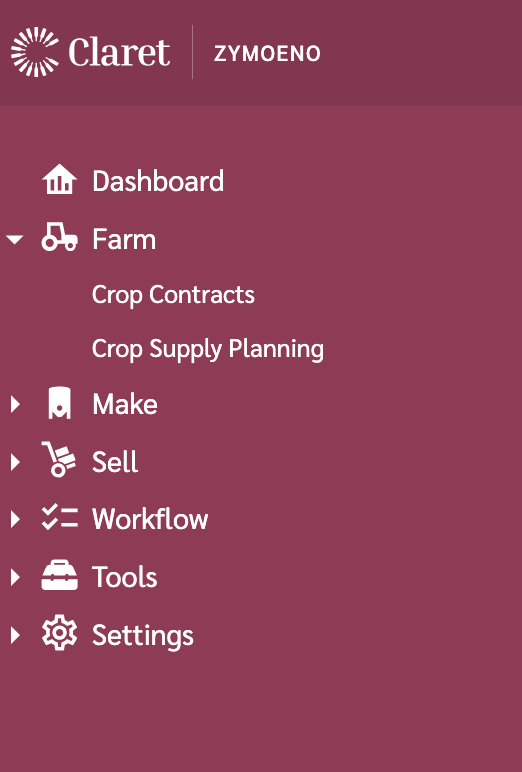
| **Farm**        | Crop Supply Planning                                                                       |
| **Master Data** | Reference data your admin manages (Items, Customers, Calendars, etc.)                      |
| **Settings**    | Transactional data imports, application settings, workspace settings                       |

Use the arrows next to menu items to expand and see sub-options. Not all sections may be visible to you — your admin controls which modules and permissions you have access to.

For more detail on the navigation layout, see [Navigating Claret](/using-claret/getting-started/navigating-claret.md).

## Finding and Switching Views

Most module pages in Claret are driven by **Views**. A view controls what data you see, how it's organized, and what time periods are displayed.

* The **current view name** is always shown in the top-right of the header bar.
* Click on the view name to see a list of available views and switch between them.
* **Workspace views** (marked with a "w") are shared views set up by your admin for everyone to use. These are a great starting point.
* **Personal views** are views you create for yourself. Only you can see these.

If you're new, start with a workspace view that your admin has set up. Once you're comfortable, you can create your own personal views to customize how you see data.

<figure><img src="/files/4O1mBwMFkSANO4fdXFHR" alt=""><figcaption><p>The view selector in the top-right of each module page</p></figcaption></figure>

For more on views, see [Managing Views](/using-claret/getting-started/managing-views.md).

## Understanding the Data You See

When you open a module page with an active view, you'll typically see a grid with:

* **Rows** representing items, customer groups, or other data categories
* **Columns** representing time periods (months, weeks, or fiscal years depending on the module)
* **Values** representing quantities — these could be sales figures, forecasts, inventory levels, or supply plans

The meaning of each column depends on the module and view configuration. Each module's documentation explains what the specific columns and values represent.

<figure><img src="/files/IZtku2IAszsKTQ21JT0q" alt=""><figcaption><p>Example of a module grid — rows on the left, time periods across the top</p></figcaption></figure>

{% hint style="info" %}
New to concepts like hierarchies, sale types, or reconciliation? See [Key Concepts](/using-claret/getting-started/key-concepts.md) for explanations of the terms and ideas you'll encounter across Claret.
{% endhint %}

## Your First Task: Explore a View and Apply a Filter

Try this to get comfortable with the interface:

1. **Navigate to a module** — click on a module in the left menu (e.g., Sell > Sales Collaboration)
2. **Select a view** — if a workspace view is available, select it from the view dropdown in the top-right
3. **Explore the grid** — scroll through the data to see what's there. Expand hierarchy rows by clicking the arrows on the left
4. **Apply a filter** — most grids support filtering. Look for filter options in column headers or the toolbar to narrow down to specific items or customers
5. **Try different hierarchy levels** — if the module has a hierarchy picker at the top, try selecting different levels to see data rolled up or broken down

## Where to Get Help

* **In-app support** — expand the Help section in the navigation menu and select "Request Support" to reach the Claret support team
* **AI Assistant** — if enabled for your workspace, the AI Assistant can answer questions about how Claret works and guide you through tasks
* **These docs** — use the search function or browse by module to find detailed instructions

<figure><img src="/files/Z2e9GJWobox2mIyP6GDD" alt="" width="271"><figcaption><p>Expand the Help section in the navigation menu to request support</p></figcaption></figure>

## Module Quick-Start Guides

Ready to dive into a specific module? These quick-start guides walk you through the essentials for each module as a regular user:

| Module                         | Quick Start                                                                                      |
| ------------------------------ | ------------------------------------------------------------------------------------------------ |
| Sales Collaboration            | [Quick Start: Sales Collaboration](/sell/sales-collaboration/quick-start.md)                     |
| Forecast Workbench             | [Quick Start: Forecast Workbench](/sell/forecast-workbench/quick-start.md)                       |
| Long Term Planning             | [Quick Start: Long Term Planning](/sell/long-term-planning/quick-start.md)                       |
| Inventory Workbench - Partner  | [Quick Start: Inventory Workbench - Partner](/sell/inventory-workbench-partner/quick-start.md)   |
| Inventory Workbench - Internal | [Quick Start: Inventory Workbench - Internal](/pack/inventory-workbench-internal/quick-start.md) |
| Make Planning                  | [Quick Start: Make Planning](/make/make-planning/quick-start.md)                                 |
| Crop Supply Planning           | [Quick Start: Crop Supply Planning](/farm/crop-supply-planning/quick-start.md)                   |

## Common Questions

### I can't see any modules in the navigation menu

Your admin controls which modules you have access to. Contact your admin or workspace owner to check your permissions. See [Team Member Privileges](/workspace-settings/team/team-member-privileges.md) for how permissions work.

### The page is empty when I open a module

Most modules require an active view before they display data. Check the view dropdown in the top-right — you may need to select a workspace view or create a personal view.

### I see data but don't understand what the columns mean

Each module has its own documentation explaining the grid layout and columns. Navigate to the relevant module section in these docs, or check the module-specific quick-start guides linked above.


---

# Agent Instructions
This documentation is published with GitBook. GitBook is the documentation platform designed so that both humans and AI agents can read, navigate, and reason over technical content effectively. Learn more at gitbook.com.

## Querying This Documentation
If you need additional information that is not directly available in this page, you can query the documentation dynamically by asking a question.

Perform an HTTP GET request on the current page URL with the `ask` query parameter:

```
GET https://docs.claret.app/using-claret/getting-started/your-first-day.md?ask=<question>
```

The question should be specific, self-contained, and written in natural language.
The response will contain a direct answer to the question and relevant excerpts and sources from the documentation.

Use this mechanism when the answer is not explicitly present in the current page, you need clarification or additional context, or you want to retrieve related documentation sections.