> For the complete documentation index, see [llms.txt](https://docs.claret.app/llms.txt). Markdown versions of documentation pages are available by appending `.md` to page URLs; this page is available as [Markdown](https://docs.claret.app/sell/inventory-workbench-partner/quick-start.md).

# Quick Start: Inventory Workbench - Partner

## What You'll Learn

Inventory Workbench - Partner helps you manage inventory at your partner (distributor) locations by tracking demand, supply, and days of hand (DOH). After this guide, you'll be able to navigate to the module, select or create a view, understand the grid and detail view, and edit shipment quantities.

## Before You Begin

Your admin should have already:

* Set up Items, Customer Groups, and Item @ Customer Groups
* Configured Partner Locations and Item @ Locations
* Set up the Supply and Demand Map for partner inventory
* Configured Sale Types for depletion and shipment data

If the module page is empty, check with your admin that the setup is complete. See [Setting Up Inventory Workbench - Partner](/using-claret/getting-started/setting-up-modules/setting-up-inventory-workbench-partner.md) for what's required.

## Step 1: Access Inventory Workbench - Partner

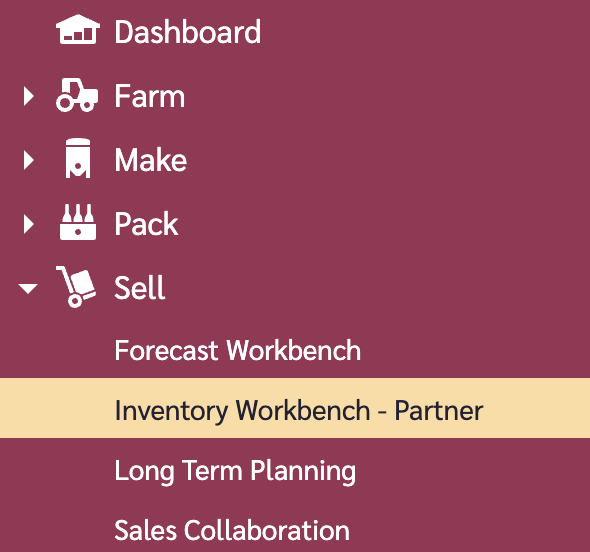
Navigate to **Sell > Inventory Workbench - Partner** in the left navigation menu.

<figure><img src="/files/qy7eK4tb6xhtjUGall4N" alt=""><figcaption><p>The Inventory Workbench - Partner menu item in the navigation</p></figcaption></figure>

## Step 2: Create or Select a View

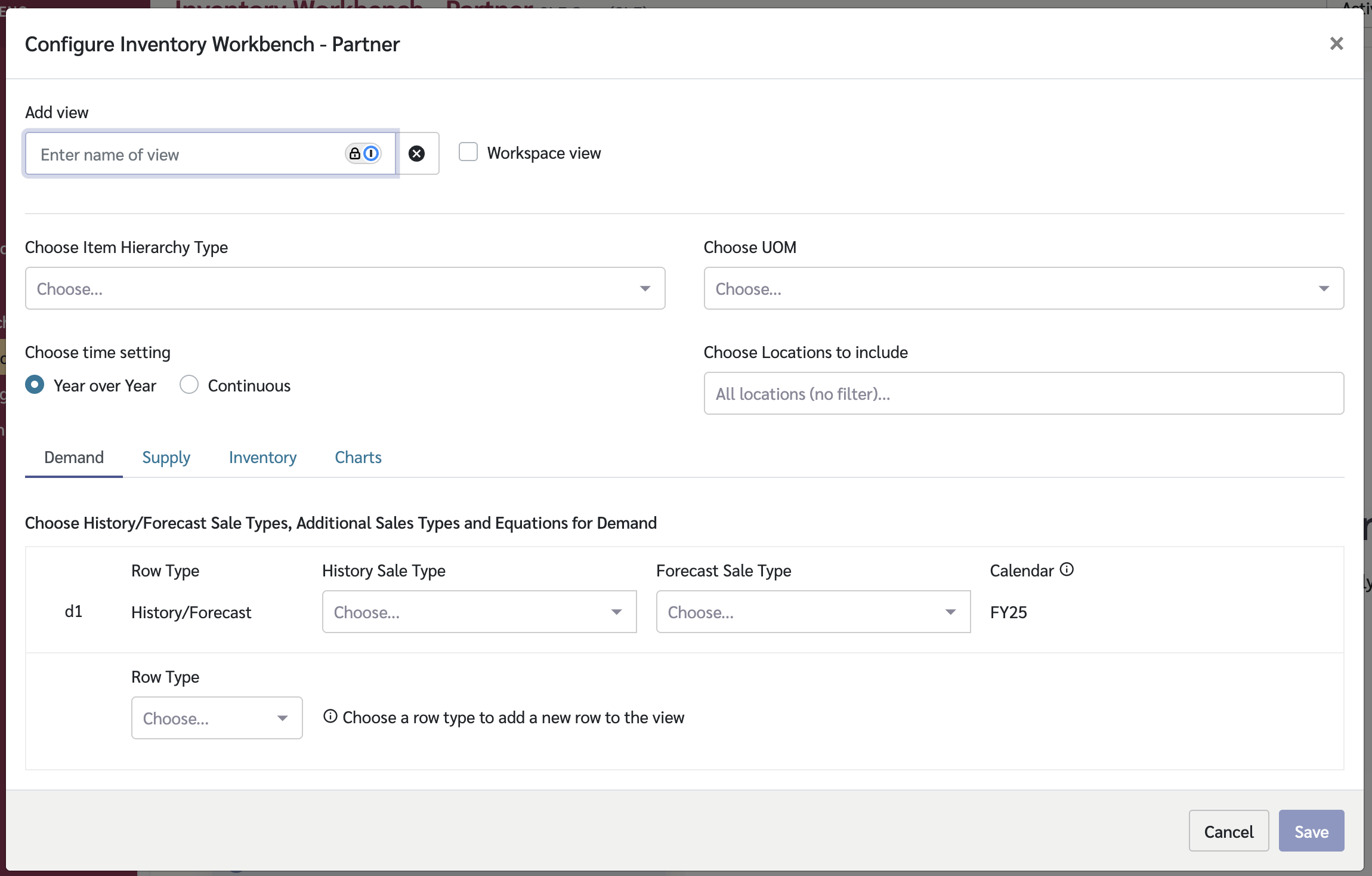
1. Click the **view button** in the top-right of the page
2. Select an existing **workspace view** if one is available
3. To create a new view, click **Configure** then **Add**:
   * Give the view a name
   * Select the **Demand** tab to configure which sale types represent depletion data
   * Select the **Supply** tab to configure which sale types represent shipment data
   * Select the **Inventory** tab to configure inventory data sources
   * Optionally, configure the **Charts** tab for visual analysis

<figure><img src="/files/n7fM2q5PEWdOnxA8Zfbv" alt=""><figcaption><p>The Inventory Workbench - Partner view configuration screen</p></figcaption></figure>

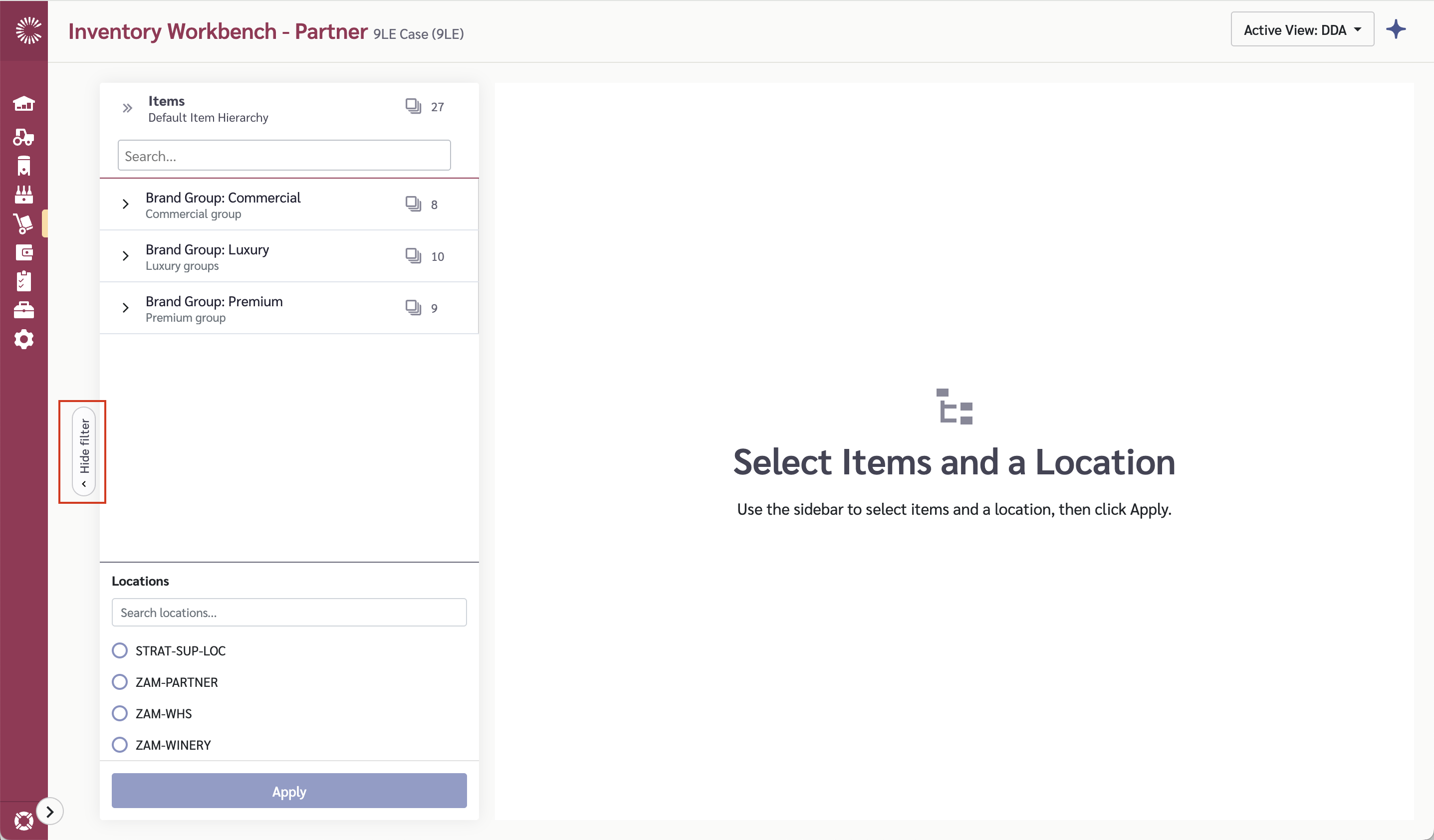
## Step 3: Use the Sidebar to Filter Data

1. Toggle the **sidebar** open using the sidebar button
2. Select a **partner location** from the location list
3. Select one or more **items** from the item picker (or use Select All)
4. Click **Apply** to load data for your selection

The grid will populate with inventory data for the selected items at the chosen partner location.

<figure><img src="/files/k2WQMCPjwZ6N7WdnnHZ3" alt=""><figcaption><p>The sidebar with the partner location and item picker</p></figcaption></figure>

## Step 4: Read the Grid

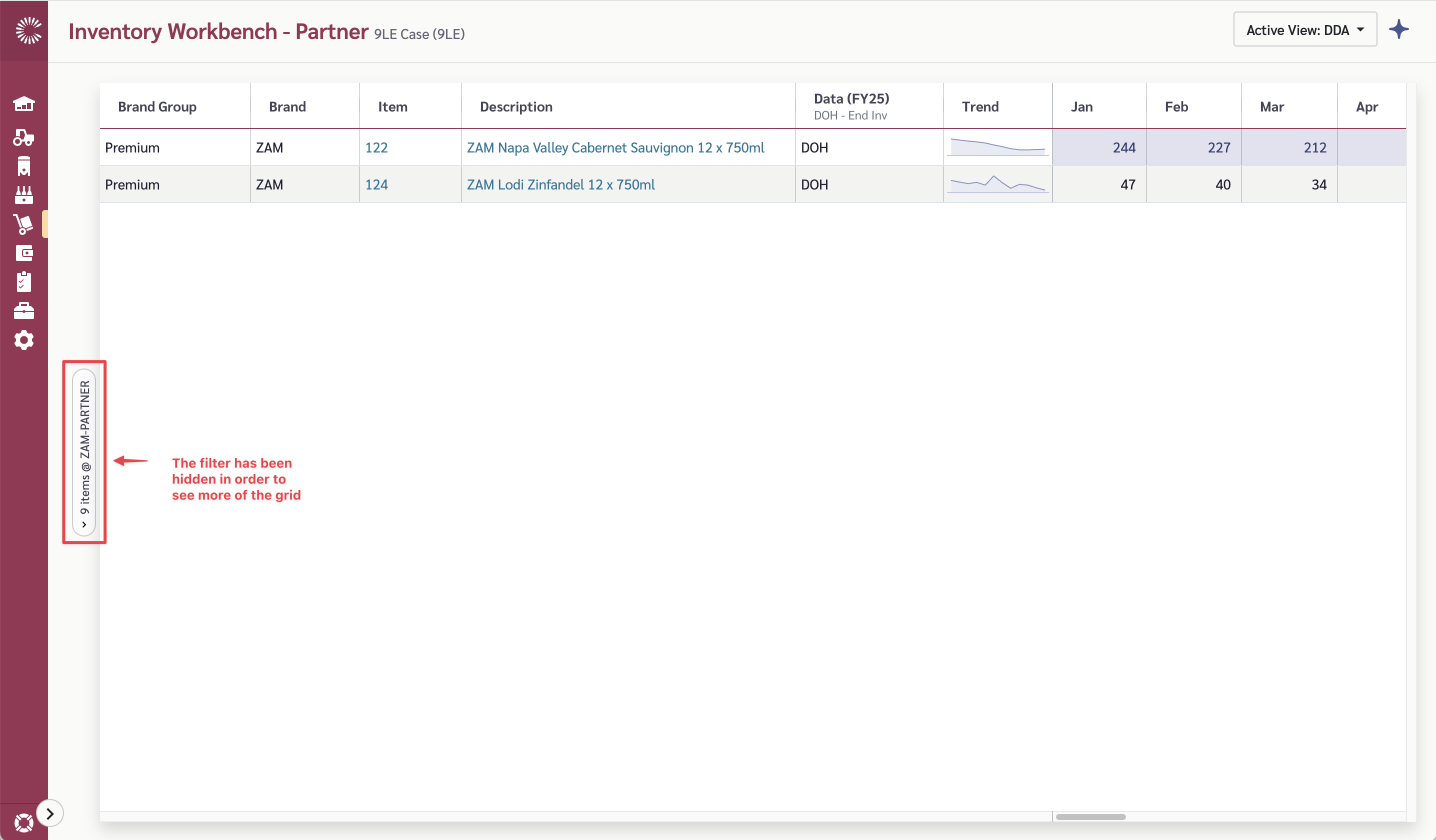
The main grid shows a summary row for each item with key metrics:

| Column   | What It Shows                                                                                                                |
| -------- | ---------------------------------------------------------------------------------------------------------------------------- |
| **Item** | The product name                                                                                                             |
| **DOH**  | Days on Hand — how many days of inventory are projected to remain based on current depletion rates at the end of each period |

Items are color-coded based on their DOH status — helping you quickly identify which items need attention.

<figure><img src="/files/z7pF2D4Qdt6k2UJXwa0W" alt=""><figcaption><p>The main grid showing summary rows with DOH</p></figcaption></figure>

## Step 5: Work with the Detail View

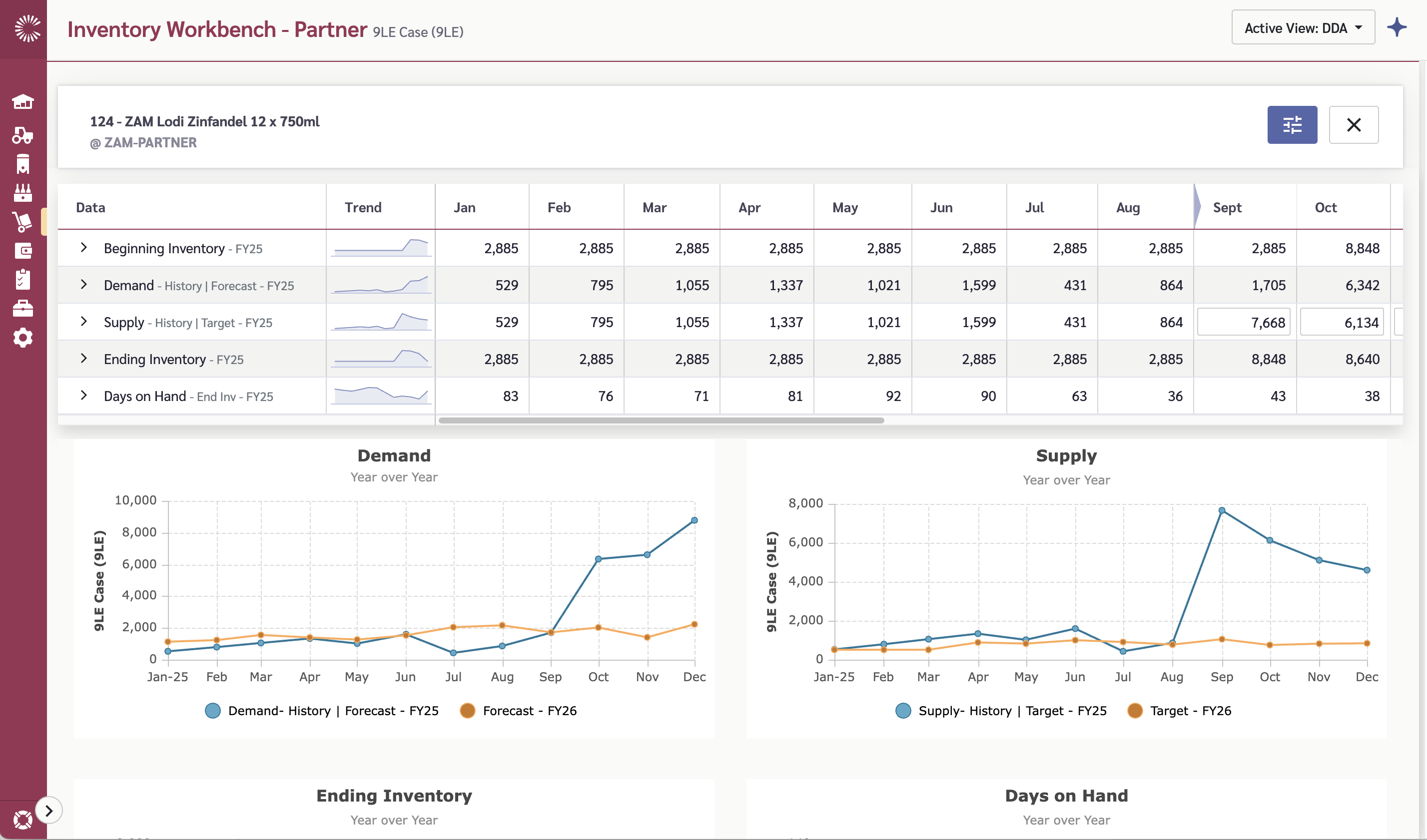
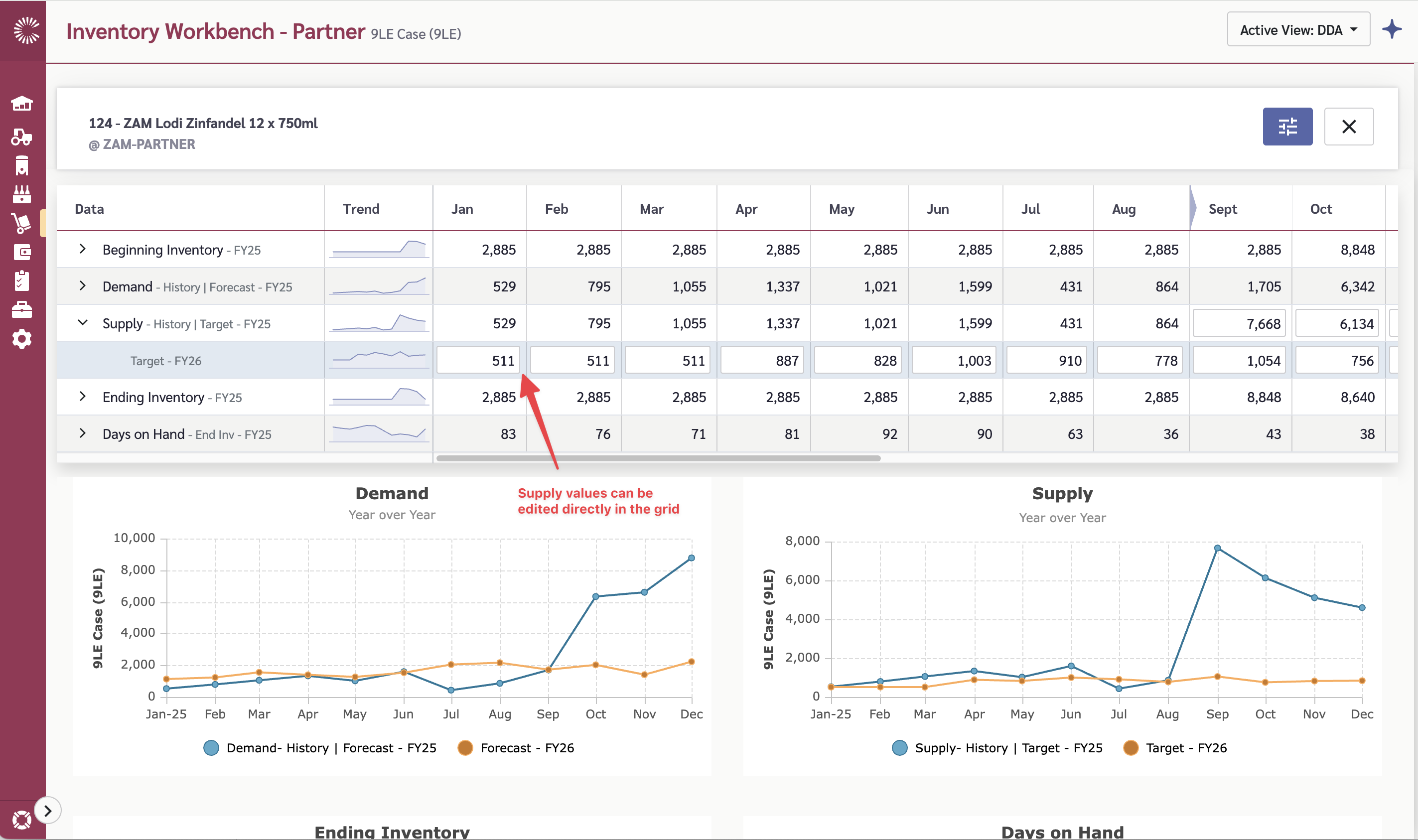
Click on an item row to open the **detail view**, which shows a time-period breakdown:

* **Demand rows** — depletion data by period (history and forecast)
* **Supply rows** — shipment data by period
* **Inventory rows** — opening and closing inventory by period
* **DOH row** — calculated days of hand for each period

The detail grid lets you see how inventory levels change over time and identify future stockout risks.

<figure><img src="/files/bvkK7VQ84BB6kOrLi9IS" alt=""><figcaption><p>The detail view for an item, showing demand, supply, inventory, and DOH by period</p></figcaption></figure>

## Step 6: Edit Shipment Quantities

If your view is configured to allow editing:

1. Open the **detail view** for an item
2. Click on a cell in an **editable supply row** for the period you want to adjust
3. Enter the new shipment quantity
4. The DOH and inventory calculations update automatically

<figure><img src="/files/puhUgxiOfTltUAFyi5SA" alt=""><figcaption><p>Editing a shipment quantity in the detail view</p></figcaption></figure>

## Understanding the Data

**Days of Hand (DOH)** is the key metric in this module. It represents how many days the current inventory will last based on the depletion rate. A low DOH signals that a shipment may be needed soon.

The module uses the **Supply and Demand Map** configured by your admin to determine which supply item\@locations can meet demand for item\@customergroups.

## Common Questions

### What's the difference between Internal and Partner?

Inventory Workbench - Partner tracks inventory at distributor/partner locations using depletion and shipment data. Inventory Workbench - Internal tracks inventory at your own locations using supply plans and production data. See [Inventory Workbench - Internal](/pack/inventory-workbench-internal.md) for the internal module.

### How is DOH calculated?

DOH is calculated by dividing the current inventory by the average daily depletion rate. The exact calculation depends on the forecast period and configured depletion data.

### Can I spread a forecast across multiple periods?

Yes. The reconcile forecasts feature allows you to distribute a total forecast quantity across time periods. Check with your admin if this functionality is enabled in your view.


---

# Agent Instructions
This documentation is published with GitBook. GitBook is the documentation platform designed so that both humans and AI agents can read, navigate, and reason over technical content effectively. Learn more at gitbook.com.

## Querying This Documentation
If you need additional information that is not directly available in this page, you can query the documentation dynamically by asking a question.

Perform an HTTP GET request on the current page URL with the `ask` query parameter, and the optional `goal` query parameter:

```
GET https://docs.claret.app/sell/inventory-workbench-partner/quick-start.md?ask=<question>&goal=<endgoal>
```

`ask` is the immediate question: it should be specific, self-contained, and written in natural language.
`goal` is optional and describes the broader end goal you are ultimately trying to accomplish on behalf of the user. GitBook uses it to tailor the answer towards what is most useful for that goal.

The response will contain a direct answer to the question and relevant excerpts and sources from the documentation.

Use this mechanism when the answer is not explicitly present in the current page, you need clarification or additional context, or you want to retrieve related documentation sections.