Quick Start: Forecast Workbench

Quick start guide for Forecast Workbench — how to select an item and customer group, configure a forecast, run the model, interpret results, and make overrides.

What You'll Learn

The Forecast Workbench uses statistical models with historical sales data to forecast demand into the future. After this guide, you'll be able to select an Item @ Customer Group combination, review or configure a forecast, run the model, read the output, and apply overrides.

Before You Begin

Your admin should have already:

  • Set up Items, Customer Groups, and Item @ Customer Groups

  • Imported historical sales data

  • Configured Forecast Workbench settings in Application Settings

If the page appears empty or models won't run, check with your admin that setup is complete. See Setting Up Forecast Workbench for what's required.

The Forecast Workbench requires historical sales data to generate forecasts. The more history available, the better the model's predictions.

Step 1: Access Forecast Workbench

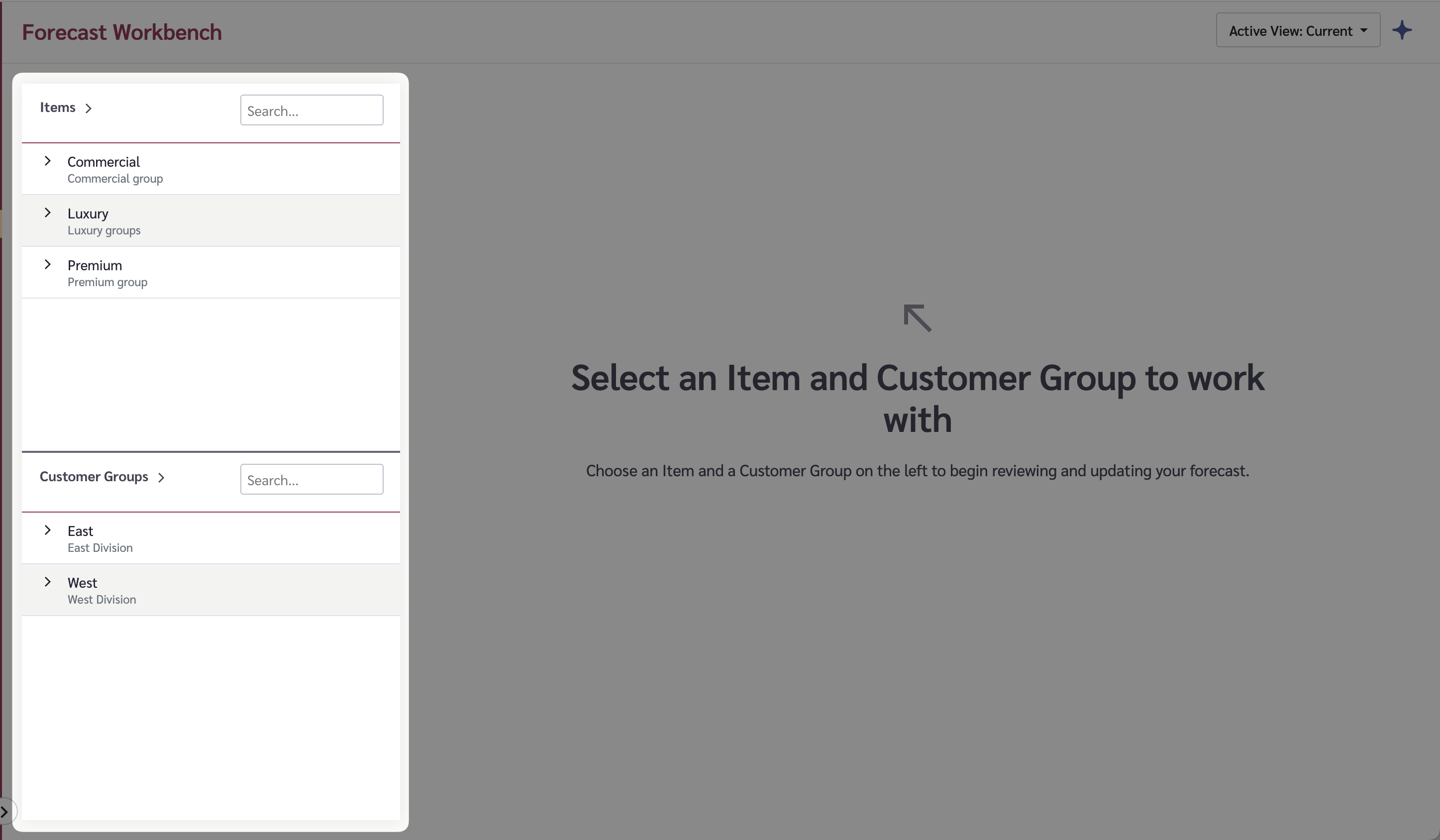
Navigate to Sell > Forecast Workbench in the left navigation menu.

The Forecast Workbench landing page

Step 2: Select an Item and Customer Group

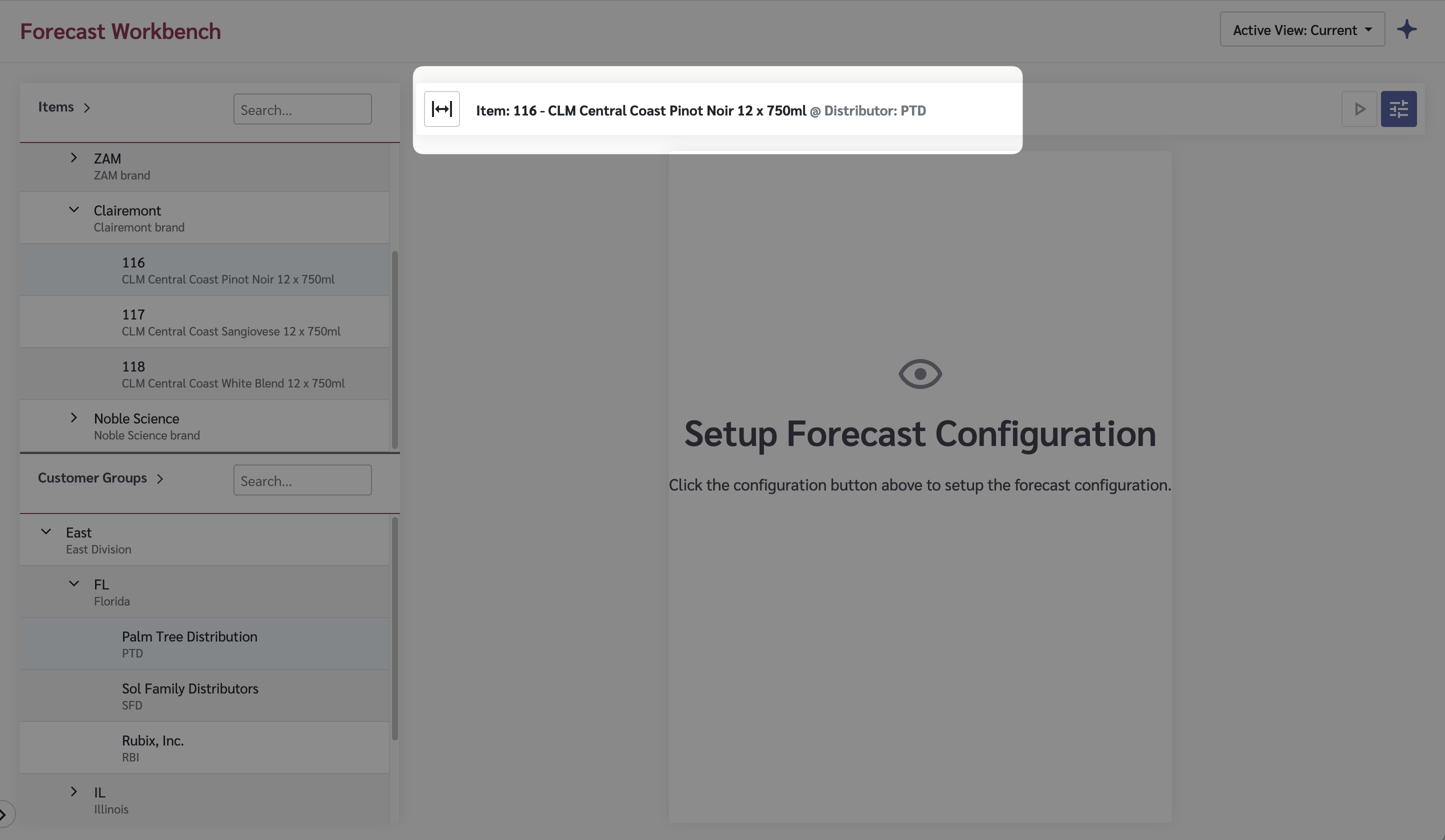
When you enter the Forecast Workbench, all Items and Customer Groups are listed on the left side of the page.

  1. Click on the Item you want to forecast

  2. Click on the Customer Group you want to forecast for

  3. The banner at the top will update to show the selected Item @ Customer Group combination

Selecting an Item and Customer Group on the left side of the page

The Item and Customer Group must be linked as an Item @ Customer Group for forecasting to work.

Step 3: Review the Forecast Configuration

If a forecast has been run previously for this combination, you'll see the existing results. To view or adjust the configuration:

  1. Click the configuration button (blue icon) in the top-right of the screen

  2. Review the settings:

    • Timing Interval — weekly or monthly forecast buckets

    • Forecast history start / end — the date range of historical data used by the model

    • Forecast horizon — how many months into the future to forecast

  3. Review the model configuration:

    • Auto — Claret selects the best regression model automatically

    • Manual — you choose the model, missing imputation method, and forecast constraints yourself

The Forecast Workbench configuration panel

Step 4: Run the Model

Once the configuration is set:

  1. Click the Play button in the top-right corner to run the model

  2. Wait for the model to complete — this may take a few seconds depending on the data volume

You need to re-run the model whenever you change the configuration. The model does not re-run automatically.

Step 5: Interpret the Results

The output has three sections:

  1. The chart — shows historical data (red) and the forecast projection (blue) over time. Hover over a point to see exact values.

  2. Point detail — below the chart, shows the precise history and forecast values for whichever point you hover over on the chart.

  3. The data table — a scrollable table with all values by time period, including any overrides.

The area between the "History start" and "History end" markers on the chart highlights the data used to generate the forecast. All available history is shown on the chart, but only the selected range feeds the model.

The Forecast Workbench output — chart, point detail, and data table

Step 6: Make Overrides (Optional)

To adjust the forecast for a specific period:

  • By adjustment amount — enter a value in the "Overrides" field to add to (or subtract from, using a negative number) the forecast

  • By target total — enter a value in the "Total" field and the override amount will be calculated automatically

The chart updates to show the adjusted value, with a dotted line indicating the original forecast for comparison.

Entering an override adjusts the forecast value and updates the chart

Understanding the Data

Column
What It Shows

Hist/Forecast

The original modeled value — history for past periods, forecast for future periods

Overrides

Any manual adjustments applied to the forecast

Total

The final value (forecast + override)

Common Questions

How much historical data do I need?

More history generally produces better forecasts. At minimum, you need enough data to cover the patterns in your sales (e.g., at least 12 months to capture seasonal trends). Check with your admin about how much history has been imported.

What if there are gaps in my sales history?

The "Missing Imputation" setting in the model configuration tells Claret how to handle gaps. Options include interpolating missing values or treating them as zero. Check the configuration panel to see what method is being used.

Can I override the forecast for multiple periods at once?

Overrides are entered one period at a time in the data table. Enter your adjustment for each period you want to change.

Last updated

Was this helpful?