> For the complete documentation index, see [llms.txt](https://docs.claret.app/llms.txt). Markdown versions of documentation pages are available by appending `.md` to page URLs; this page is available as [Markdown](https://docs.claret.app/farm/crop-supply-planning/quick-start.md).

# Quick Start: Crop Supply Planning

## What You'll Learn

Crop Supply Planning helps you manage crop supply across varietals and locations by showing demand, supply, and the surplus or deficit (delta) for each combination. After this guide, you'll be able to navigate to the module, configure a view, read the grid, use pivot mode, and export data.

## Before You Begin

Your admin should have already:

* Set up Crop Items, Crop Locations, and Item @ Locations
* Configured Recipes linking WIP items to crop items
* Set up Crop Location Hierarchies
* Imported supply plan data

If the module shows no data, check with your admin that setup is complete. See [Setting Up Crop Supply Planning](/using-claret/getting-started/setting-up-modules/setting-up-crop-supply-planning.md) for what's required.

## Step 1: Access Crop Supply Planning

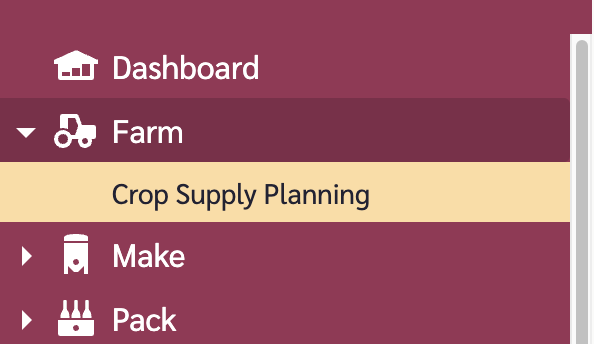
Navigate to **Farm > Crop Supply Planning** in the left navigation menu.

<figure><img src="/files/vHl3V4suKfGhHGwM251o" alt="Crop Supply Planning navigation"><figcaption><p>The Crop Supply Planning menu item in the navigation</p></figcaption></figure>

## Step 2: Configure or Select a View

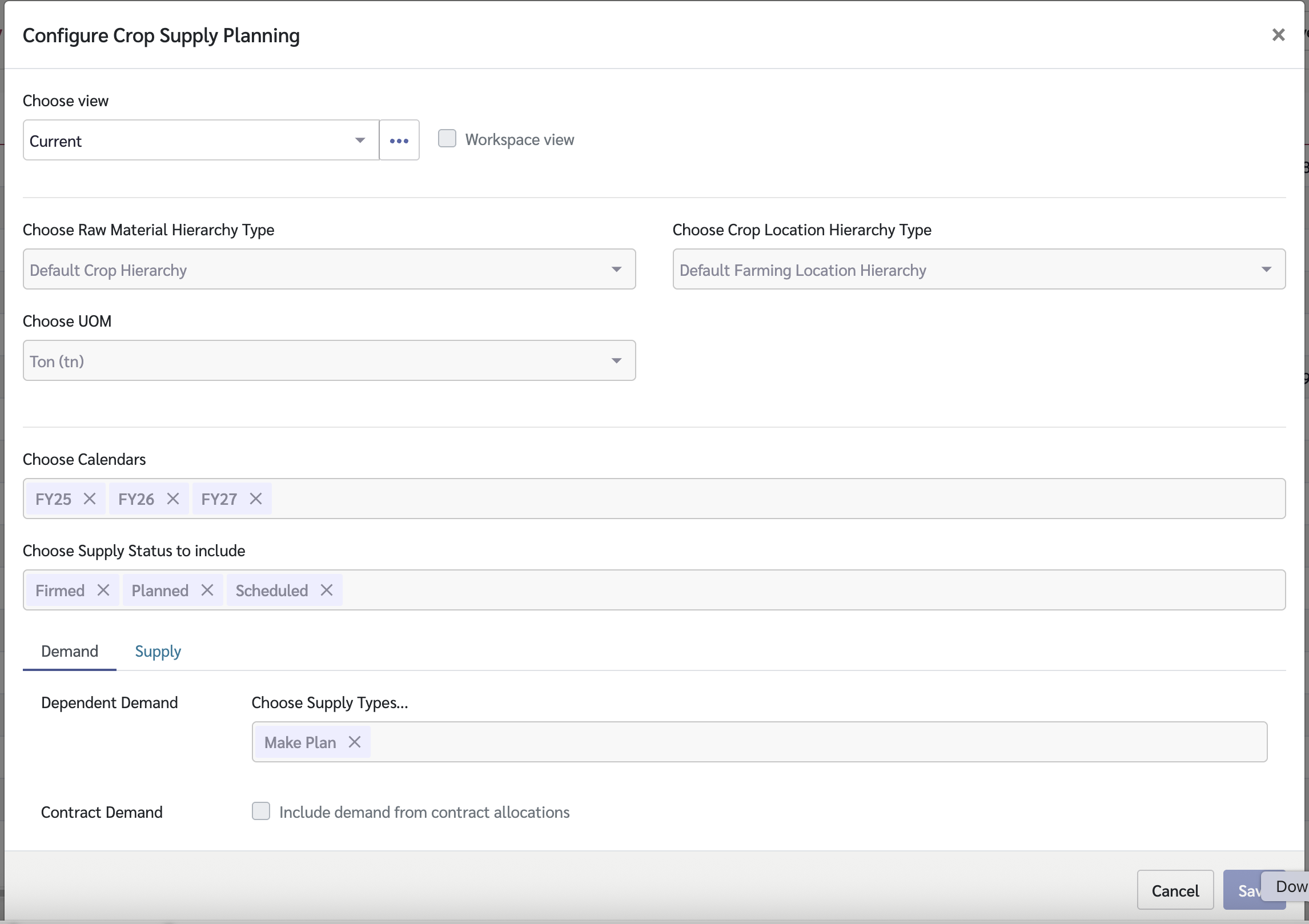
1. Click the **view menu** in the top-right of the page
2. Select an existing workspace view, or create a new view with these settings:
   * **Raw Material Hierarchy Type** — the crop item hierarchy to use
   * **Crop Location Hierarchy Type** — the crop location hierarchy to use
   * **UOM** — the unit of measure for displaying data
   * **Calendars** — select one or more fiscal year calendars to display
   * **Supply Status** — which supply plan statuses to include
   * **Dependent Demand** — the supply types from which crop demand is calculated (typically WIP supply plans)
   * **Crop Supply** — the supply types containing crop supply data

<figure><img src="/files/2zFopEZfiG8AgZ59bkT7" alt="Crop Supply Planning View Configuration"><figcaption><p>The Crop Supply Planning view configuration screen</p></figcaption></figure>

## Step 3: Read the Grid

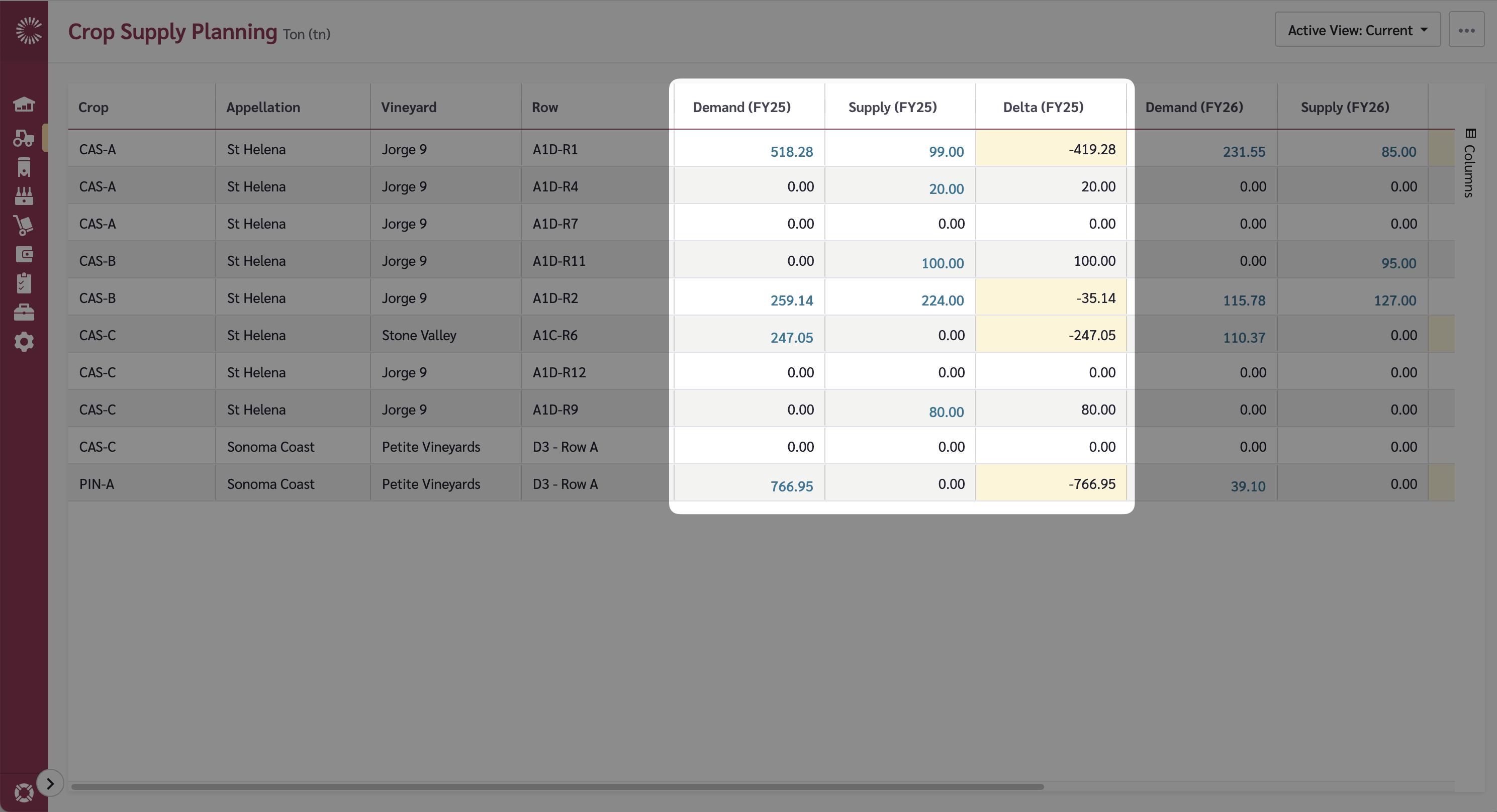
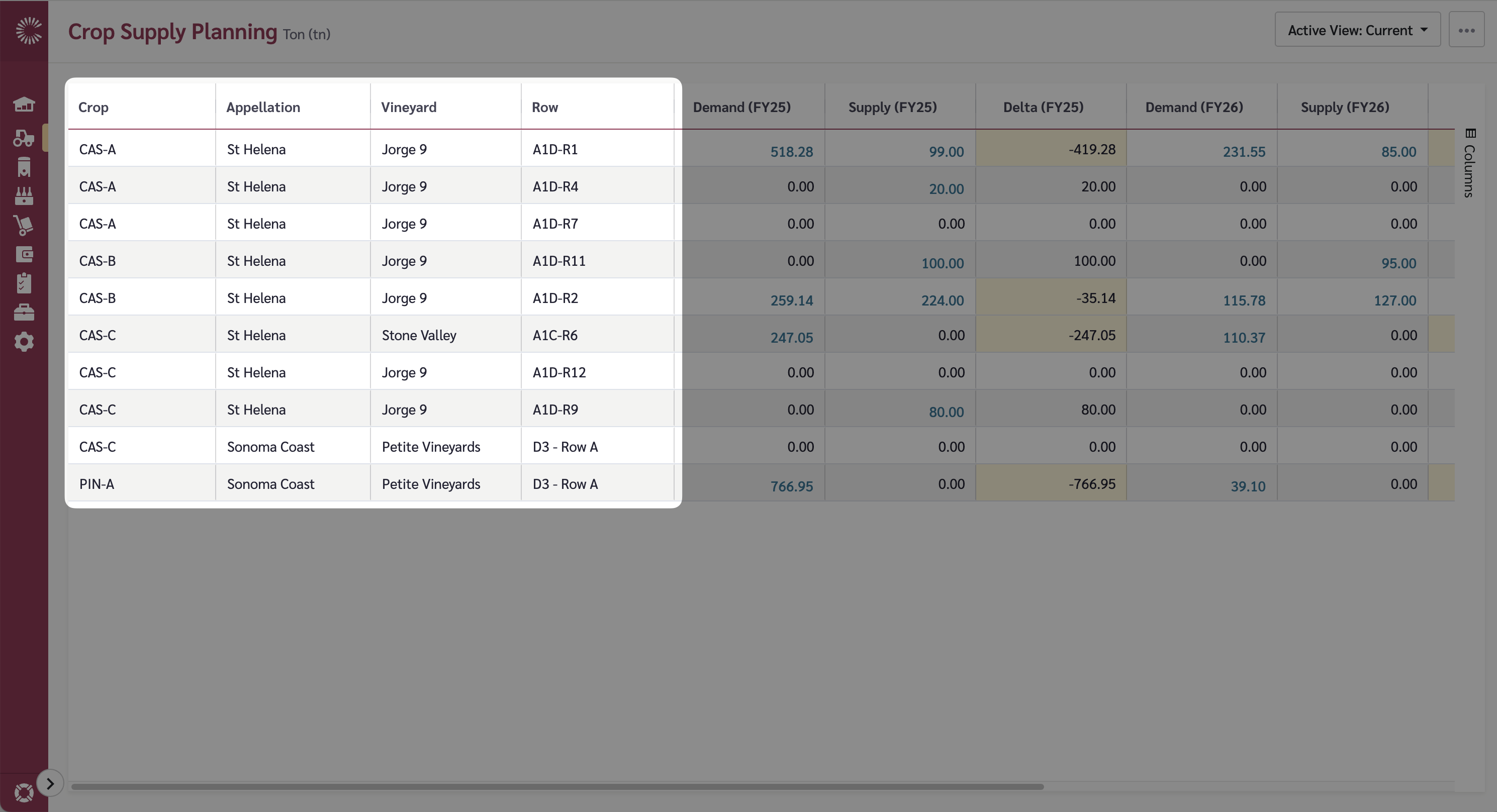
The Crop Supply Planning grid shows one row per crop item and location combination:

| Column Group          | What It Shows                                                                                           |
| --------------------- | ------------------------------------------------------------------------------------------------------- |
| **Hierarchy columns** | Crop item and crop location identifiers                                                                 |
| **Demand**            | Crop demand for each fiscal year — calculated from dependent demand (WIP recipes) and any direct demand |
| **Supply**            | Crop supply for each fiscal year — from supply plans                                                    |
| **Delta**             | The difference between supply and demand for each fiscal year                                           |

**Interpreting the delta:**

* **Positive delta** = surplus (you have more supply than demand)
* **Negative delta** = deficit (demand exceeds supply — action may be needed)

<figure><img src="/files/PZ0ypG0JFoPHZdFaFbbi" alt="Crop Supply Planning fiscal year columns"><figcaption><p>The Crop Supply Planning grid showing demand, supply, and delta columns per fiscal year</p></figcaption></figure>

## Step 4: Group and Filter Data

* **Expand/collapse rows** — click the arrows next to hierarchy items to drill down into detail
* **Filter** — use column header filters to narrow data to specific items or locations
* **Sort** — click column headers to sort by demand, supply, or delta values

<figure><img src="/files/rjBBJ9OROkvU9M5hOC4N" alt="Crop Supply Planning Grid with Hierarchy Levels"><figcaption><p>Expand hierarchy rows to drill down to lower levels of detail</p></figcaption></figure>

## Step 5: Use Pivot Mode (Optional)

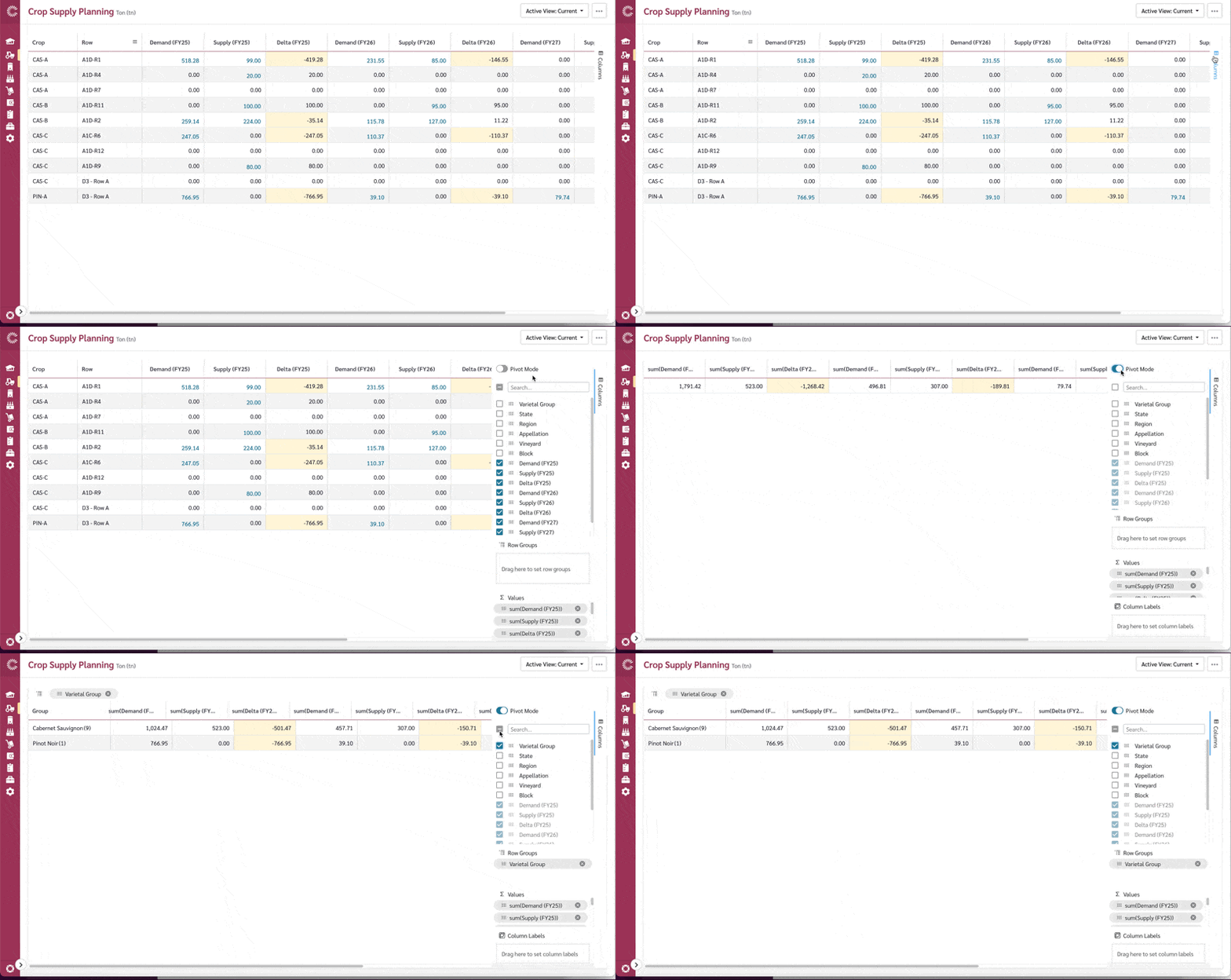
Pivot mode lets you reshape the grid for advanced analysis:

1. **Enable Pivot Mode** from the grid toolbar
2. Configure:
   * **Row Groups** — what to group rows by (e.g., Varietal)
   * **Pivot Columns** — what to pivot on (e.g., Crop Location)
   * **Values** — which measures to display (Demand, Supply, Delta)
3. The grid reshapes to show a cross-tabulation of your data

<figure><img src="/files/qx0TNFqyiGb0qyzVkPVL" alt="Access Pivot Mode"><figcaption><p>Enabling Pivot Mode and configuring row groups, pivot columns, and values</p></figcaption></figure>

{% hint style="info" %}
Pivot mode is powerful for comparing supply positions across locations for the same varietal, or comparing varietals within a location.
{% endhint %}

## Step 6: Export Data

To export the current grid data:

1. Right-click on the grid to open the context menu
2. Select **Export** to download the data as a CSV file

The export includes all visible rows and columns based on your current view and filter settings.

<figure><img src="/files/sRfr2tmgyOaIEQ51Gye9" alt="Export Crop data"><figcaption><p>Exporting the grid data as CSV from the context menu</p></figcaption></figure>

## Understanding the Data

| Term                 | What It Means                                                                                                                                                                      |
| -------------------- | ---------------------------------------------------------------------------------------------------------------------------------------------------------------------------------- |
| **Dependent Demand** | Crop demand calculated from WIP supply plans via recipes — e.g., if Make Planning says you need 100 tonnes of WIP Pinot Noir, recipes determine how much crop Pinot Noir is needed |
| **Direct Demand**    | Crop demand entered directly, not derived from recipes                                                                                                                             |
| **Delta**            | Supply minus demand. Watch for negative deltas — these indicate potential shortfalls                                                                                               |

## Common Questions

### Where does crop demand come from?

Crop demand is calculated from WIP (bulk) supply plans. Recipes define how much of a crop item is needed to make each WIP and these are used to translate the WIP demand to crop demand. The "Dependent Demand" setting in the view configuration controls which supply types feed this calculation.

### What does a negative delta mean?

A negative delta means demand exceeds supply for that crop item and location. You may need to source additional supply, adjust production plans, or revise demand forecasts.

### Can I view data across multiple fiscal years?

Yes. In the view configuration, select multiple calendars. The grid will show demand, supply, and delta columns for each fiscal year, letting you compare positions year over year.


---

# Agent Instructions
This documentation is published with GitBook. GitBook is the documentation platform designed so that both humans and AI agents can read, navigate, and reason over technical content effectively. Learn more at gitbook.com.

## Querying This Documentation
If you need additional information that is not directly available in this page, you can query the documentation dynamically by asking a question.

Perform an HTTP GET request on the current page URL with the `ask` query parameter, and the optional `goal` query parameter:

```
GET https://docs.claret.app/farm/crop-supply-planning/quick-start.md?ask=<question>&goal=<endgoal>
```

`ask` is the immediate question: it should be specific, self-contained, and written in natural language.
`goal` is optional and describes the broader end goal you are ultimately trying to accomplish on behalf of the user. GitBook uses it to tailor the answer towards what is most useful for that goal.

The response will contain a direct answer to the question and relevant excerpts and sources from the documentation.

Use this mechanism when the answer is not explicitly present in the current page, you need clarification or additional context, or you want to retrieve related documentation sections.