> For the complete documentation index, see [llms.txt](https://docs.claret.app/llms.txt). Markdown versions of documentation pages are available by appending `.md` to page URLs; this page is available as [Markdown](https://docs.claret.app/application-maintenance/saml-manager/saml-2.0-with-okta.md).

# SAML 2.0 with Okta

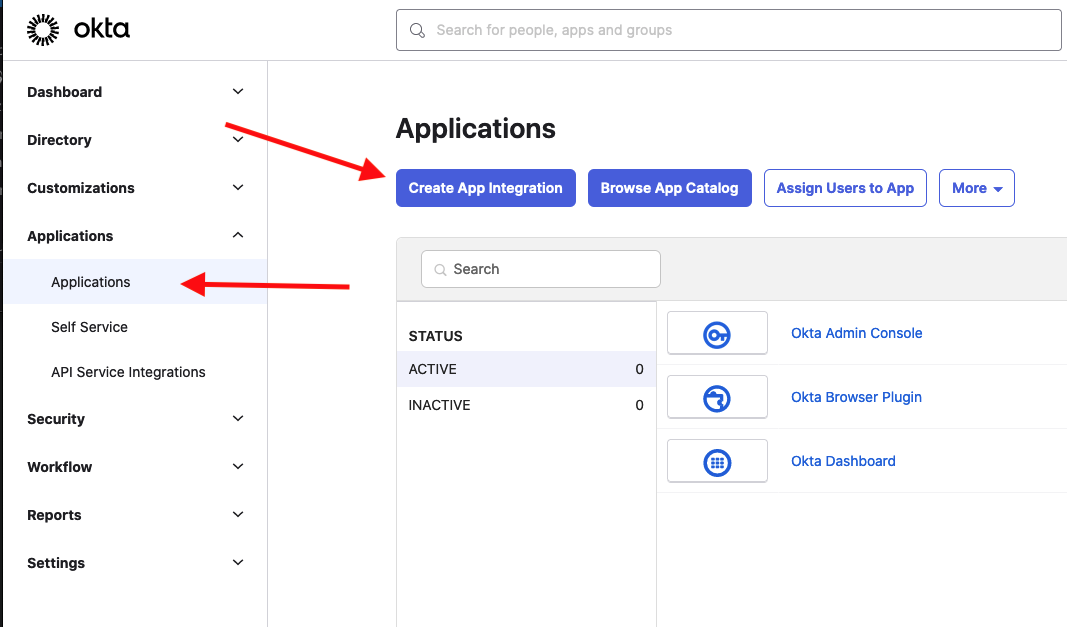
**Step One:** Within your enterprise/company Okta account, click on "Create App Integration" from the "Applications -> Applications" menu.

<figure><img src="/files/WLK9sKSF5nt5ESpDcwDw" alt=""><figcaption><p>Create App Integration</p></figcaption></figure>

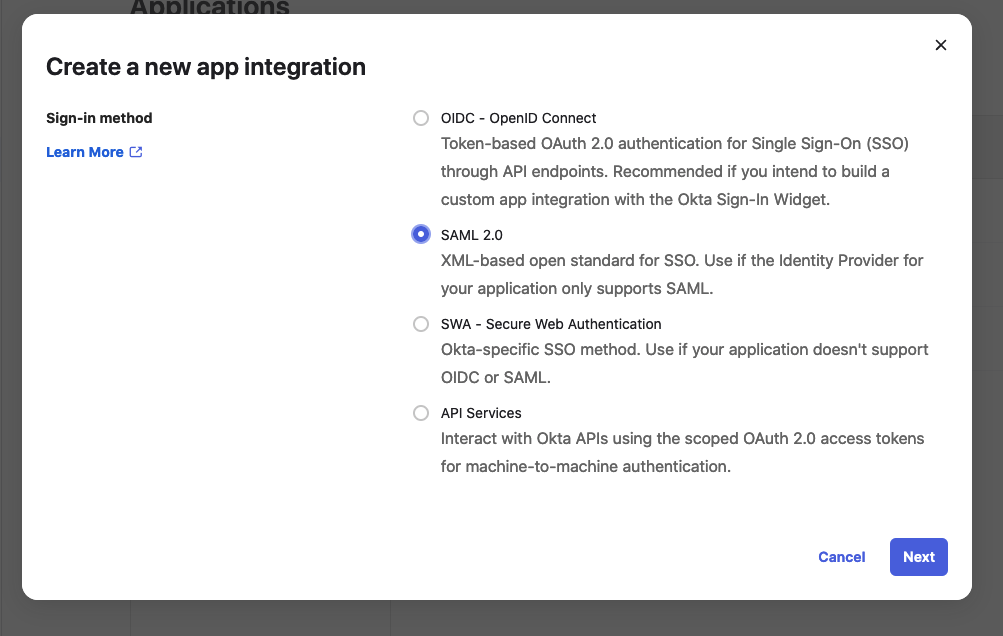
**Step Two:** On the Sign-in method modal, select SAML 2.0

<figure><img src="/files/tqqeE9dPMFeTUCvykCM8" alt=""><figcaption><p>Select SAML 2.0 as the Sign-in method</p></figcaption></figure>

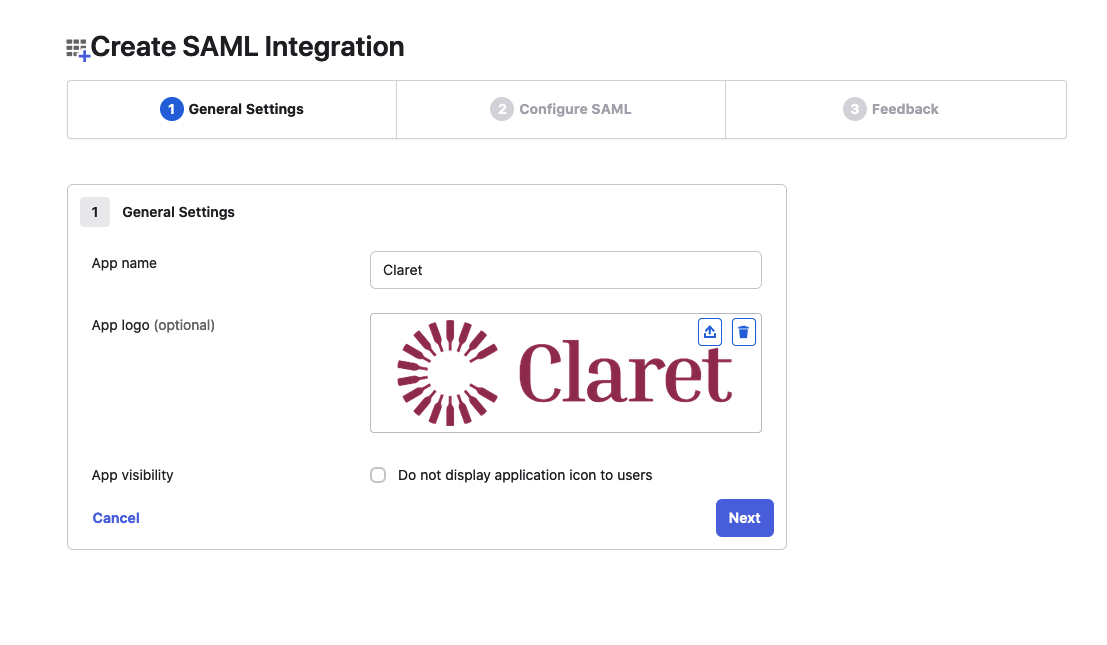
**Step Three:** Name your Claret integration application ("Claret" will work nicely), and feel free to use the logo image below for the logo. This is your own internal application, so whether you use the logo and what you decide to name the application is entirely up to you.

<figure><img src="/files/5uIGaVtRzIS4JaBC4wXj" alt=""><figcaption><p>Name your Integration Application and optionally use our Logo</p></figcaption></figure>

<figure><img src="/files/W1XNNQW0whdiCPHynGF3" alt=""><figcaption><p>Feel free to download this image for use in your Integration Application</p></figcaption></figure>

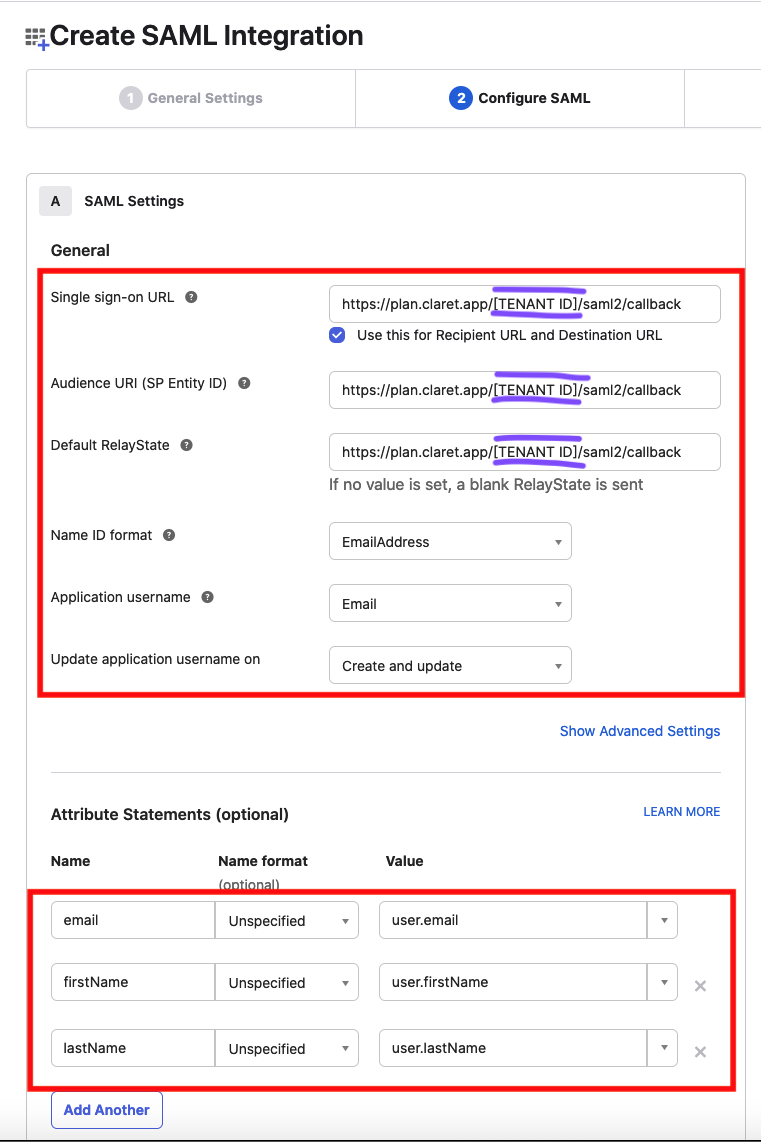
**Step Four:** Add the following details to the SAML Settings in the "Configure SAML" tab:

{% hint style="info" %}
**NOTE:** All references to `{your_tenant_id}` in the URLs below should be replaced with the tenancy ID (which is a string) for your Claret instance.

For example, our `demo` instance is at `plan.claret.app/demo`. So, `demo` is our tenancy ID there. Our `zymoeno` instance is at `plan.claret.app/zymoeno`. So `zymoeno` is our tenancy ID there.

Therefore, everywhere that `{your_tenant_id}` is referenced below would be replaced with `zymoeno` for our `zymoeno` instance and `demo` for our `demo` instance.
{% endhint %}

#### General Section

1. Single sign-on URL

   This will be <https://plan.claret.app/`{your_tenant_id}`/saml2/callback>

   (e.g. <https://plan.claret.app/`zymoeno`/saml2/callback>)
2. Audience URI (SP Entity ID)

   This will be <https://plan.claret.app/`{your_tenant_id}`/saml2/callback>

   (e.g. <https://plan.claret.app/`zymoeno`/saml2/callback>)
3. Default Relay State

   This will be <https://plan.claret.app/`{your_tenant_id}`/saml2/callback>

   (e.g. <https://plan.claret.app/`zymoeno`/saml2/callback>)
4. Name ID format

   This will be EmailAddress
5. Application username

   This will be Email
6. Update application username on

   This will be Create and update

#### Attribute Statements

* email \[Unspecified] => user.email
* firstName \[Unspeficified] => user.firstName
* lastName \[Unspecified] => user.lastName

<figure><img src="/files/vMdjd18juz3vJbiolFMc" alt=""><figcaption><p>Integration Details - All required - Replace [TENANT ID] with your tenancy name</p></figcaption></figure>

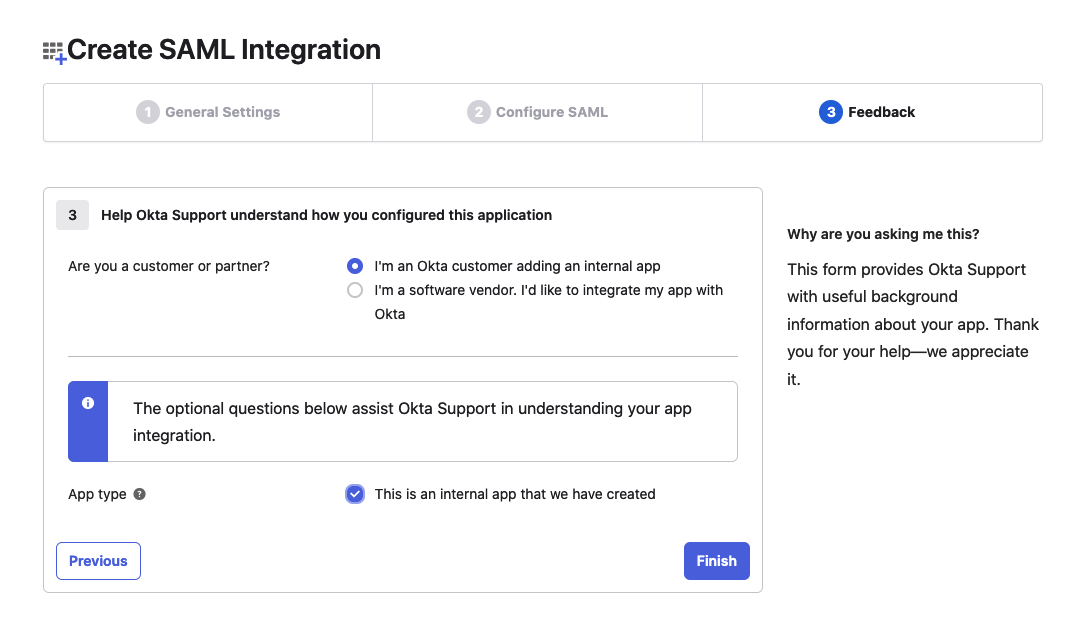
**Step Five:** Feedback Tab

Answer the questions in this tab as follows:

1. Are you a customer or partner?

   Select: "I'm an Okta customer adding an internal app"
2. App type

   Select "This is an internal app that we have created"

<figure><img src="/files/in9QjTtC9pV56szm76yf" alt=""><figcaption><p>Feedback Tab answers</p></figcaption></figure>

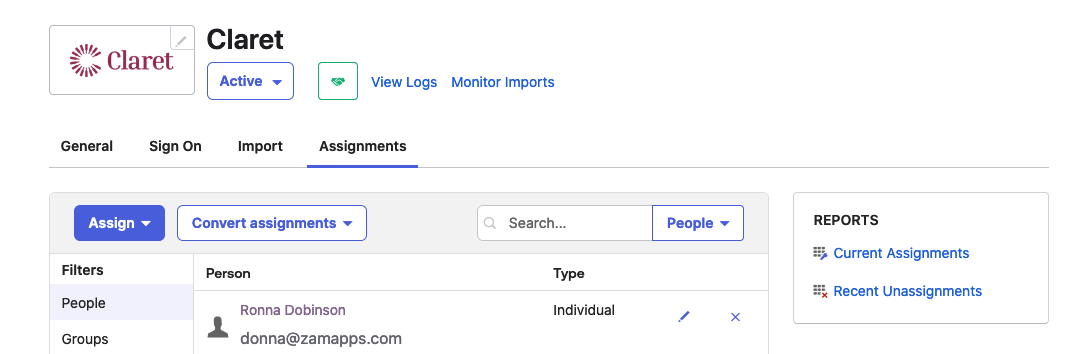
<mark style="color:yellow;">**NOTE:**</mark> <mark style="color:yellow;">within your Okta application, you will be able to assign users and groups to the Claret SSO integration application under the "Assignments" tab.</mark>

<figure><img src="/files/G4GOZ513WoEeENCxjEhU" alt=""><figcaption><p>Your company users can be assigned to the SSO integration access in the "Assignments" tab of the Claret Application integration</p></figcaption></figure>

### Connect to Claret

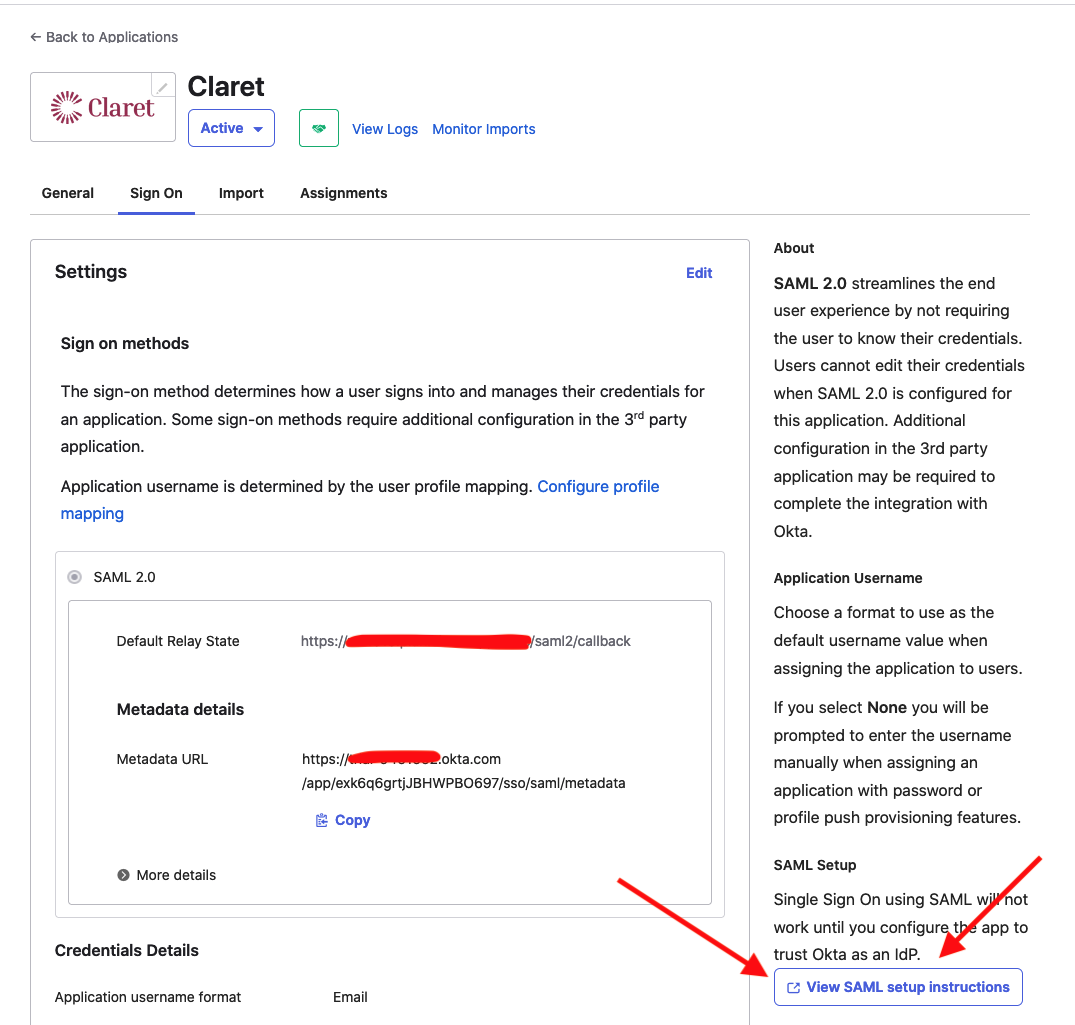
Once the Integration application is set up, you will see some information in the "Sign On" tab. At the bottom of this screen, you will see a button that reads "View SAML setup instructions". Click this button.

<figure><img src="/files/SBQMfKKcQwyzlFwnBvom" alt=""><figcaption><p>Click the "View SAML setup instructions"</p></figcaption></figure>

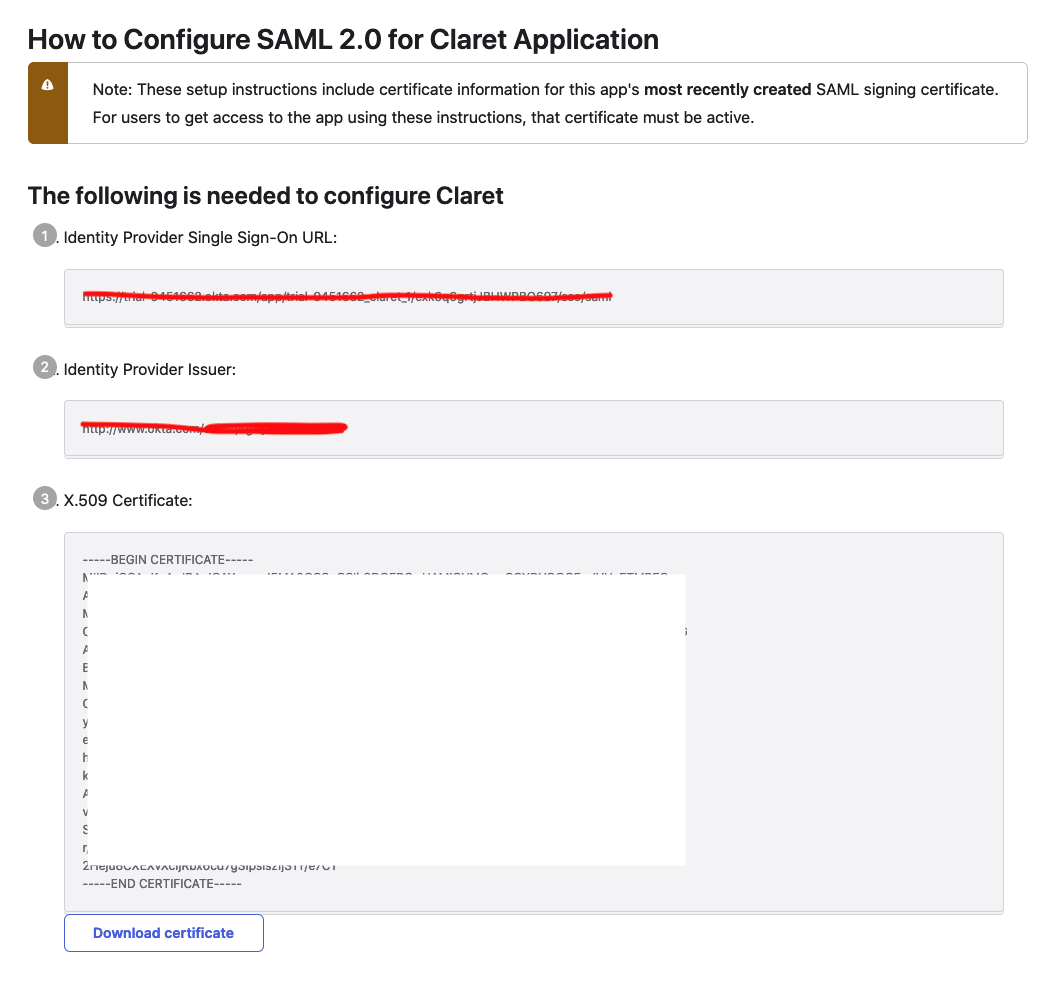
This will open a separate window which will contain the data you will need to associate your new SSO application with Claret. That window will look like the image below.

<figure><img src="/files/m4MyrUDTmvVBxMUG79be" alt=""><figcaption><p>The information on this screen will be input into Claret</p></figcaption></figure>

An Admin user on the Claret application can now input these details as follows:

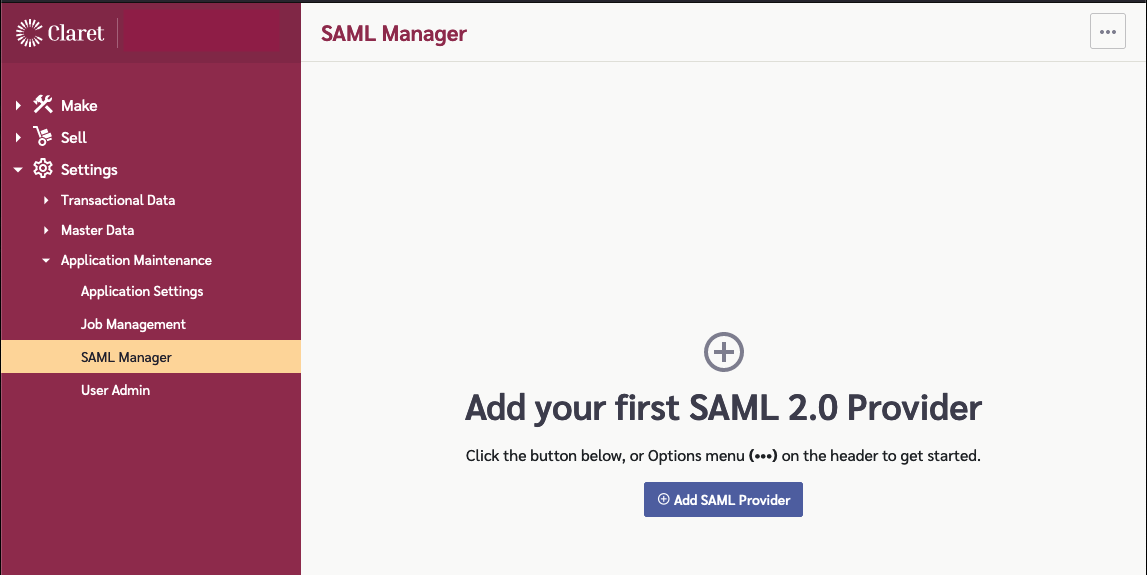
1. Visit <https://plan.claret.app/`{your_tenant_id}`/settings/application-maintenance/saml-manager>

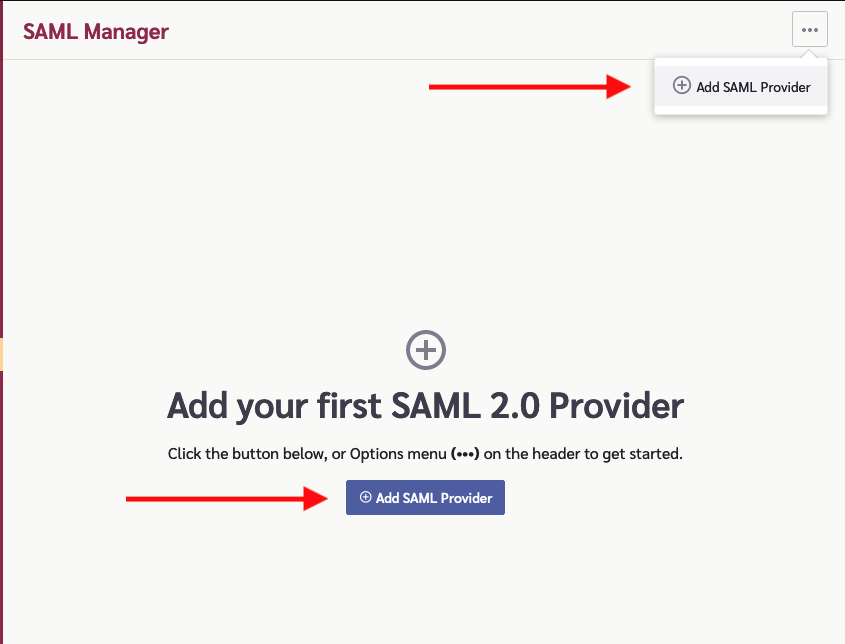
<figure><img src="/files/nWMGGrI79s7uxKlOVdhS" alt=""><figcaption><p>SAML Manager page available to admins on Claret</p></figcaption></figure>

2. You can click on Add SAML Provider on the main screen if this is your first SAML connection, or on the "Add SAML Provider" link in the menu in the upper-right-hand corner of the screen.

<figure><img src="/files/qoRgIvlFjB5gZKVoge3a" alt=""><figcaption><p>Click on "Add SAML Provider" via one of the options above</p></figcaption></figure>

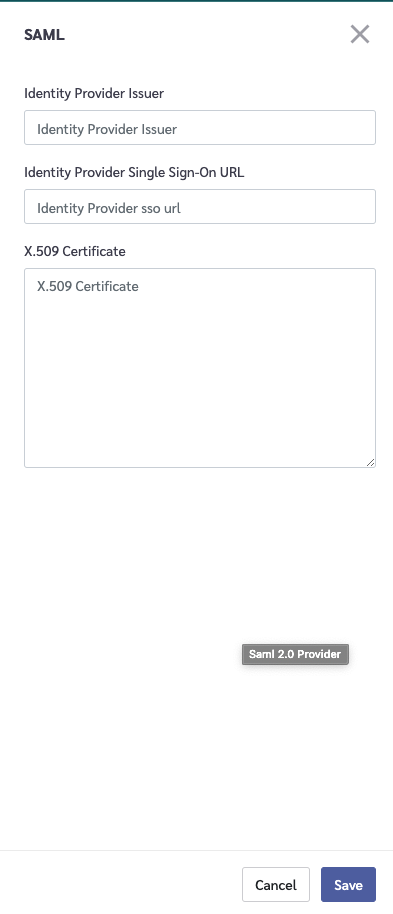
3. The form to add the information that you were provided in the "How to Configure SAML 2.0 for \[Claret] Application" window above can now be entered into the Claret SAML form.

<figure><img src="/files/MP13CvMYRnxyjxL7aUS6" alt=""><figcaption><p>Enter the info in the form and click Save</p></figcaption></figure>

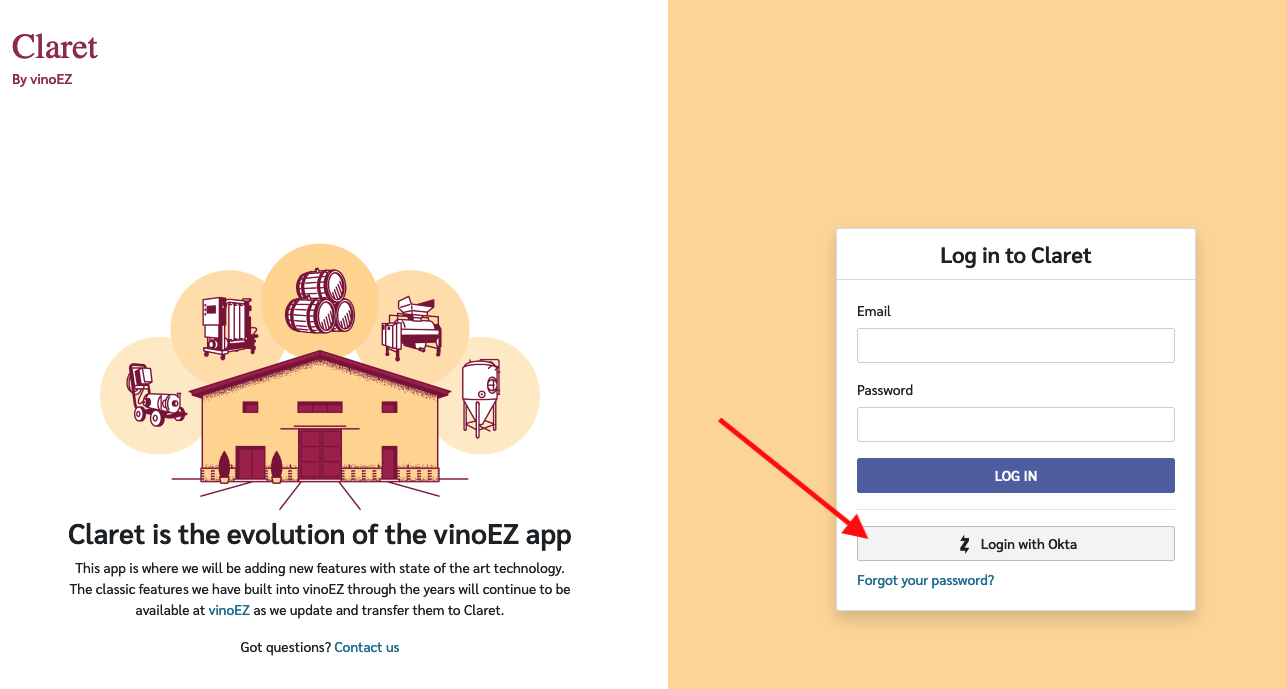
Once the information is submitted, you will see a new option on the Claret login form. Anyone in your Okta application that you have granted access to the Claret integration will be able to use this new "Login with Okta" method to sign in to their existing Claret account.

<figure><img src="/files/rsXbaK7jZ9JkUlAVJmaT" alt=""><figcaption><p>Claret users that are listed in your Okta application Assignment list will be able to use this button to log in.</p></figcaption></figure>


---

# Agent Instructions
This documentation is published with GitBook. GitBook is the documentation platform designed so that both humans and AI agents can read, navigate, and reason over technical content effectively. Learn more at gitbook.com.

## Querying This Documentation
If you need additional information that is not directly available in this page, you can query the documentation dynamically by asking a question.

Perform an HTTP GET request on the current page URL with the `ask` query parameter:

```
GET https://docs.claret.app/application-maintenance/saml-manager/saml-2.0-with-okta.md?ask=<question>
```

The question should be specific, self-contained, and written in natural language.
The response will contain a direct answer to the question and relevant excerpts and sources from the documentation.

Use this mechanism when the answer is not explicitly present in the current page, you need clarification or additional context, or you want to retrieve related documentation sections.